Table of Contents
- Release Notes Portal Version 3.30.0 (available from August 03rd 2026 on)
- Improvements for all FACT24 Editions
Portal Version 3.30

- Release Notes Portal Version 3.30.0 (available from August 03rd 2026 on)
- Improvements for all FACT24 Editions
Release Notes Portal Version 3.30.0 (available from August 03rd 2026 on)
Improvements for all FACT24 Editions
Increased File Size Limit
Documents can be uploaded to FACT24 ENS+ and used across multiple features.
The maximum file size for an individual document has been increased from 10 MB to 30 MB.
Security Improvement
To reduce potential security vulnerabilities, we will further restrict the range of file formats that can be uploaded to FACT24 ENS+.
In addition to the file formats that are already blocked, uploads of the following formats will no longer be permitted:
- ZIP (.zip)
- HTML (.html)
- 7-Zip (.7z)
- Outlook messages (.msg)
These file types may allow malicious actors to embed or distribute harmful content.
This restriction will take effect on 3 August.
Files that have already been uploaded will not be modified or removed and will remain available in the system. However, from this date onward, new files in the affected formats can no longer be uploaded.
More information about file formats
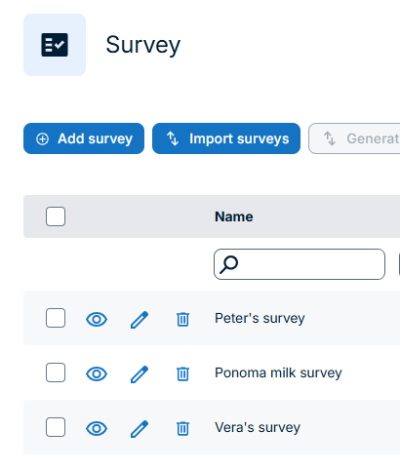
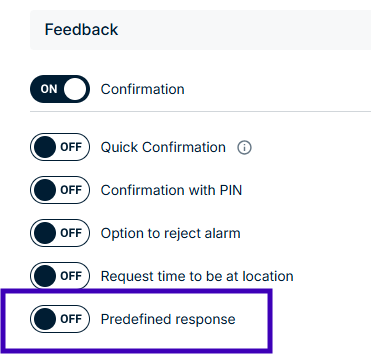
Renaming “Survey" Confirmation to “Predefined Responses”
FACT24 ENS+ previously used the term survey for two different functionalities:
- A survey consisting of a list of questions that can be sent to multiple recipients.
- A confirmation request added to an alarm in which recipients select from predefined response options.
Using the same terminology for both functionalities could be confusing. To make the distinction clearer, the former survey confirmation functionality has been renamed and is now called Predefined Responses.
This will stay as Survey | This will be renamed to “Predefined Responses” |
 |  |
More information about predefined responses
Clearer Information Messages
FACT24 ENS+ now uses clearer and more consistent confirmation, information and warning messages.
The updated design and wording help users understand the importance of each message without making routine actions feel unnecessarily alarming.
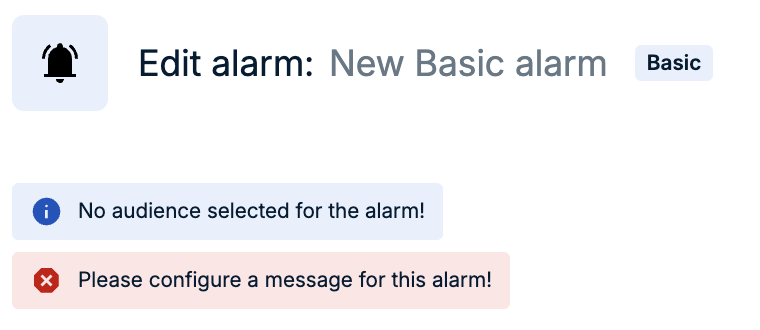
The new messages help users distinguish general information from warnings that require attention:
Green messages | are confirmation messages that an action was saved |
Blue messages | are information and do not stop the user in performing actions |
Yellow messages | represent warnings that the actions they are taking might have an influence on the system, that something may break (example: a limit will be reached) or that there are inconsistencies in the logic |
Red messages | are warnings that the user cannot proceed in the system (example: “Please configure a message for this alarm”. Every alarm needs a message which will be sent to the audience. Alarms can be triggered without a preconfigured audience, when the alarm is configured with dynamic groups. An alarm cannot be triggered or saved without a message.) |
New Icon and Colour picker
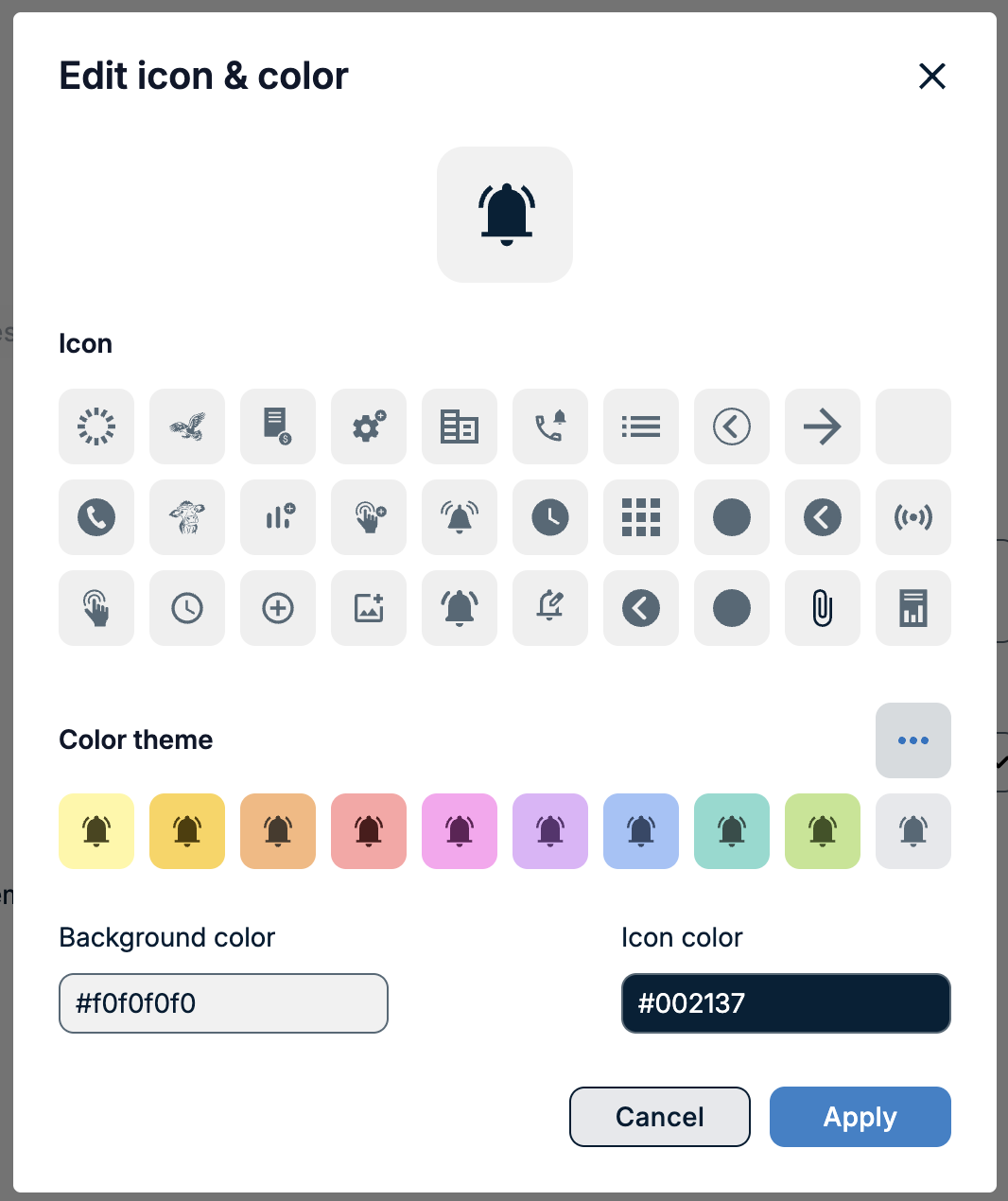
FACT24 ENS+ now provides a standardised selection window for choosing icons and colours across the product.
Users can quickly select from a predefined set of colours and available icons, creating a simpler and more consistent experience.
Basic and Advanced Alarms
FACT24 ENS+ now offers two ways in which an alarm can be configured: Basic alarm and Advanced alarm.
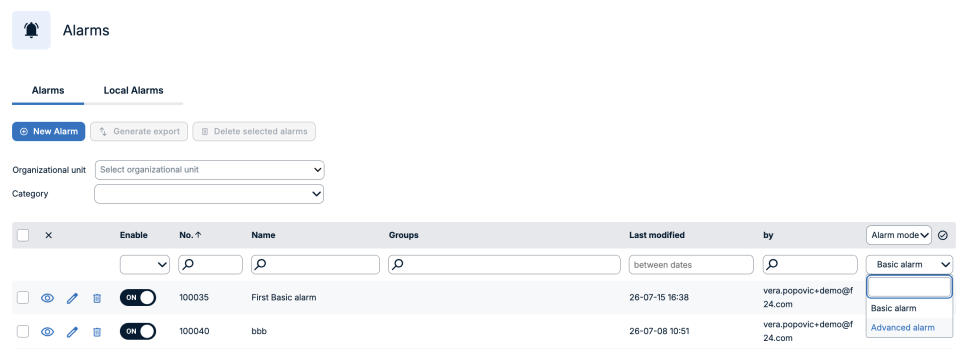
Basic and Advanced alarms can be filtered in the alarm overview table. The user should click on the “Pen” and change the “Status” of the alarm into “Alarm mode”. Then the user can filter to Basic alarm or to Advanced alarm.
Basic Alarm
Basic alarm creation is designed for users who create alarms only occasionally and need a simple, straightforward process.
The new step-by-step Alarm configuration setup focuses on the most important and commonly used settings.
The basic alarm will be stored in the Alarm Cockpit and can be launched as any other pre-configured alarm.
It can also be monitored in the alarm monitor, and reports can de downloaded.
The basic alarm is stored in the Alarm Cockpit, thus saving users time if they want to be better prepared in a crisis situation.
How to setup a basic alarm?
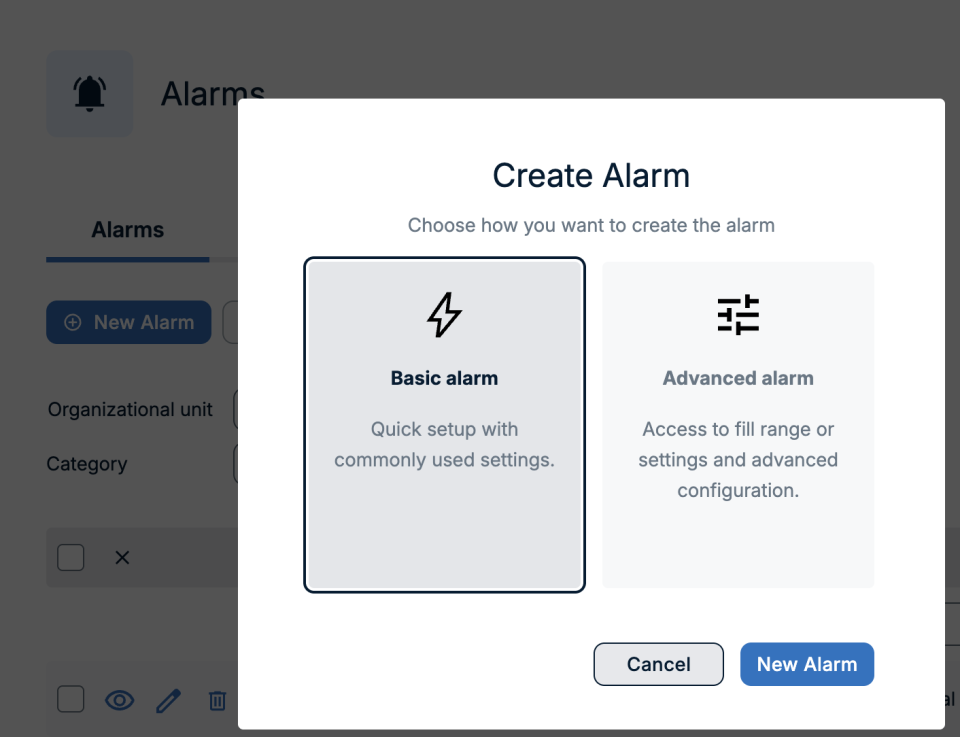
- Click on New Alarm
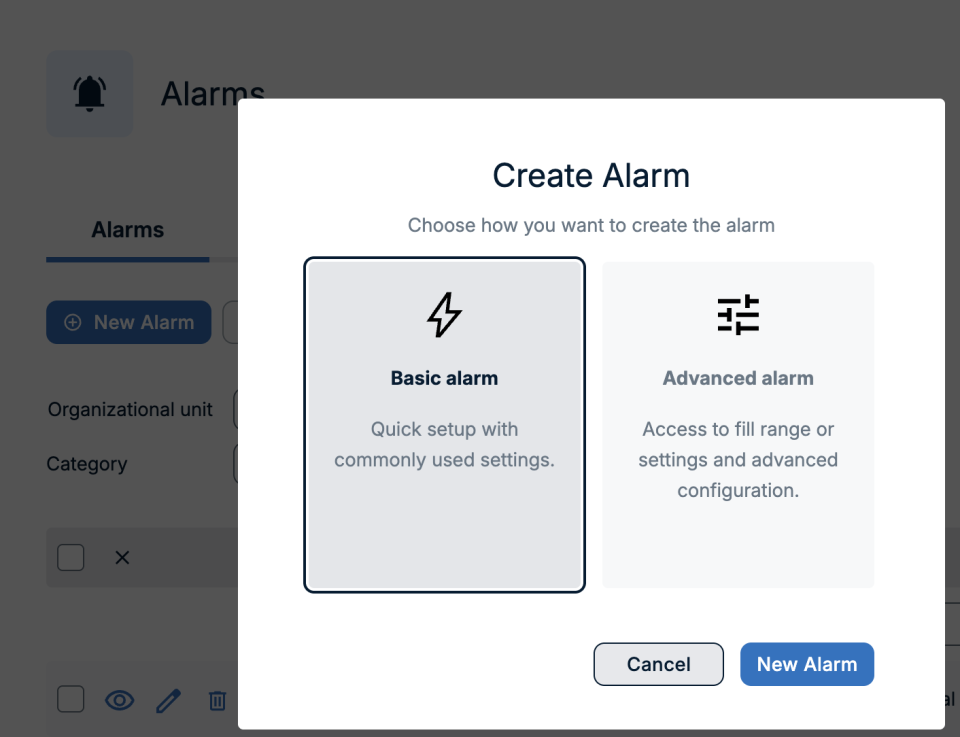
Go to Alarm configuration and click on the “New Alarm” button and select Basic alarm.
- Enter an alarm name
Without an alarm name you cannot create an alarm and proceed further.
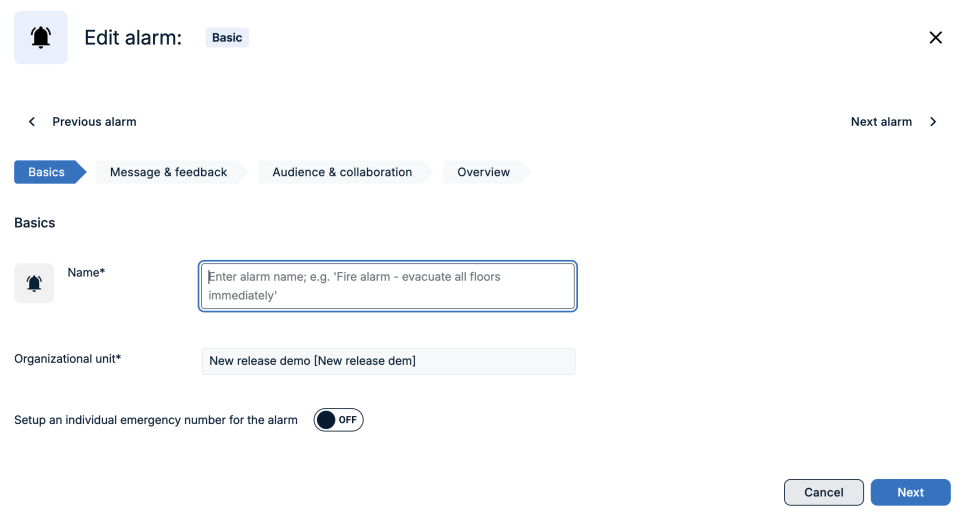
Click on “Next” so that your basic alarm is saved and you will be guided into the next step of alarm creation
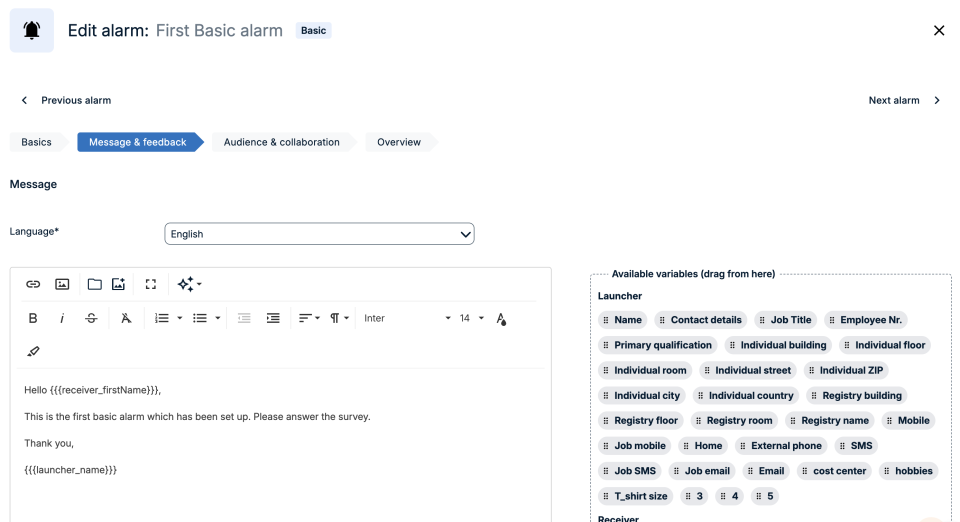
- Add a message
Next step in the alarm creation is writing the message that you would like to send.
In this step you can also attach important documents which will be also sent to the recipients as well as request feedback in the form of a confirmation, confirmation or rejection, arrival time, or a predefined response.
- Add an audience
Third step in the alarm configuration is adding the persons and groups you would like to alarm with the message you wrote.
In this step you can also decide if a chat, audio or video conference are needed for further collaboration and communication during the alarm.
In case you are unsure which device a certain person has, or want to check additional person details, based on the user's permissions in the system, a blue device button will be shown.
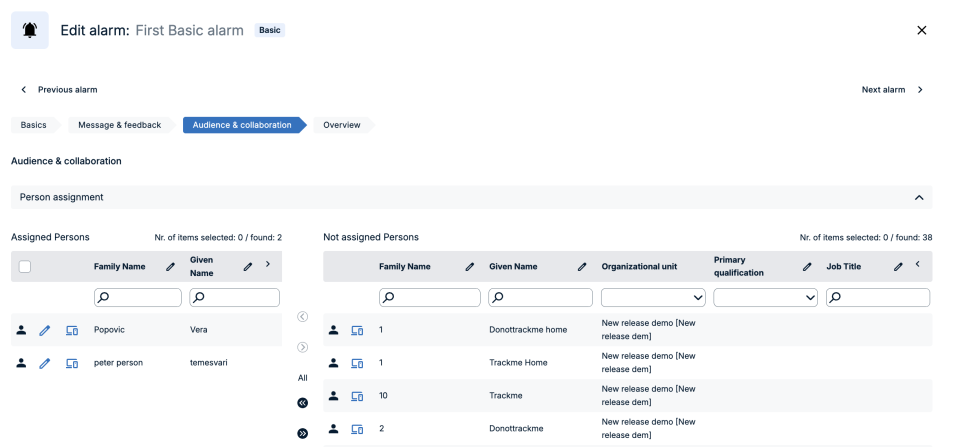
This button allows the User to check person details which are already configured on the person page (example: first name, last name, employee ID, language, device, group membership etc).
The person's details cannot be edited here. If needed person details can be edited on the person page.
- Get an overview
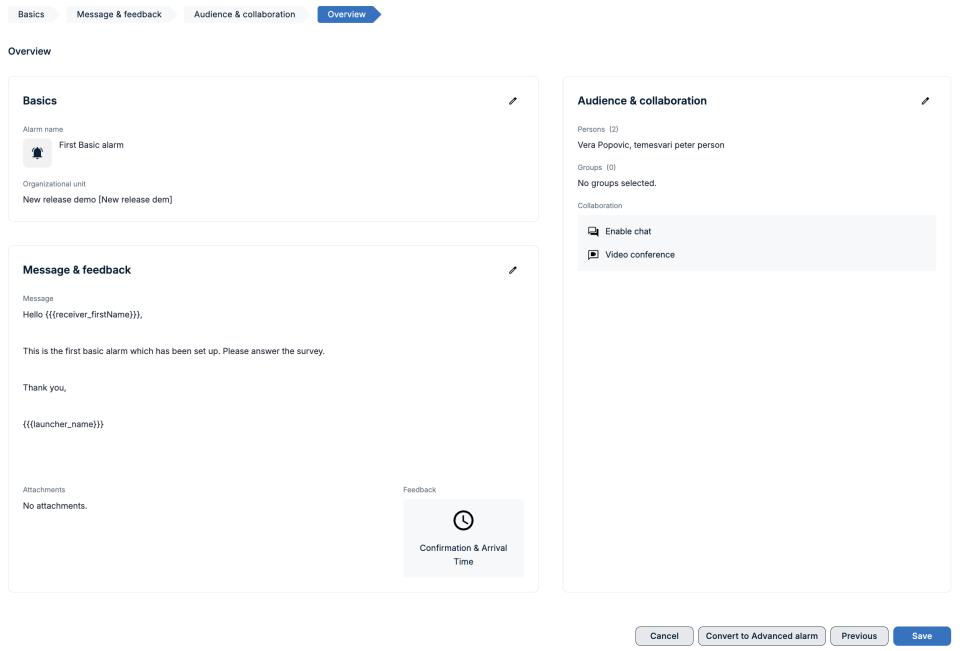
The last step in the Basic alarm configuration is to check that everything you have entered so far is correct.
This is done in the Overview page where the User can see all alarm settings in one place. The User can also choose here to add a group or persons if they are missing or adjust the message in the alarm by clicking on the “pen”. This will redirect the user to the dedicated step in the basic alarm creation where changes can be made.
Advanced Alarms
Advanced alarm creation is for experienced users or users who need to create more complex alarms and alarming scenarios.
The advanced alarm opens up the full potential of FACT24 ENS+ alarm configuration.
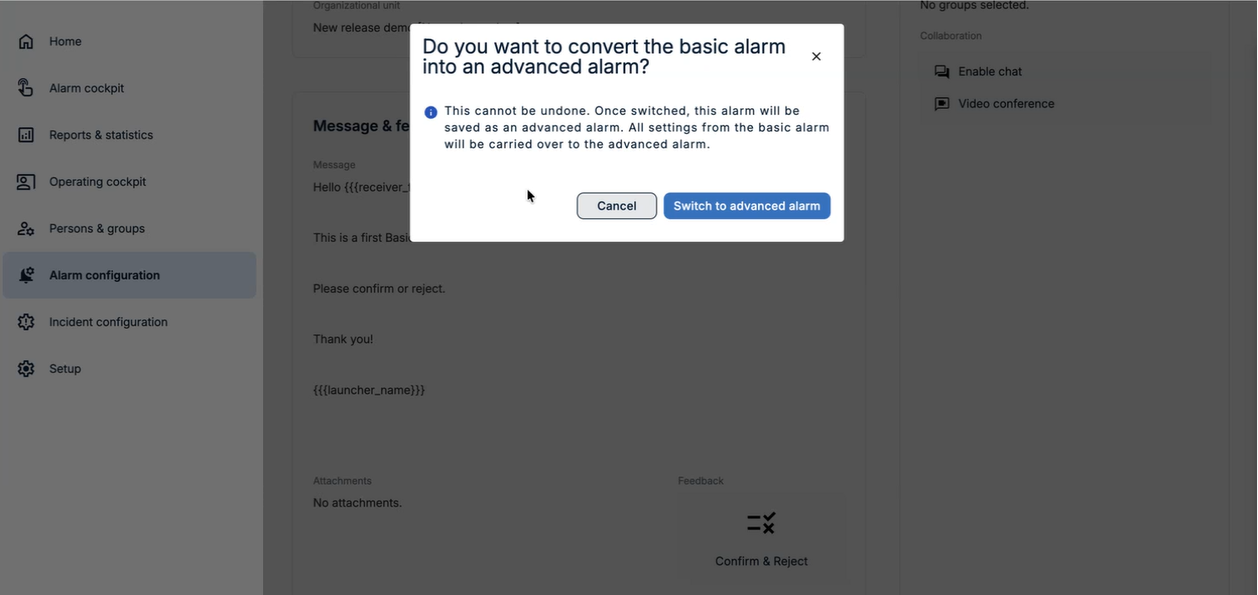
The Basic alarm can be converted into an Advanced alarm which allows the user to get access to full range of settings and advanced configuration. Once a Basic alarm is converted into an advanced alarm it cannot be reverted back into a Basic alarm.
New User role “Setup with Person management”
FACT24 ENS+ introduces a new Setup with person management role.
It combines the permissions of the existing Setup role with full access to person configuration, helping administrators manage users, organisational structures, and linked person records more efficiently.
It allows authorised users to manage the setup section of FACT24 ENS+ and persons with a single role without having a broader scope of the "Principal" role.

Improvements from FACT24 ENS+ essential
Automatically Adding Groups to Profiles
Another usability improvement is available in Profiles on the Launch Settings page.
Previously, when a new group was created and needed to be available for alarm triggering in the mobile application, the group had to be added to the relevant profile manually.
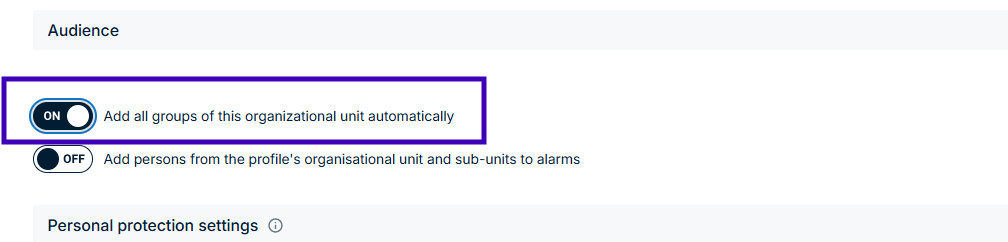
In the new version, this process can be automated using the new Add all groups of this organisational unit automatically toggle. When this option is enabled, all groups belonging to the organisational unit are added automatically, eliminating the need to maintain the group assignments manually.
Increased Limit for Emergency Documents
Emergency documents can be uploaded to a profile and downloaded to the associated mobile devices.
The maximum number of emergency documents that can be uploaded to a profile has been increased from 30 to 50.
Do Not Disturb Override
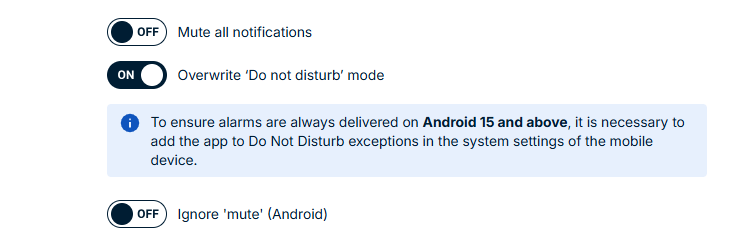
Profiles include an option to override the phone’s Do Not Disturb mode, allowing alarms to be delivered even when this mode is enabled.
However, this functionality is not supported in the same way by all operating systems.
Starting with Android 15, the Do Not Disturb mode can no longer be overridden directly through the profile. Instead, the phone user must enable the required permission on the device.
To ensure that you are aware of this Android requirement, we have added an information message both in the profile and in the mobile application.
More information about Profiles
Editing Alarm Audiences in the Mobile Application
A long-standing request has been to allow persons triggering an alarm in the mobile application to adjust the target audience by adding or removing persons.
By design, persons currently cannot see other persons within the organisation for security reasons.
While this is appropriate for certain use cases, other scenarios require persons to be able to view and select additional recipients.
This visibility is also a prerequisite for editing the target audience of an alarm during the mobile triggering process.
For this purpose, we have introduced a new profile option: Add persons from the profile’s organisational unit and subunits to alarms.
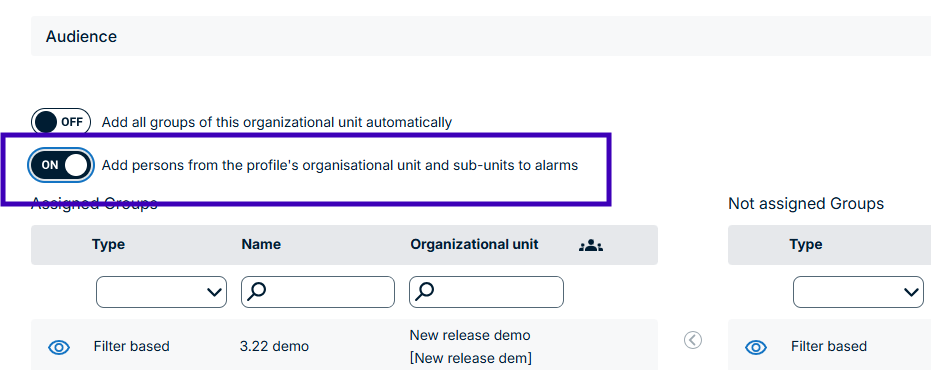
When this option is enabled, persons using the FACT24 ENS+ and CIM app will be able to adjust the alarm audience with the next mobile release.
The same permission is also used for video conference management. It allows persons to add further participants to a conference room.
Please note that editing the target audience must also be enabled in the relevant alarm settings. This configuration is available on the Audience and Channel page, within the Audience accordion, through the following options:
- Allow user to edit persons and groups prior to start of alarm
- Override existing groups and persons
Improvements from FACT24 ENS+ advanced
Information Hotline:
These new capabilities are additions to the Information Hotline functionality already available today.
Advanced Information Hotline
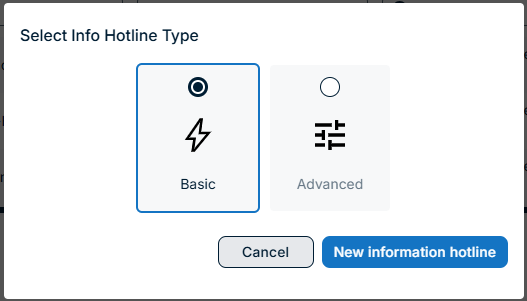
In addition to the existing Basic Information Hotline, we are introducing a new Advanced Information Hotline with the extended features described below.
The Advanced Information Hotline must be activated individually for each customer. To use these features, please contact your F24 representative.
Local telephone numbers
Until now, only German telephone numbers have been available for the Information Hotline.
Customers can now select telephone numbers from the following countries:
- Germany
- Austria
- Switzerland
- Spain
- France
- Belgium
- Denmark
- UK
- Norway
- Sweden
Customizable voice messages
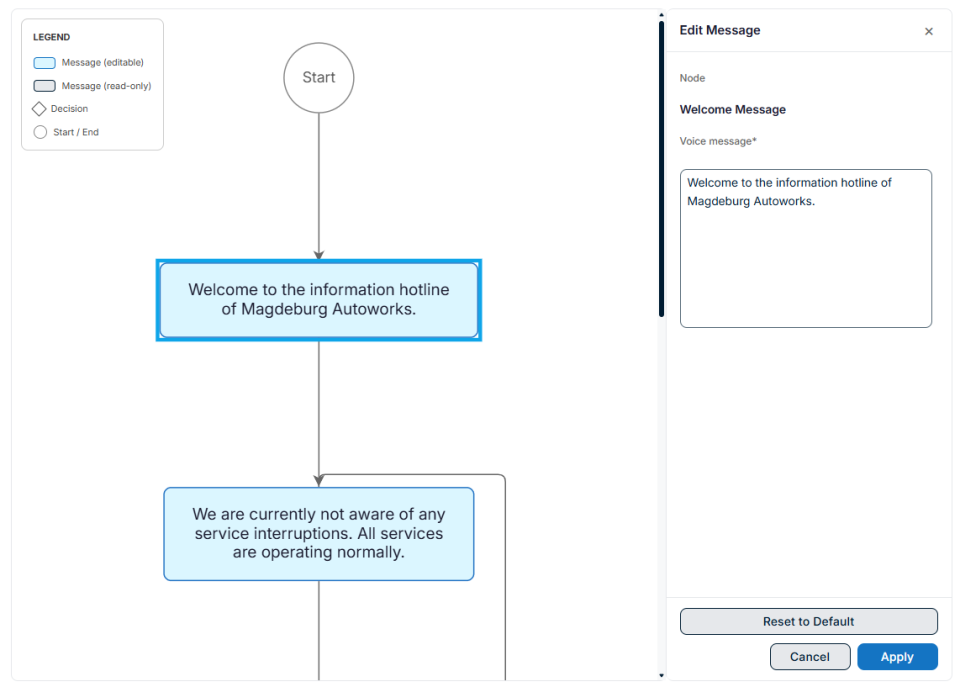
Administrators can now customize the messages callers hear during the telephone call.
This makes it possible to provide more personal communication and to adapt the hotline messages to a specific customer, situation, or use case.
Improved configuration and usability
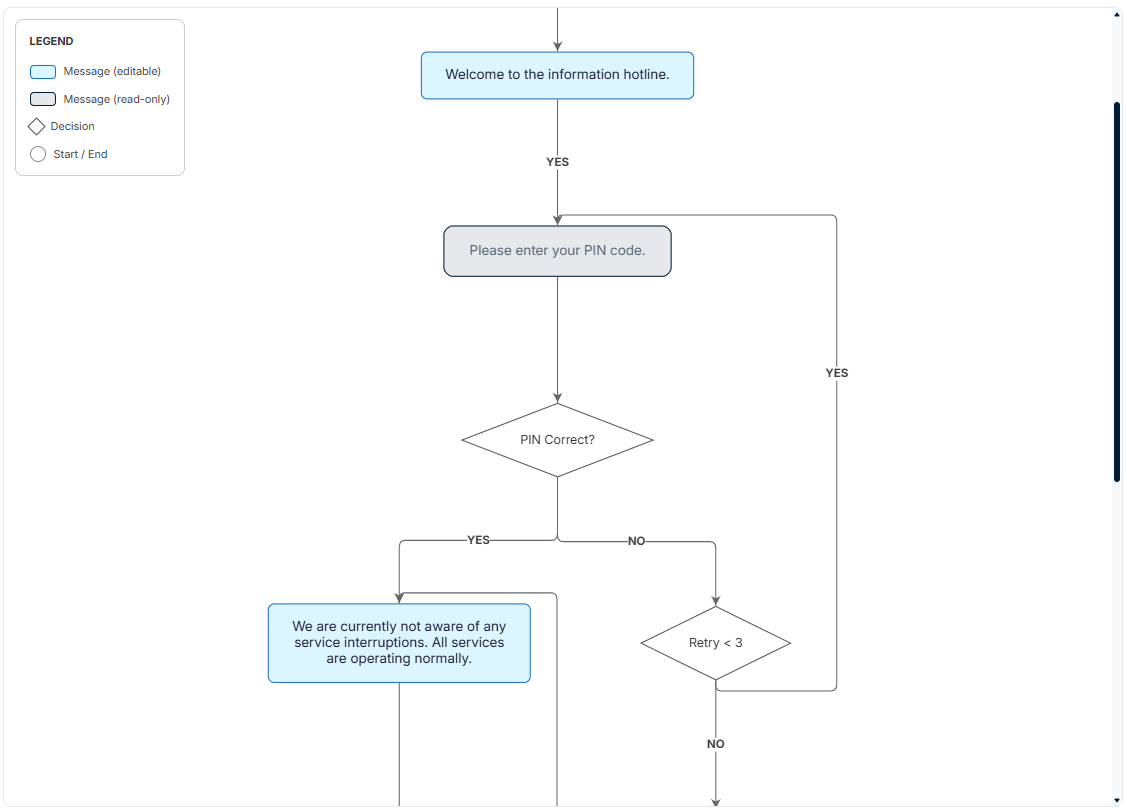
The configuration and overall understanding of the Information Hotline service has been simplified.
The user interface will include a flow diagram showing the complete process a caller goes through when calling the Information Hotline.
This will make the service easier to understand and configure.
More information about Information Hotlines
Find Qualifications Faster with Category Filtering
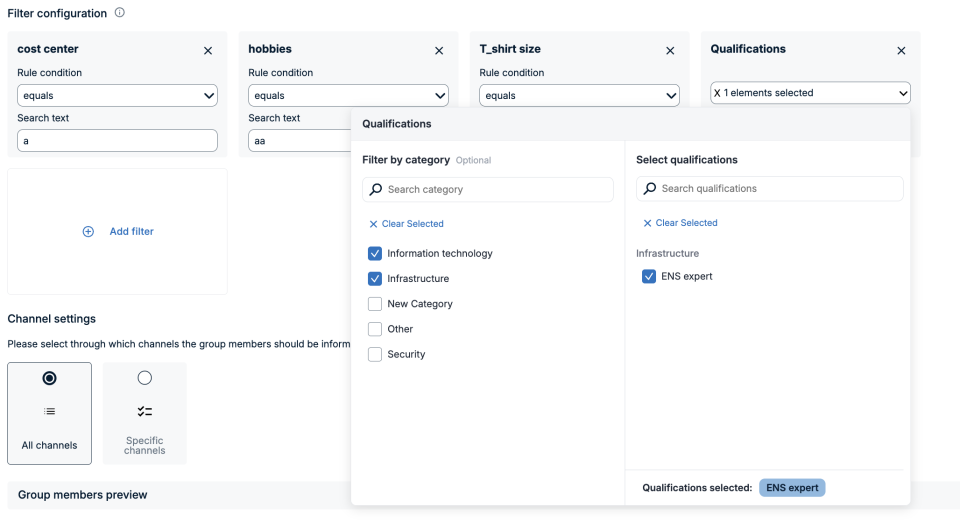
FACT24 ENS+ provides an improved qualification selector with built-in category filtering.
When the selector is opened, users can browse categories and view qualifications grouped under the relevant category names.
Valuable & available for customers with Add-on license
Extended SCIM Synchronization Parameters
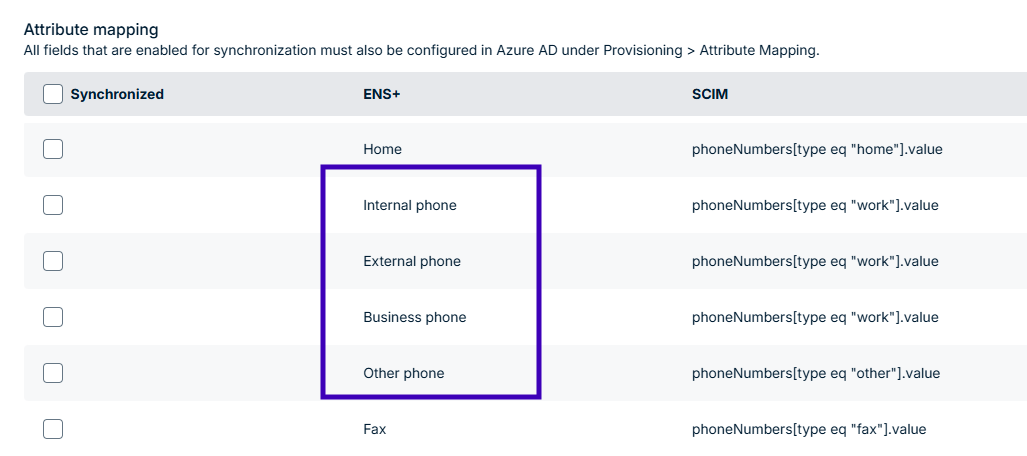
To improve the mapping of data from Microsoft Entra ID to FACT24 ENS+, we have extended the list of synchronized parameters with four additional phone number fields:
- Internal phone
- External phone
- Business phone
- Other phone