Table of Contents
New functions through FACT24 CIM release V.26.01

We are happy to announce improvements with the following new features concerning FACT24 CIM. To provide you with a better overview, we have set up this article to give you a detailed description of the updates with screenshots. These functionalities will be available to you from 07th of May 2026 on.
Improvements for all FACT24 CIM Editions:
Facelift towards a seamless FACT24 experience
What’s New?
This update introduces a more consistent user experience across all FACT24 components and improves accessibility in line with WCAG 2.0, while also delivering practical enhancements that make everyday use simpler and more efficient.
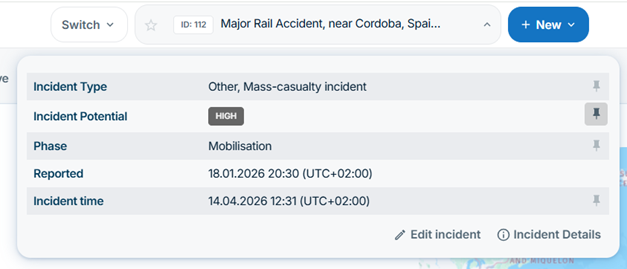
- Centered Incident Widget
The Incident Widget has been moved to the center of the header for better visibility.
- Access the features via an intuitive flyout and dropdown drawer
- Offers the same functionality as before, now with improved structure
- Users can customize displayed content based on their individual preferences (user-level settings)
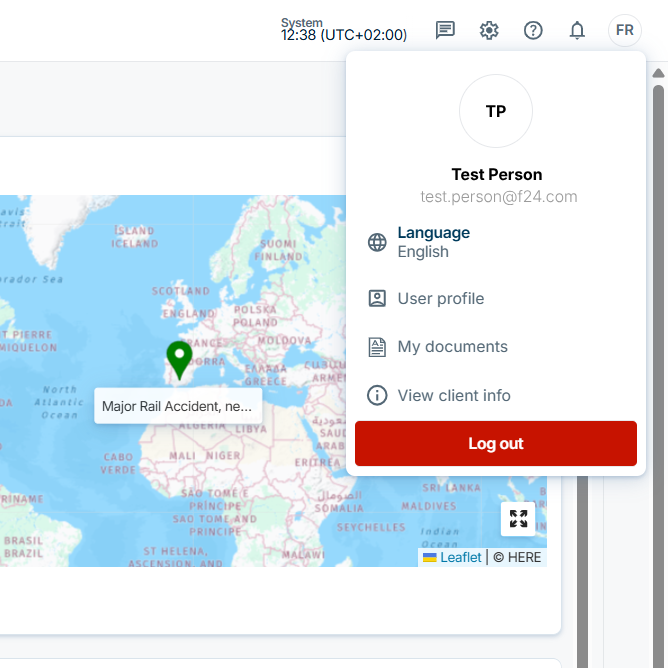
- Enhanced Avatar Menu
The avatar menu now provides direct access to essential user options:
- Language settings
- User Profile
- My Documents
- Logout
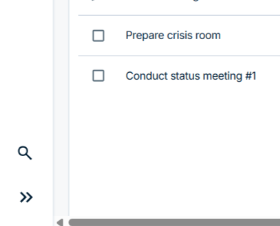
- New Menu Search
A new, powerful search function has been added to the menu:
- Quickly find navigation items and features
- Includes the ability to directly search for CIM functions
Start, monitor & log alarms in FACT24 CIM
What’s New?
FACT24 ENS+ Alarms can now be started, monitored and logged directly in FACT24 CIM.
How does it work?
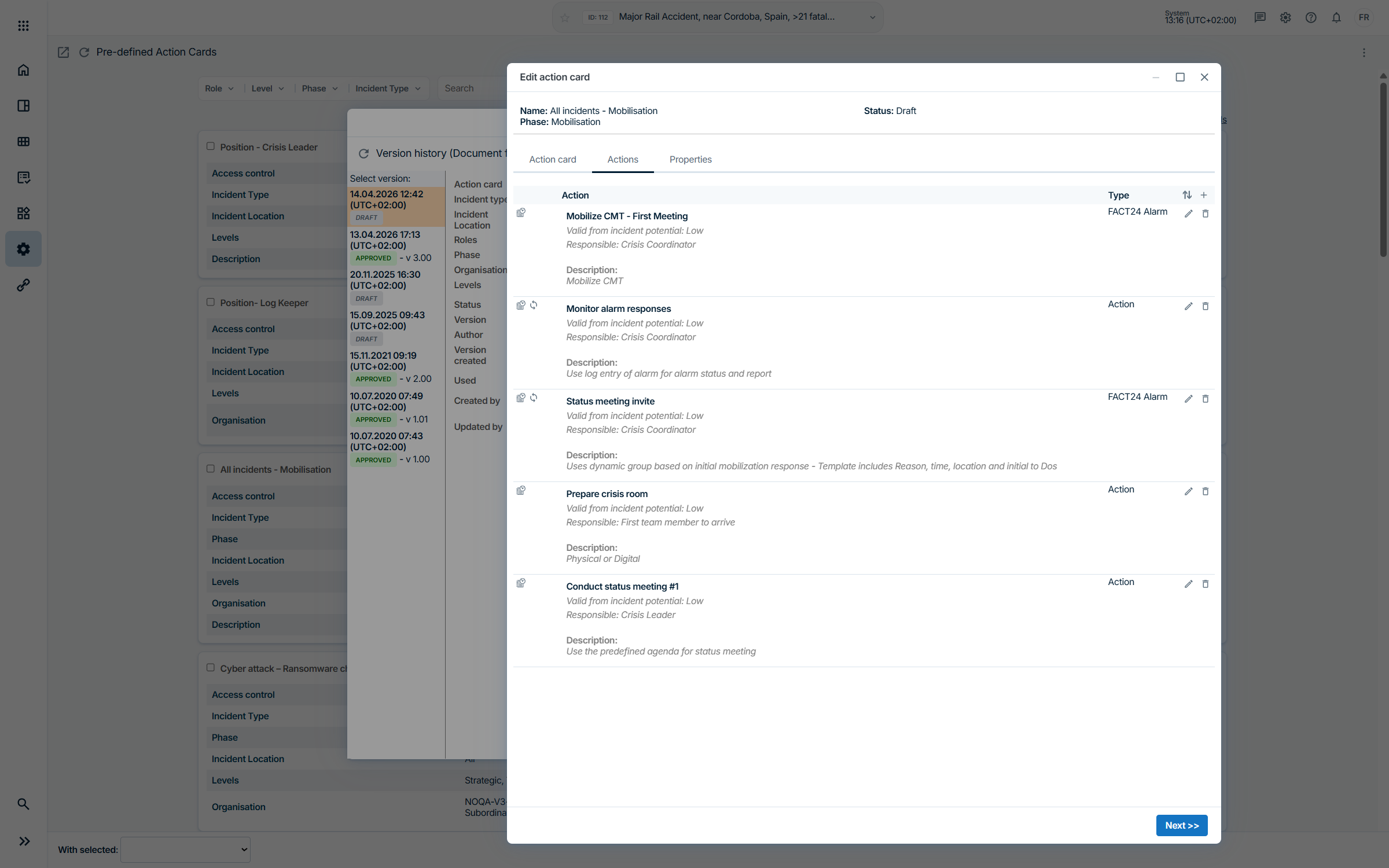
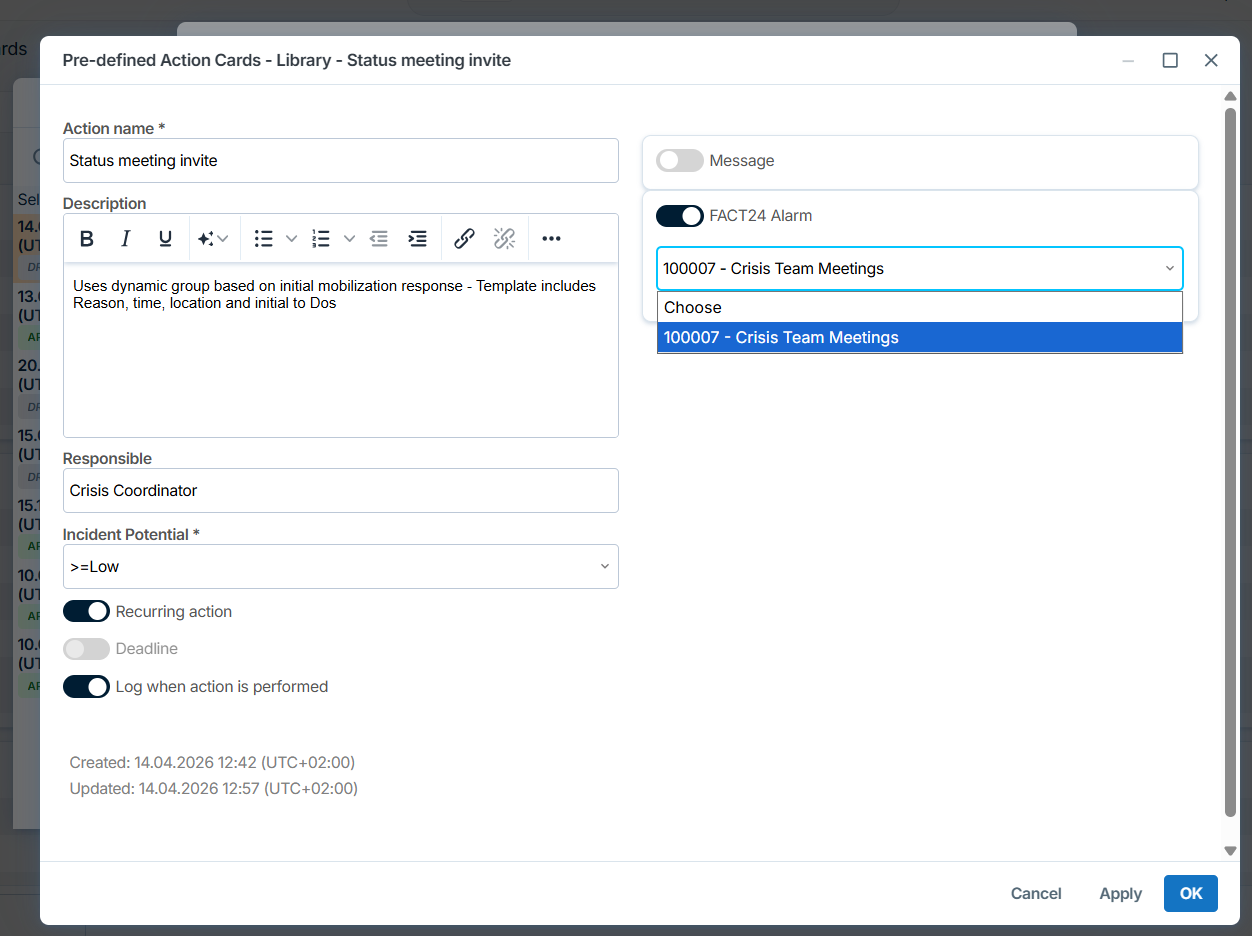
- Admin Setup (Action Cards Library)
The following prerequisites must be met:
- The FACT24 ENS+ alarm must have “API” configured as trigger option in its alarm settings
- The FACT24 CIM Admin must have the appropriate ENS+ role and organizational permissions to see and choose the alarm
- Eligible alarms can then be selected and linked within Action Cards
- Actions using alarms are show as type “FACT24 Alarm”, on the Action Cards they show the Alarm bell icon
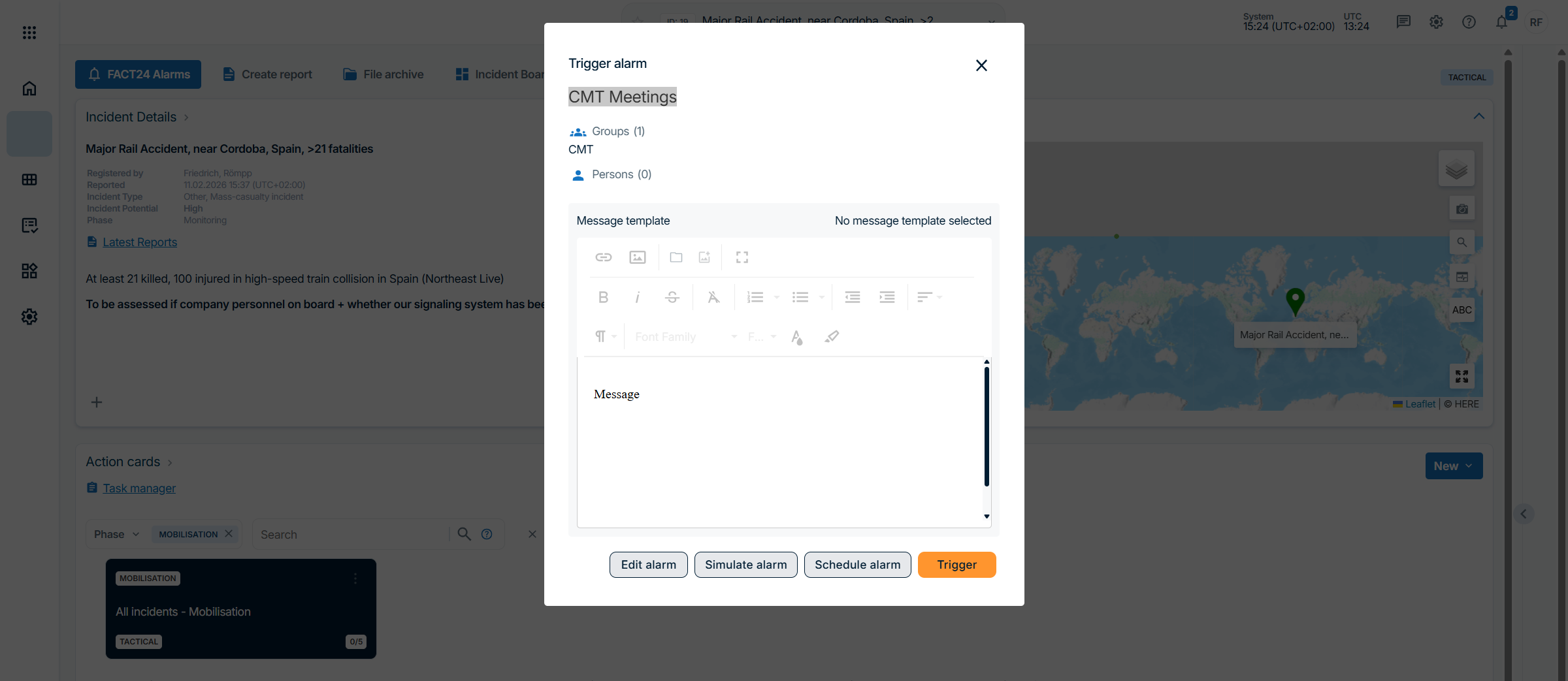
- User View
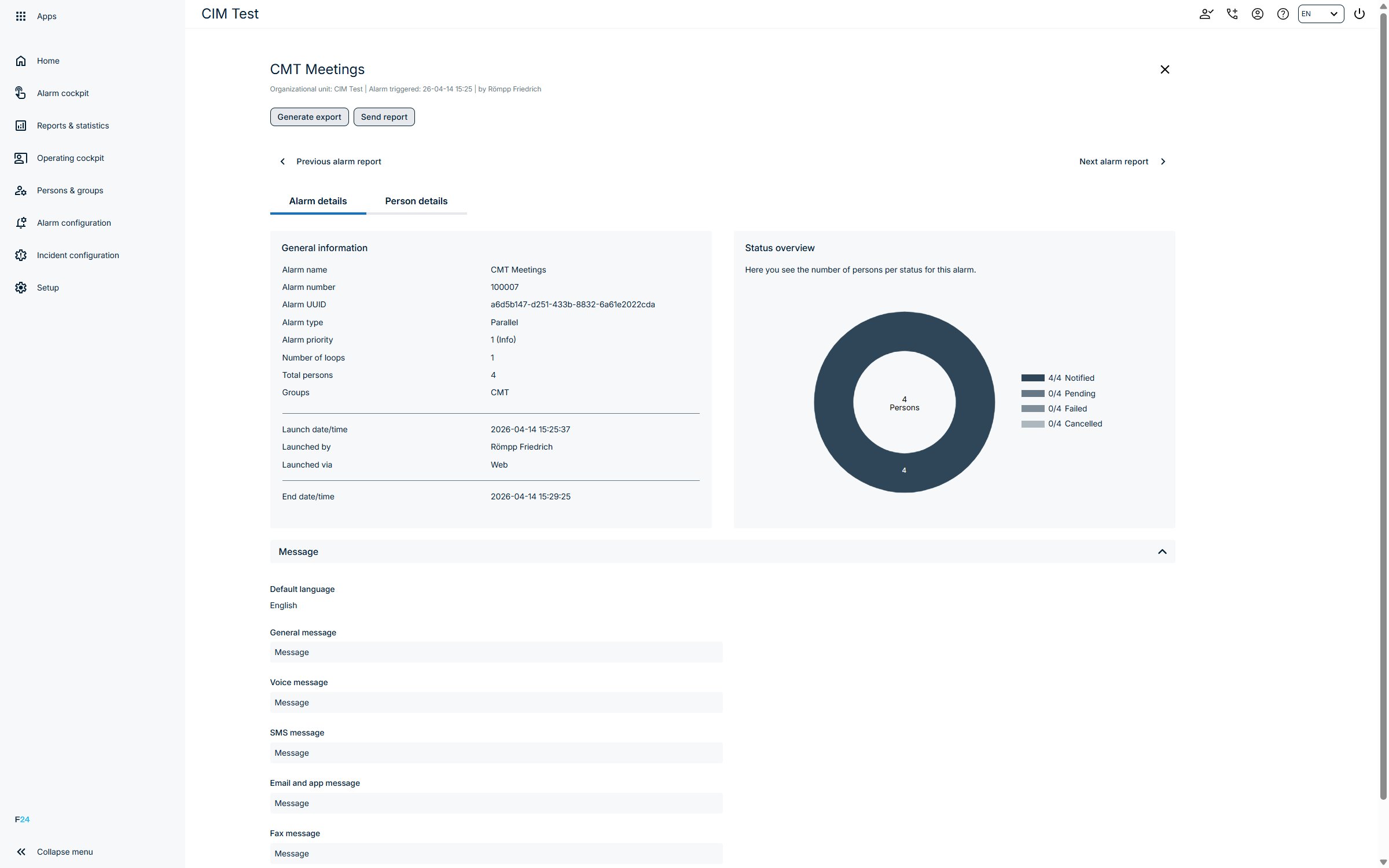
- Users can start an alarm via the familiar launch dialog from FACT24 ENS+ by clicking the alarm bell icon
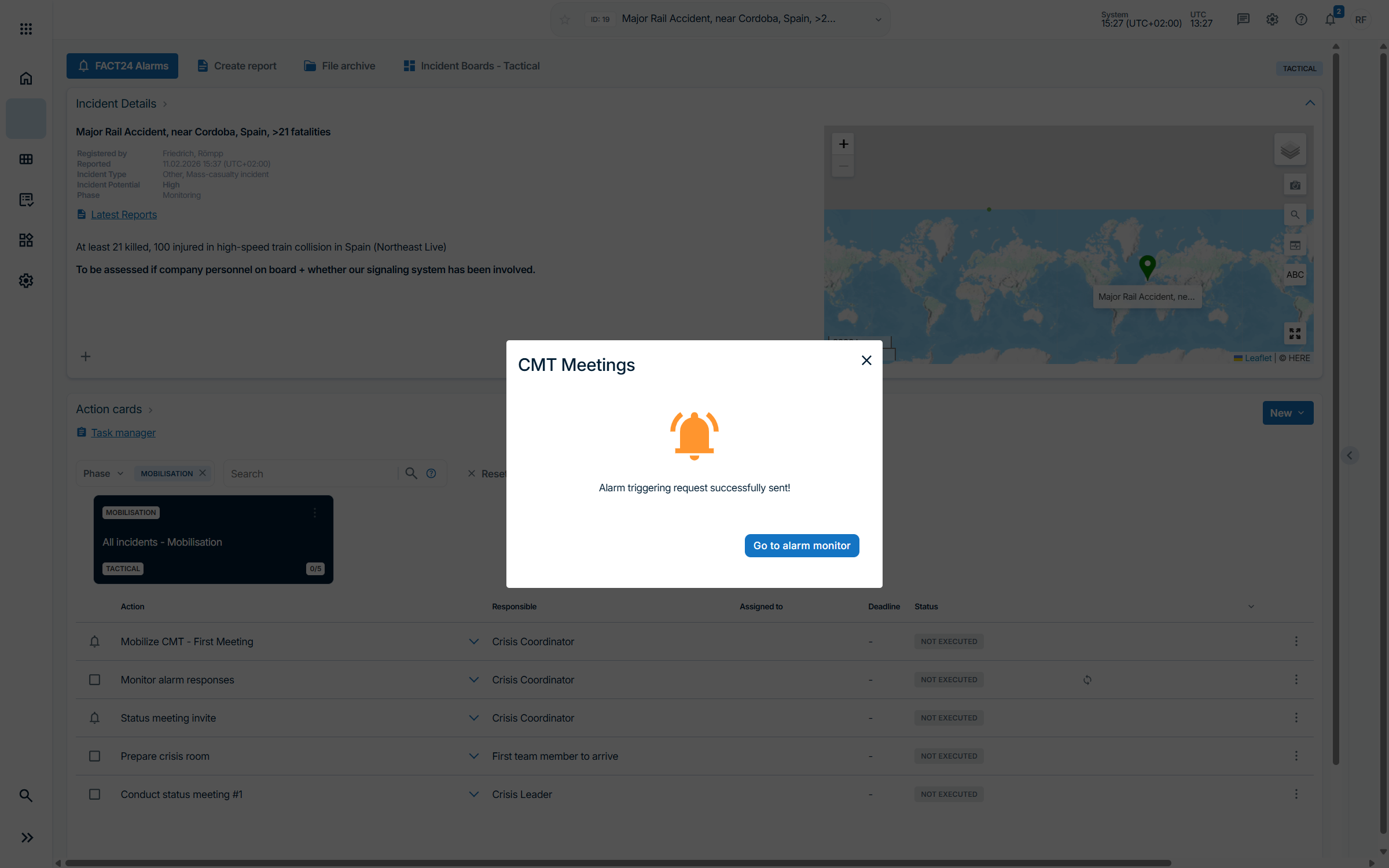
- Users receive a confirmation of successful launch, along with a link to the Alarm Monitor for status monitoring (also accessible later via the log entry)
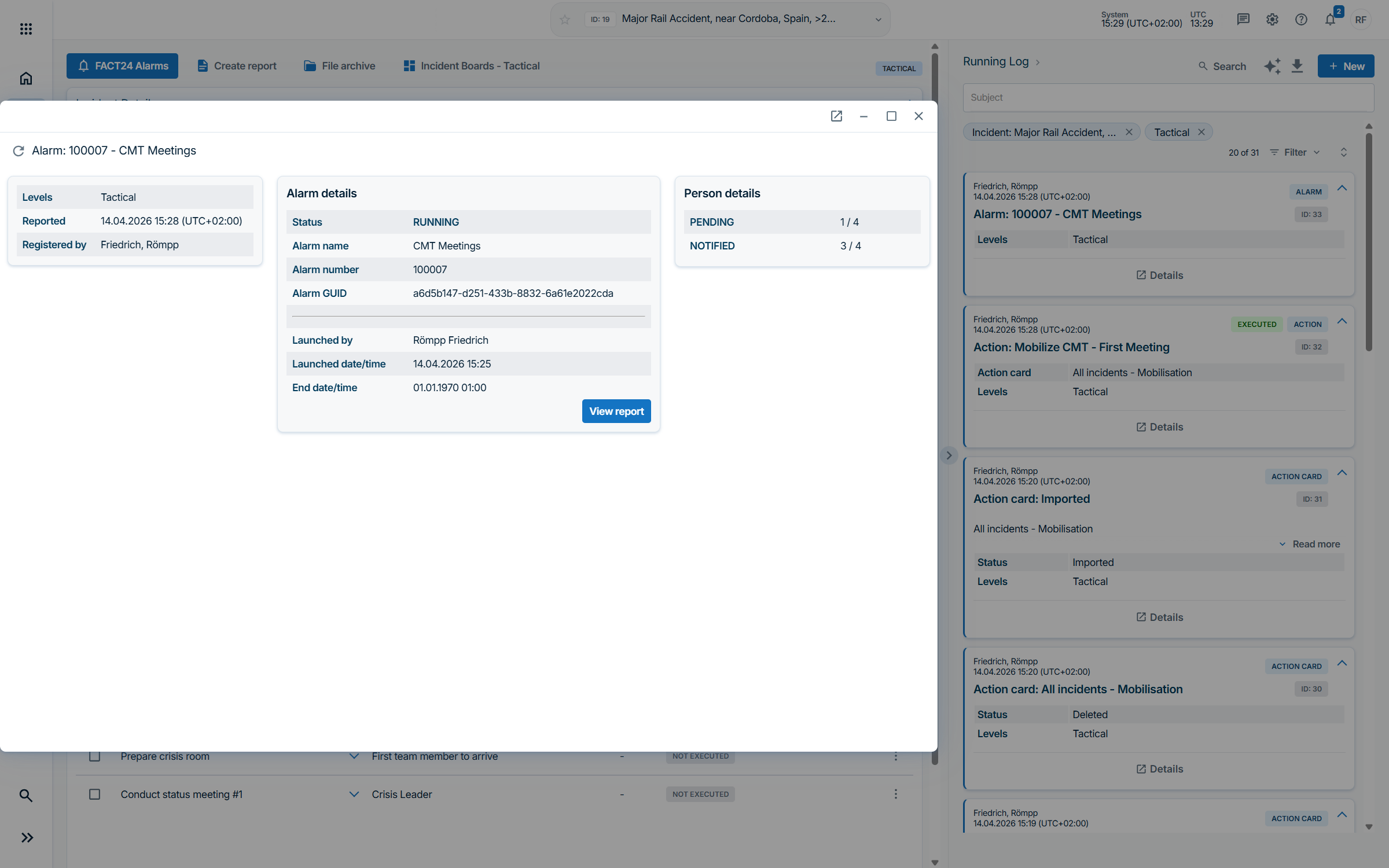
- Running Log visibility
- Alarm execution is documented in the background in the FACT24 CIM Running Log
- By clicking on the log entry details, users can view the current status
- A direct link to the full delivery report in FACT24 ENS+ is available for deeper insights
Access to FACT24 ENS+ File Archive
What’s New?
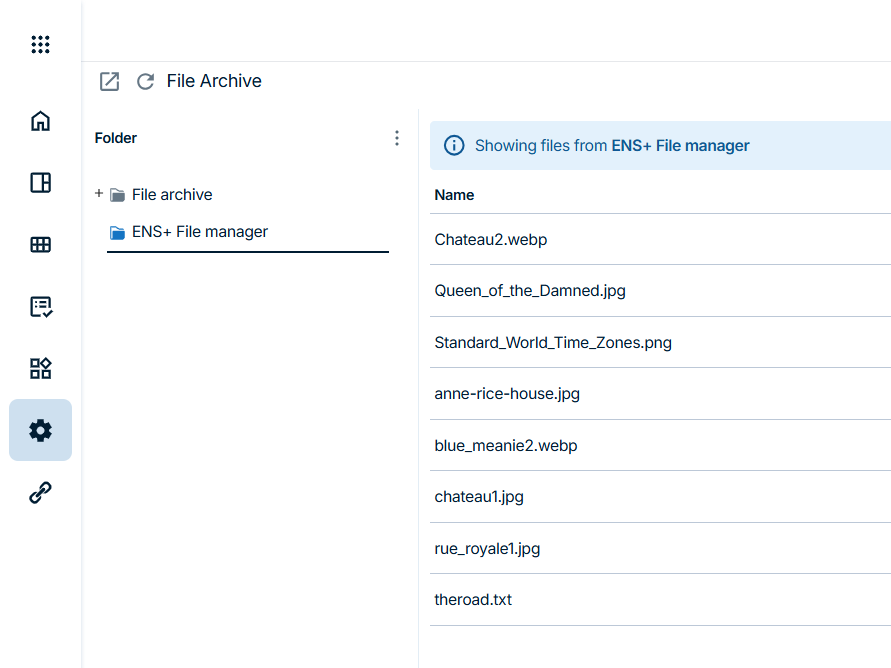
This feature allows files uploaded to the FACT24 ENS+ File Manager to be directly accessible within the FACT24 CIM File Archive, enabling dual-use documents to be uploaded only once.
How does it work?
- Navigate to the File Manager in FACT24 CIM
- A new folder named “ENS+ File Manager” is available
- Users can:
- Preview files directly
- Attach files to incidents or workflows as usual
Access & Permissions
- File access is controlled by existing FACT24 ENS+ roles and organizational permissions
- Users will only see and access files they are authorized to view within their organization
AI Log Summary
What’s New?
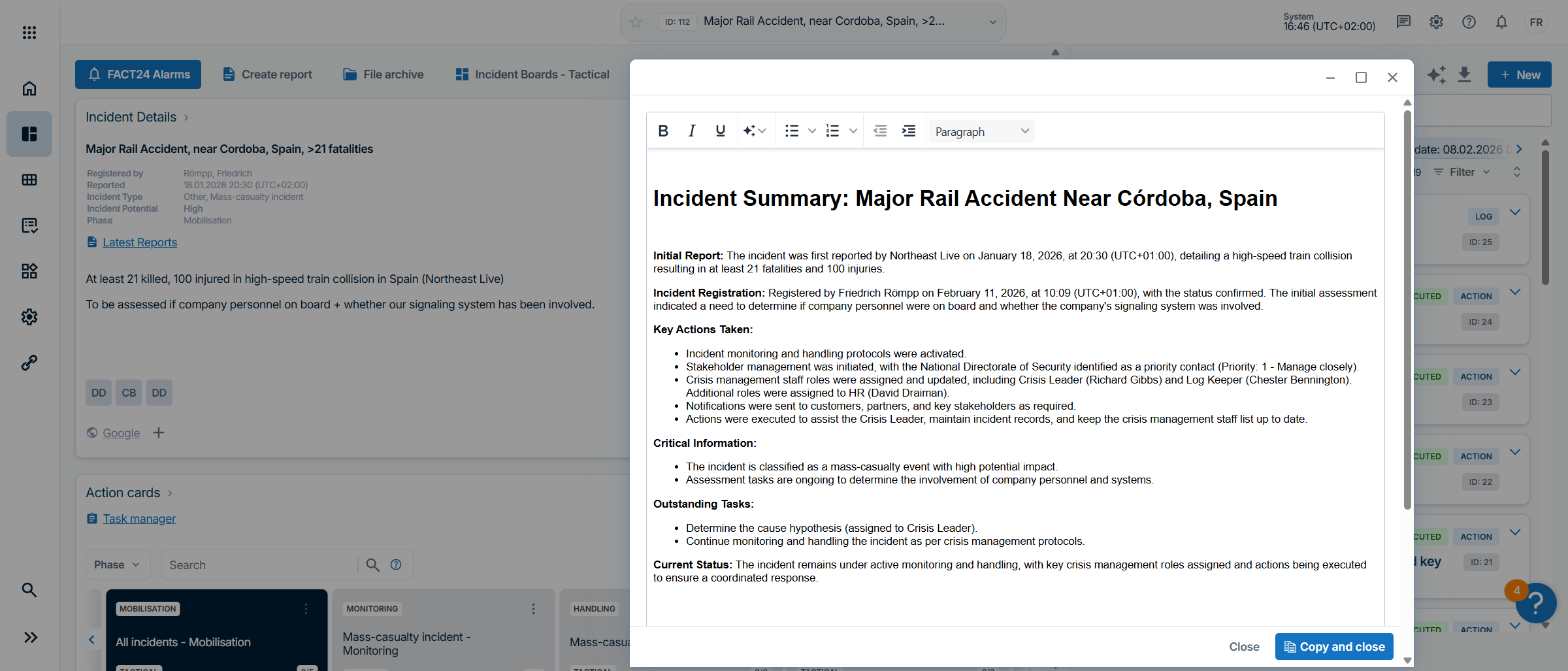
During fast-moving incidents, the Running Log in FACT24 CIM can grow quickly with inputs from multiple stakeholders, and the AI Log Summary helps users quickly understand key developments by providing a concise, informal overview of events.
- Quick Overview of Developments
Generate a concise summary of log entries to catch up after hours or days of absence. - Efficient Information Processing
- Ideal for gaining rapid insights during ongoing incidents
- Supports preparation for briefings or presentations
- Reduces time spent reviewing extensive log entries
- Flexible Scope Selection
Summaries can be tailored based on your current log filters and preferences.
How does it work?
There are two ways to access the AI Summary:
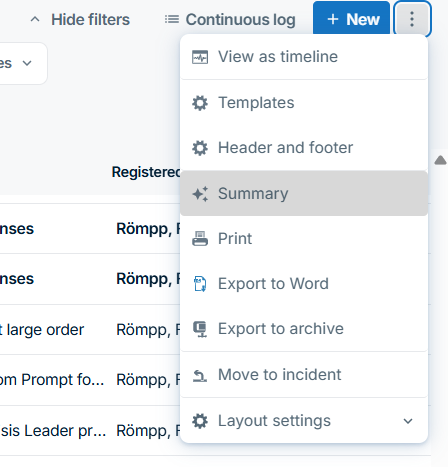
- Navigate to the Running Log
- Find the AI Summary via the three dot function menu on the top right
- In the AI dialogue, you can:
- Further include or exclude specific entries
- Or generate a full summary using “Summarize all”
- This works only for the filter setting “Current Incident” not multiple
- Navigate to your Workspace
- Click the AI button at the top of the log to start the summary
- Your current filter settings (e.g. time period, modules, categories) are applied automatically to the AI summary – so you can define the time period, modules or categories you want to get a summary for

AI Reports Generation
During crises, large amounts of information from multiple units need to be consolidated into a clear situation overview, and fast, reliable reporting is essential for decision-making and stakeholder communication. The enhanced report module helps crisis managers quickly generate draft reports from available data using AI and predefined report instructions, while also supporting faster post-crisis analysis for after-action reports and lessons learned.
What’s New?
FACT24 CIM now enables users to generate draft reports automatically with the help of AI and predefined report templates:
- Faster Reporting During Ongoing Incidents
Create draft reports based on live incident data without compiling information manually. - Structured Output Based on Templates
- Report content is generated according to predefined chapter structures
- Each chapter can include specific source data, timeframes, and AI instructions
- Helps ensure consistency across recurring reports and updates
- Support for Post-Crisis Analysis
AI-generated reports also help condense large amounts of incident information for after-action reviews and lessons learned.
How does it work?
- Admins define report templates: Create or update templates with chapters, source content, and AI instructions.
- Users generate draft reports: Select a template when creating a new report, and the draft is generated automatically.
- Users review, edit, and approve: Review all generated content carefully, make adjustments if needed, and then share the approved report.
- Admin Setup
In the Report Template section, FACT24 CIM Admins can edit an existing template or create a new one from scratch.
Within each chapter, admins can configure AI-based content generation:
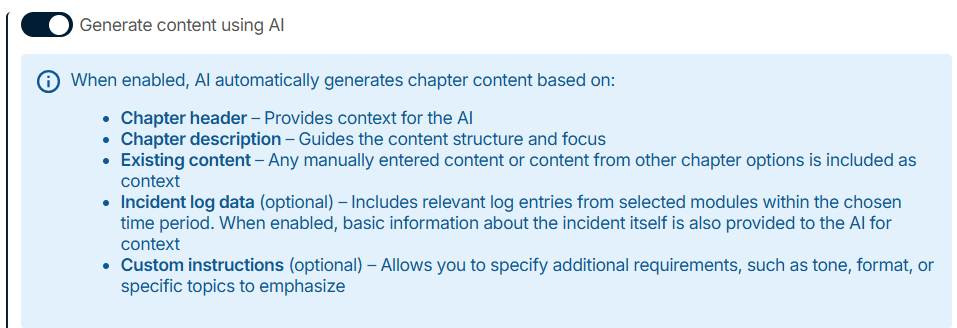
- Enable AI generation
Activate the option “Generate content using AI” for the respective chapter.
- Define the timeframe
Specify which period should be considered for the chapter content, for example:- Since the last approved report
- The last X hours
- The entire incident
- Select the source content
Choose which modules or log content should be included, for example:- All available content
- Tasks only
- Use the chapter description as the base prompt
The Chapter Description defines what the AI should produce from the selected data. - Add customer instructions for formatting or tone
Use Customer Instructions to specify how the result should be presented, for example:- Headings
- Tables
- Bullet points
- Specific tone or style
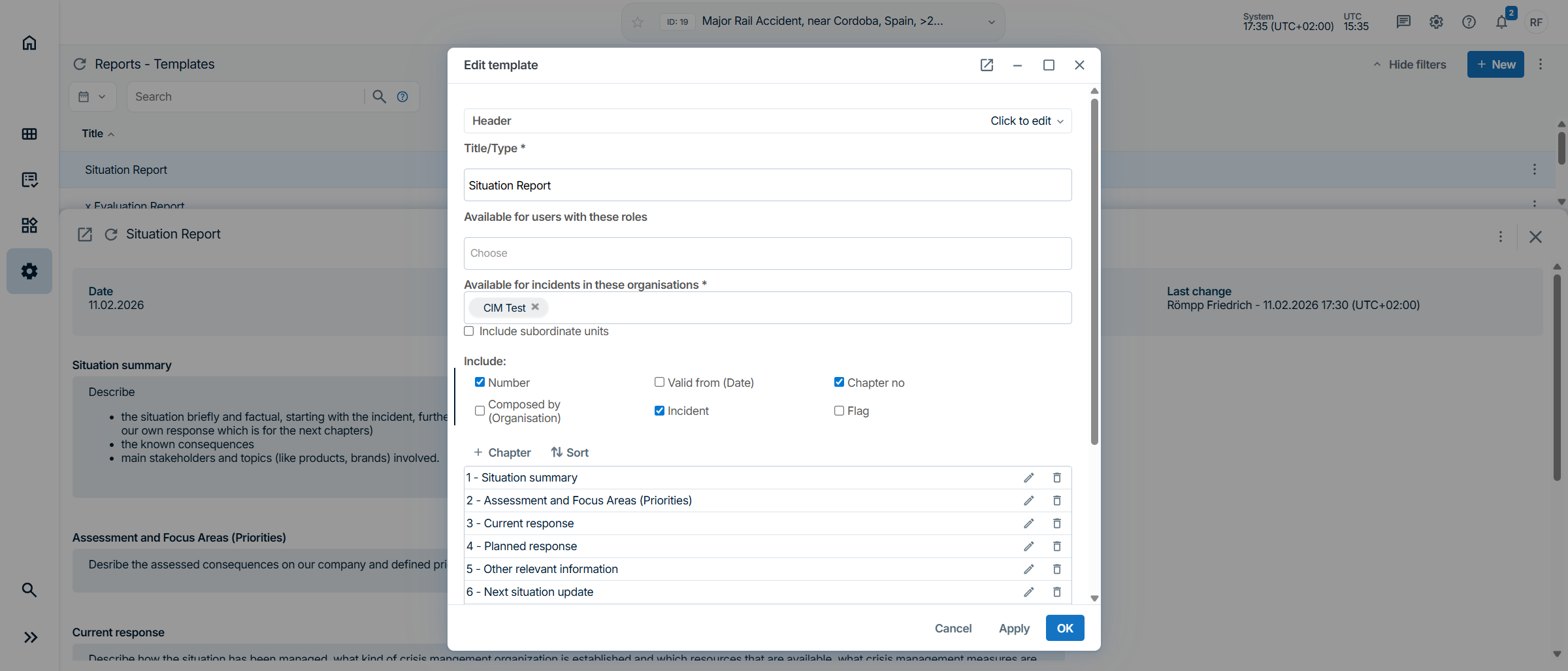
Example Chapter Setups
Admins can create report templates with chapters such as:
- Developments: Based on incident details, information entries in the Running Log, news, and similar content
- Decisions: Based on entries from the Decision log category and other logged reports
- Current Response: Based on Tasks and Action Cards, summarizing started and completed activities
- Next Steps: Based on newly created or upcoming Tasks
Once the template is approved, it can be used to generate reports automatically according to these instructions.
- User View
To generate a draft report, users simply select the desired report template as they would for any other report.
The generation starts automatically.
Users should then:
- Review the generated content carefully and critically: As with all AI-generated output, thorough review is essential.
- Edit and refine the content as needed: Users can manually revise the text or use the AI features available in the editor.
- Further adapt the output: Additional AI prompts can be used, for example to:
- Refine the format
- Adjust the tone
- Translate the report into the required reporting language