Table of Contents
App-Version 3.30

Improvements for all FACT24 Editions: (available from 13.08.2026)
Modify alarm audience when triggering an Alarm
Until now, the recipients of an alarm were largely fixed by the alarm configuration. It was possible to add additional groups in certain cases, but existing groups could not be removed, and the list of individual persons could not be modified.
With this release, editing the message, groups, and persons during alarm triggering has been made more consistent. Depending on the alarm configuration and the permissions assigned to the user, groups and individual persons can now be added or removed before the alarm is triggered.
Required Profile Permission
To allow users to access persons and groups during alarm triggering, the corresponding permission must be enabled in the profile.
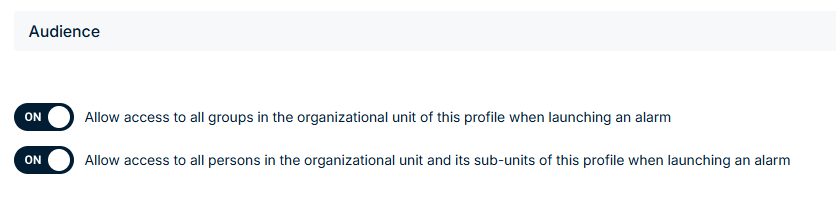
You can find this setting under: Profile → Launch Settings → Audience
Enable the following toggle: Allow access to all persons in the organizational unit and its subunits of this profile when launching an alarm
If this option is enabled, users can access the persons within the relevant organizational scope. To access the groups, users need to either enable the Allow access to all groups in the organizational unit of this profile when launching an alarm toggle or manually assign groups to the profile.
Now they can see which persons and groups are currently assigned to the alarm and, depending on the alarm configuration, modify the audience before triggering the alarm.
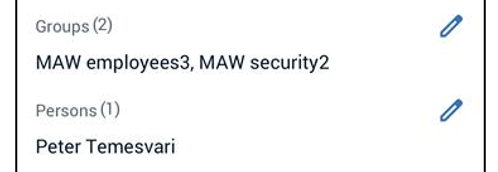
Editing the Audience in the Mobile Application
On the alarm triggering screen in the mobile application, the Groups and Persons sections show how many recipients are currently assigned. In addition to the number of recipients, a short preview of the assigned groups and persons is displayed.
Two icons can be available:
- The eye icon opens a read-only list of the currently assigned groups or persons.
- The pencil icon opens the list in editing mode.
When you select the pencil icon, a new page opens where you can modify the alarm audience.
You can add additional groups or persons by selecting the person-plus icon. Depending on the alarm configuration, you can also remove existing groups or persons by selecting the person-minus icon.
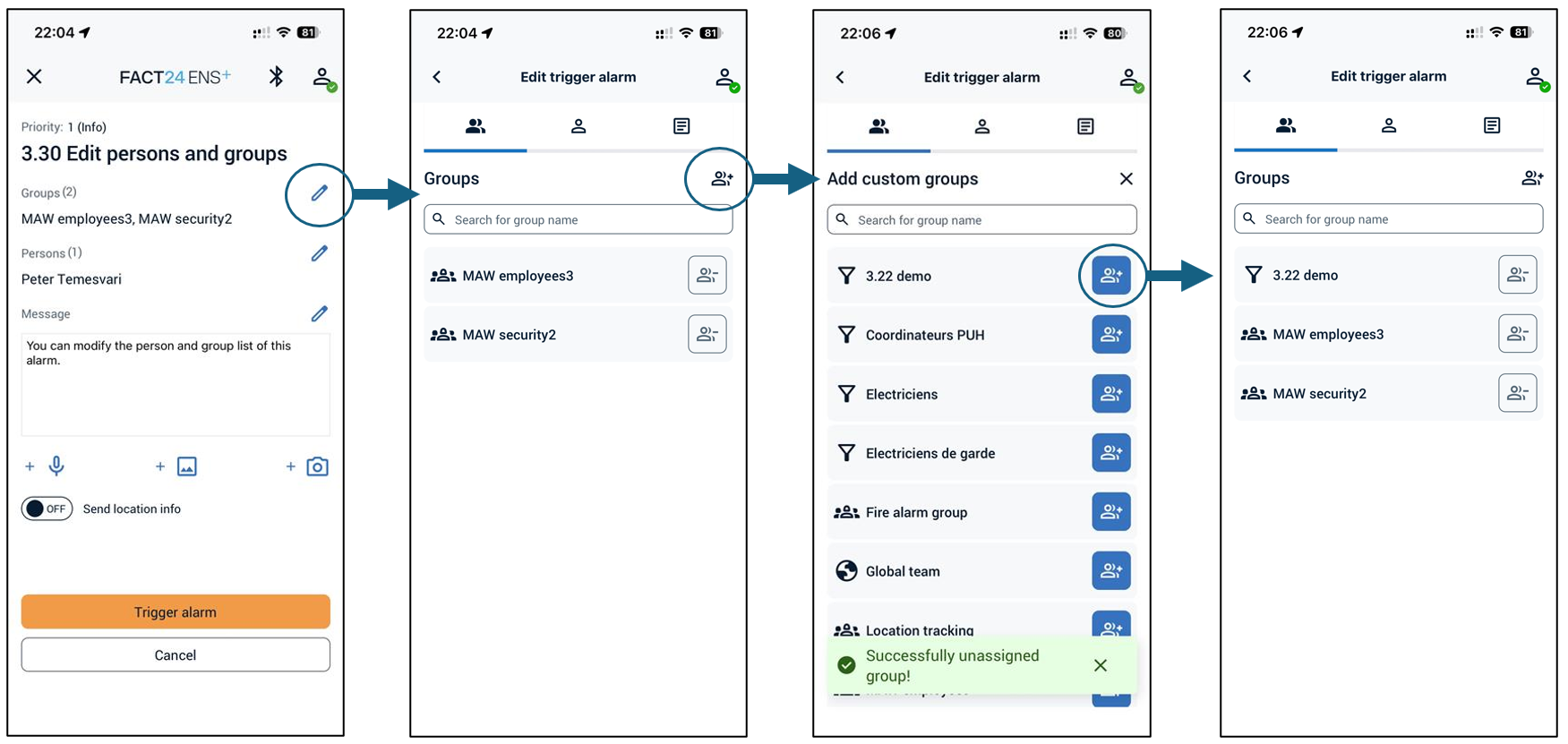
After finishing your changes, use the arrow in the upper-left corner to return to the main alarm triggering screen. The updated audience is displayed there, allowing you to review your changes before starting the alarm.Once everything is correct, select Trigger Alarm to start the alarm with the modified audience.
FAQ – Configuration and Permissions
Whether groups and persons can be edited depends on the alarm configuration.
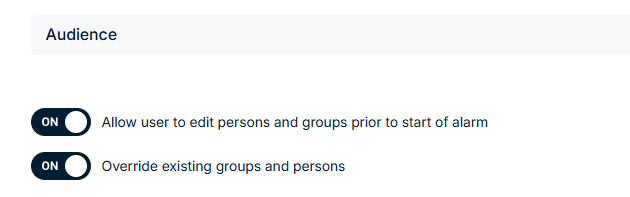
Whether the user can access the available groups and persons depends on the profile configuration.

These settings are independent from each other. It is therefore possible to configure an alarm so that its audience is editable while the user triggering the alarm does not have permission to access persons or groups. In this case, the user may see the pencil icon, indicating that editing is allowed for the alarm, but no persons or groups will be available to add or remove because the user does not have permission to access them.
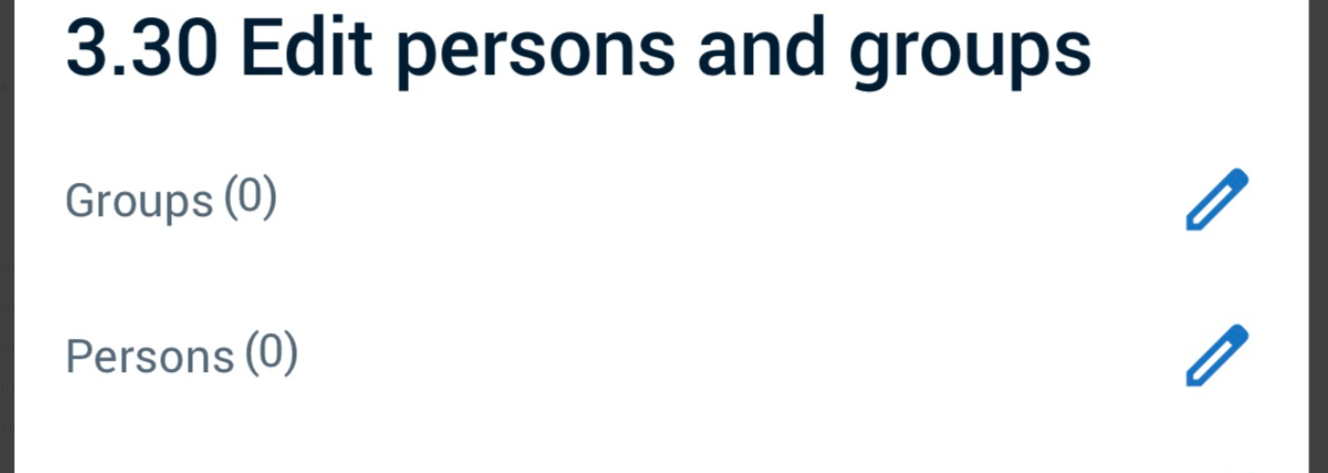
For this reason, enabling audience editing for an alarm is only useful if the corresponding permissions to access persons and groups are also granted in the user's profile.
Extended location sharing for increased safety
Previously, if GPS tracking was switched off on your device, triggering an alarm sent your location only once. Responders had your position at the moment the alarm started, but not afterwards.
From version 3.30, when you trigger an alarm with location sharing the app offers to switch on temporary GPS tracking. Your location is then shared for the duration of the alarm plus one hour, and switches off again by itself. Your everyday GPS tracking setting is not changed.
While temporary tracking is running, Settings › Location settings replaces the usual description of the GPS tracking switch with the exact time it will end.
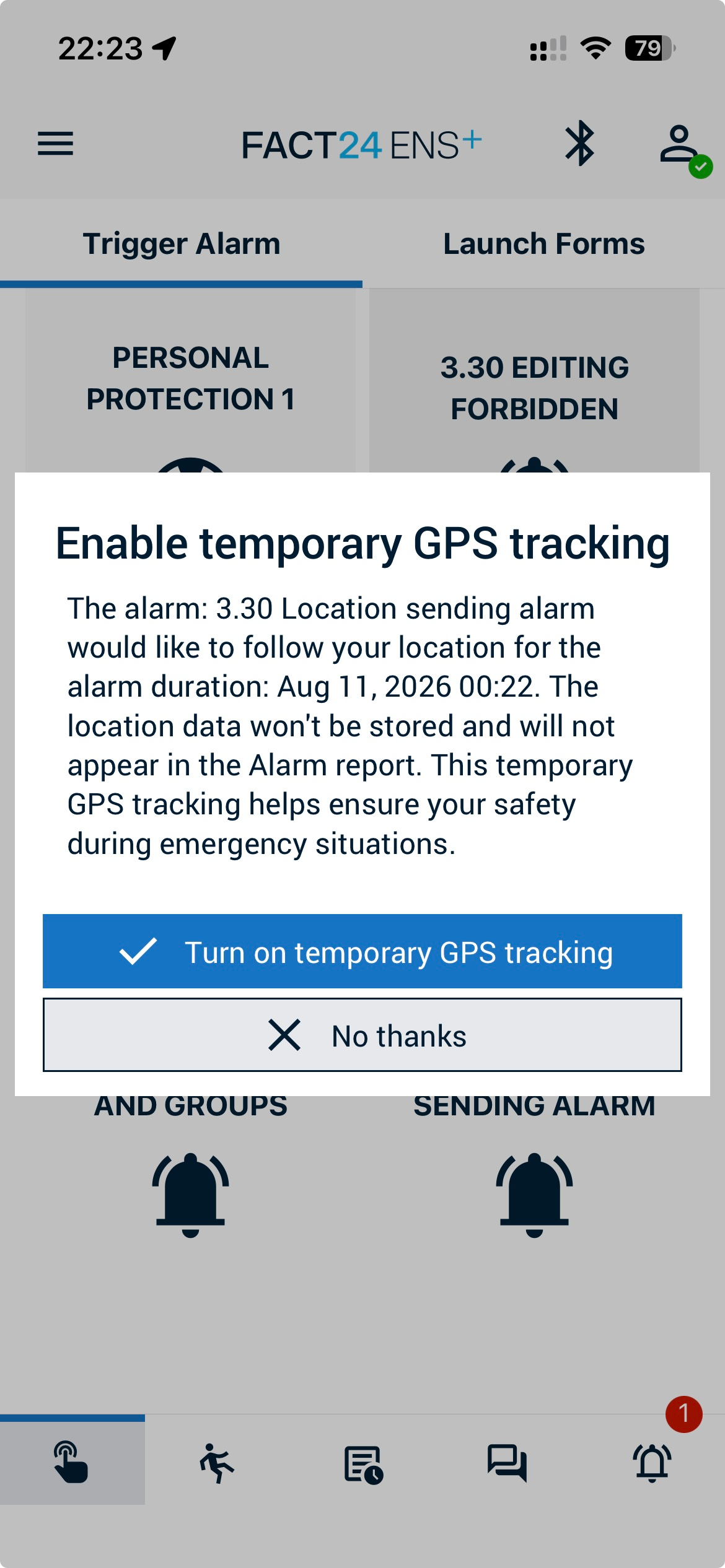 | 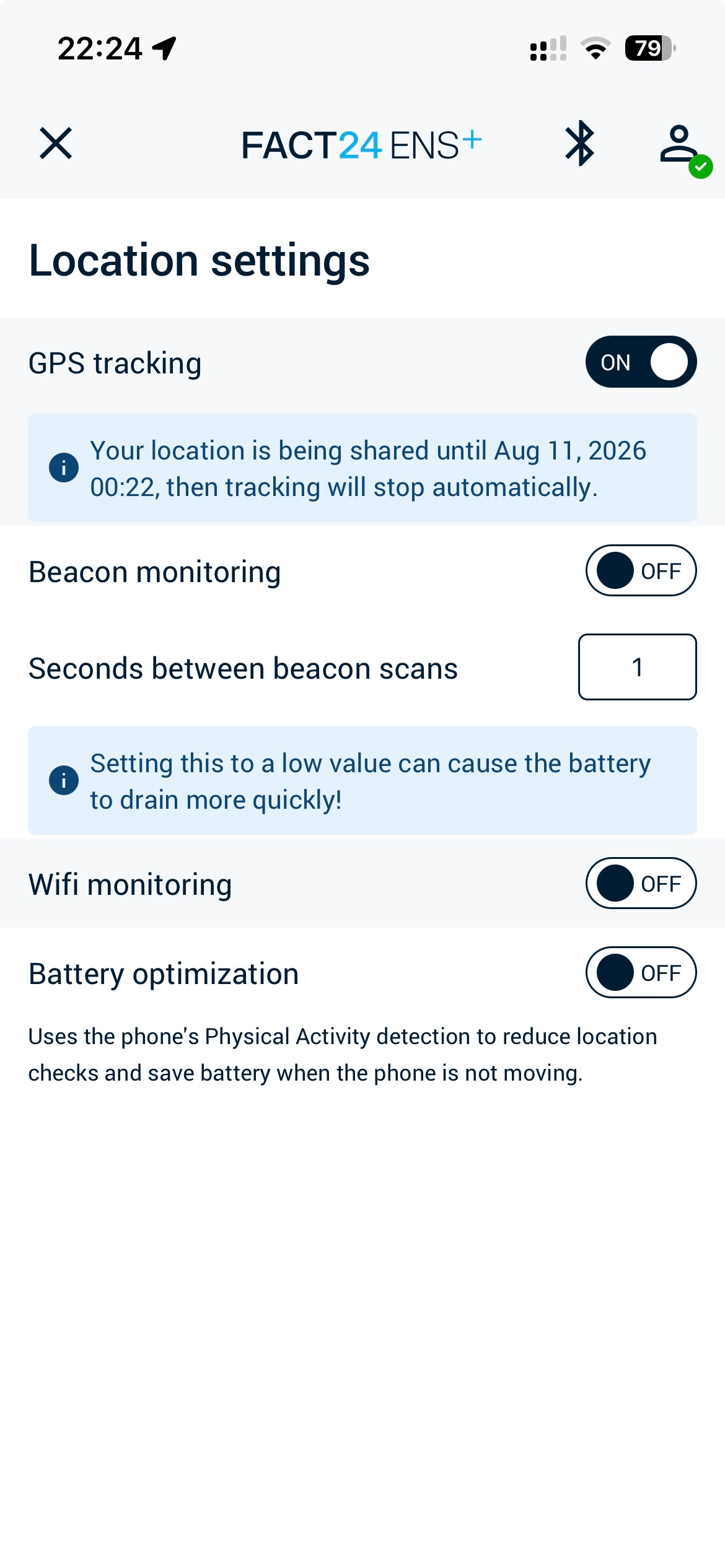 |
Notes:
- Location data collected this way is not stored and does not appear in the alarm report.
- If a second alarm arrives while tracking is active, the app offers to extend the period rather than starting again.
- You can switch tracking off early. The app will confirm before doing so, because an active alarm still needs it.
If you trigger an alarm using a Bluetooth push button, there is no time to answer a dialog, so temporary GPS tracking starts immediately. A message then tells you that this happened.
Accessibility improvements
This release contains a large round of accessibility work as part of our accessibility certification for the FACT24 ENS+ apps. If you use a screen reader, an external keyboard, or a larger system font, you should notice the following.
With a screen reader
- Alarm names are announced as headings, so you can jump straight to them. The alarm message in the alarm detail view can now be read in full, including its priority level.
- Tabs announce their role and their position, for example "first tab item out of 2". The tab you are on is announced as selected.
- On the History screen, tabs are read out with their visible names on the first step, instead of an internal name that only became readable on the second step.
- Alarm entries are announced as buttons rather than menu items, matching what happens when you activate them. In the alarm list on iOS they are now recognisable as interactive at all.
- Buttons and list entries have spoken labels that say what they do, such as "Remove" or "Add" followed by the name.
- Purely decorative icons and separators are skipped instead of interrupting you with meaningless focus stops.
- The Send location data switch is announced once instead of three times.
- The Mute all notifications switch no longer reports itself as disabled while still being operable.
- The category selector for emergency plans now reads its label together with the field, so you no longer have to remember the label while filling it in.
- On iOS, an attached photo is now read before the buttons that act on it, matching the visual order.
- The dialog asking permission to override Do not disturb is now fully translated, instead of mixing English text into a German interface.
- In multi-page forms, moving to the next page now places the focus on the question rather than leaving it on the Next button. On Android, typing free text no longer repeats the question after every letter.
With an external keyboard
- The element you have moved to is marked with a clearly visible highlight, with sufficient contrast in both light and dark mode. The colour is defined per app rather than a faint grey.
- Labels and their controls no longer take two separate steps, so you reach the next control faster.
- Navigating from the menu into a list works as expected, and newly displayed areas — for example in Group management — can be reached straight away.
With larger text
- Text no longer overlaps or gets cut off when you increase the system font size. Screens including History, Info, Forms to activate, the alarm list, Activate alarm and the sorting dialogs stay readable.
- Main menu buttons are no longer exposed as headings, so navigating by headings with a screen reader gives you a true picture of the page structure.
Switch on logging when support asks for it
If you report a problem that is hard to reproduce, F24 support may ask you to switch on logging so that the app records diagnostic information about what it is doing.
The logging settings are hidden by default. To reveal them:
- Open the main menu and go to Info.
- Tap the version line at the bottom — "Version 3.30.0, [year]" — five times in quick succession.
- The message "Logging settings unlocked!" confirms that a Logging entry has appeared in your settings.
Under Settings › Logging you will find:
Logging enabled | Records diagnostic information and sends it to F24 for analysis. |
Verbose logging | Records considerably more detail. Only appears once Logging enabled is switched on, and switches itself off again when you switch logging off. |
Logging settings visibility | Hides the Logging entry again. You are asked to confirm. |
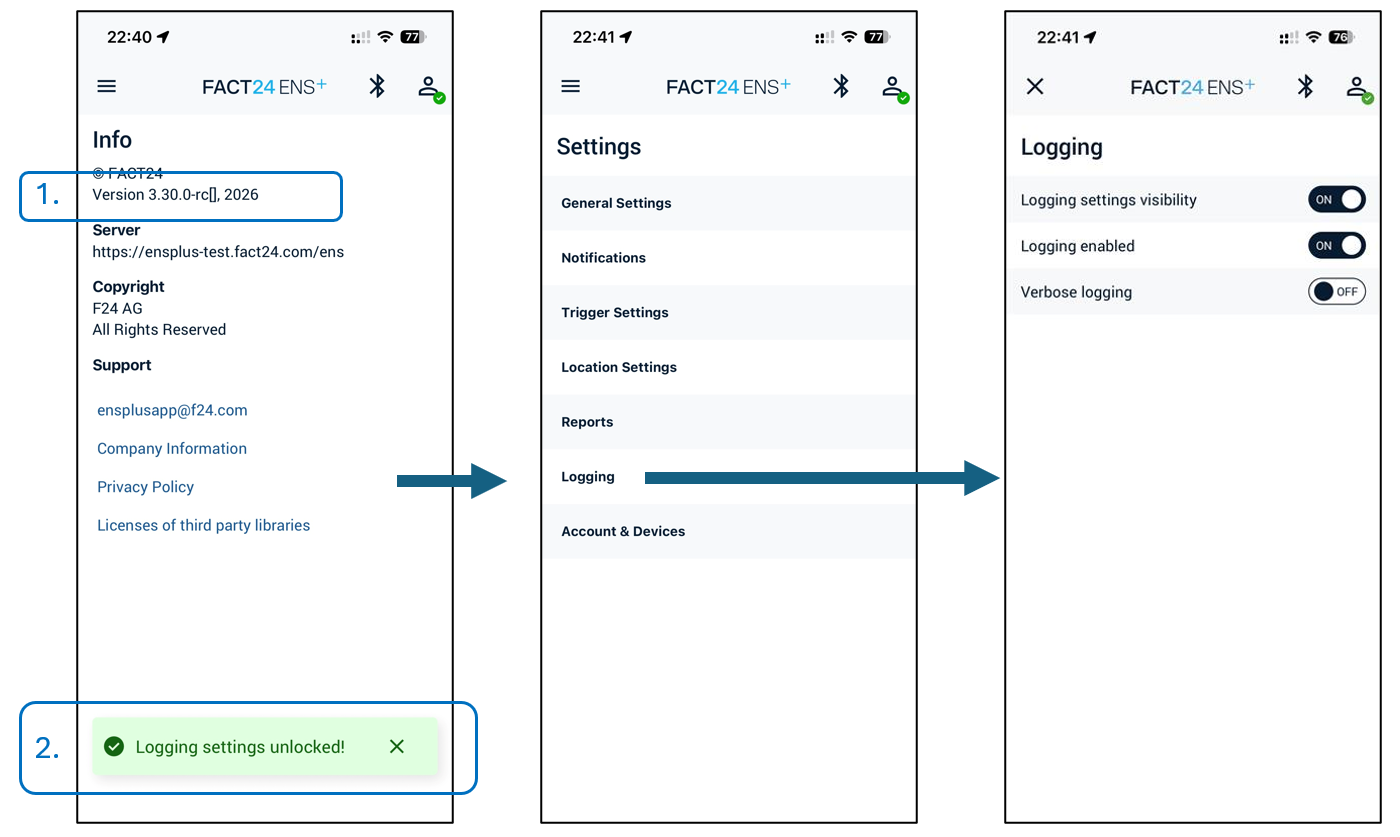
Note: Both switches are off unless you turn them on, and diagnostic data is sent to F24 only while Logging enabled is on. Please switch it off again once your issue has been resolved.
Information About Do Not Disturb Override on Android 15
Starting with Android 15, Do Not Disturb mode can no longer be overridden through the profile due to new operating system restrictions.
Instead, users must individually allow the FACT24 app on their device to override Do Not Disturb mode. The easiest way to do this is to open the Notifications menu in the FACT24 app, scroll down to Override Do Not Disturb mode, and use the provided link to open the relevant system settings. There, the FACT24 app must be added to the list of applications allowed to bypass Do Not Disturb mode.
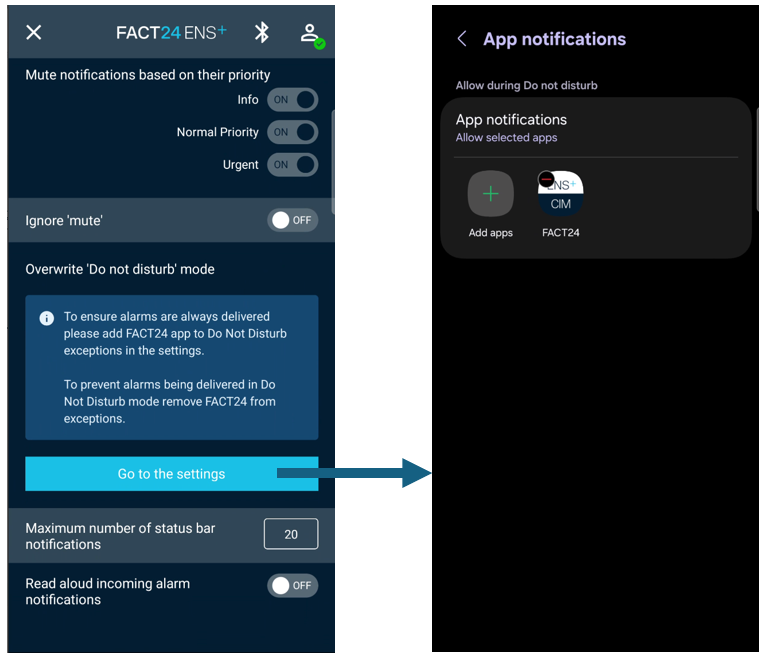
Note: Once this configuration has been completed, alarms can still be displayed even when Do Not Disturb mode is enabled on the device.
Please note that the FACT24 app cannot provide dedicated feedback on whether this permission is currently enabled. The app does not have access to the corresponding system setting and therefore cannot determine or display its current status.