FACT24 ENS+
Release Notes
Portal Version 3.31
Portal Version 3.30
Portal Version 3.29
Portal Version 3.28
Portal Version 3.27
Portal Version 3.26
Portal Version 3.25
Portal Version 3.24
Portal Version 3.23
Portal Version 3.22
Portal Version 3.21
Portal Version 3.20
Portal Version 3.19
Portal Version 3.18
Portal Version 3.17
Portal Version 3.16
Portal Version 3.15
Portal Version 3.14
Portal Version 3.13
Portal Version 3.12
Portal Version 3.11
Portal Version 3.10
Portal Version 3.9
Portal Version 3.8
Portal Version 3.7
Portal Version 3.6
Portal Version 3.5
Portal Version 3.4
Portal Version 3.3
Portal Version 3.0
Portal Version 3.2
Getting started
Setup
Managing ENS+ users
Creating your organizational structure
Caller IDs
Address registry
Categories
Dictionary
File manager
Download Center
Your Account
Two-factor authentication (2FA)
Configuration
Persons & Groups
Alarm configuration
Alarms
Launch Forms - Configuration
Message templates
Calendar
Location profiles
Geolocation profiles
Whitelists
Jobs
Events
Telephone quickstarts
Survey
Alarm Templates
Alarm Flow
Interfaces
Operating Cockpit
Alarm Cockpit
Activate and stop alarm
Launch Forms - Trigger
Ad hoc alarm
Alarm monitor
Chat
Phone Conference
Video Conference
Surveys
Reports & Statistics
Loneworking
FACT24 Mediagateway
Microsoft Teams Bot
Web login for persons
Add-on modules
FACT24 ENS+ Incident Management
Telekom Settings Cloud of Things Narrow Band Interface
FACT24 ENS+ External API (REST) – Functionality Scope
FACT24 AI
Migration to ENS+
FACT24 CIM
Release Notes
New functions through FACT24 CIM release V.26.02
New functions through FACT24 CIM release V.26.01
New functions through FACT24 CIM release V.25.03
New functions through FACT24 CIM release V.25.02.01
New functions through FACT24 CIM release V.25.02
New functions through FACT24 CIM release V.25.01
New functions through FACT24 CIM release V.24.03
New functions through FACT24 CIM release V.24.02
New functions through FACT24 CIM release V.24.01
New functions through FACT24 CIM release V.23.02
New functions through FACT24 CIM release V.23.01
Getting started
FACT24 CIM starter - crucial steps
FACT24 CIM essential
FACT24 CIM advanced
Introduction
Start Page
Admin workspace
The FACT24 CIM Roles
New Navigation
Search
Levels
Contacts
Locations
Home - workspaces
Situation
Manage
Communicate
Document & report
Prepare & prevent
Mobile App (FACT24 ENS+ and CIM)
App Releases
App-Version 3.30
App-Version 3.28
App Version 3.26
App Version 3.24
App Version 3.22
App Version 3.21
App Version 3.20
App Version 3.17
App Version 3.16
App Version 3.15
App Version 3.13
App Version 3.12
App Version 3.10
App Version 3.9
App Version 3.8
App Version 3.7
App Version 3.5
App Version 3.3
App Version 3.2
Download & Basics
FACT24 ENS+ App Section
Basics and Login
General Settings
Account
Location Services
Group Management
Triggering Alarms
Editing Alarms
Active Alarms
Chat in the ENS+ Application
History
Reports
Emergency Plans
Lone Worker Protection
Special Smartphones
FACT24 CIM App Section
Support
Table of Contents
- All Categories
- Mobile App (FACT24 ENS+ and CIM)
- App Releases
- App Version 3.24
App Version 3.24

Improvements for all FACT24 Editions: (available from 10.12.2025)
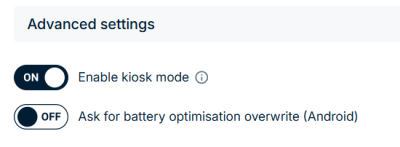
Kiosk Mode
The kiosk mode is a special operating mode in which the FACT24 app is limited to a very restricted range of functions.
In this mode, the App provides only two functions:
- Start an Alarm
- Receive an Alarm
All other functions are removed from the App interface to make these two actions as simple and accessible as possible.
The interface always shows the trigger alarm list as the main screen. Incoming alarms appear as a central pop-up with sound, showing only the alarm message and a single button to close the alert, returning the user to the trigger screen.
You can enable the kiosk mode on the Profile page.
Why this matters
- Ensures any person nearby can immediately trigger an alarm without prior training
- Reduces the risk of user errors in stressful situations through a very simplified interface
- Ideal for shared or public devices (lobbies, production floors, control rooms)
Example
A fire is noticed in an open office. A colleague runs to the wall-mounted ENS+ tablet. Without logging in or navigating menus, they see the list of available alarms, tap the relevant one, and trigger the alert immediately. At the same time, an ongoing evacuation alarm appears as a clear full-screen pop-up for everyone around the device.
Temporary GPS Tracking on Alarm Request
You can now enable GPS tracking temporarily when an alarm explicitly requests location information. (The alarm will do so if the “Location tracking” toggle is enabled on the Alarm/Audience page.)
If an alarm requires location data and GPS tracking is turned off on the device, the user will be asked whether they want to share their location for the duration of that alarm.
If they approve, their live position is shown in the Alarm Monitor for the defined period. Afterwards, location tracking is automatically disabled again.
Why this matters
- Makes it easier for users who normally disable location sharing to opt-in only during real incidents
- Provides crisis teams with accurate positions of notified persons when it matters most (e.g. evacuation, search & rescue)
Example
During a severe weather event, employees usually keep GPS off to save battery. When a “Severe Weather – Evacuate Site A” alarm is triggered with location tracking enabled, affected users receive a prompt: “Enable temporary GPS tracking” Those who agree appear on the Alarm Monitor map, helping the crisis team see who has already reached safe zones.
New Status Values for Incidents and Tickets
To align with industry standards and the FACt24 ENS+ Portal Version 3.24, the mobile app now uses updated status values for incidents and tickets.
- Unopened → renamed to To Do
- On Hold → New status
- Closed unopened → renamed to Cancelled
Why this matters
- Makes status meanings clearer for operational teams and stakeholders
- Supports more realistic workflows with an On Hold state
Example
A ticket created for a building access issue can be set to On Hold while waiting for an external service provider, instead of being kept as “open” or prematurely closed. Everyone in the team sees the same status names in both the Portal and the App.