FACT24 ENS+
Release Notes
Portal Version 3.31
Portal Version 3.30
Portal Version 3.29
Portal Version 3.28
Portal Version 3.27
Portal Version 3.26
Portal Version 3.25
Portal Version 3.24
Portal Version 3.23
Portal Version 3.22
Portal Version 3.21
Portal Version 3.20
Portal Version 3.19
Portal Version 3.18
Portal Version 3.17
Portal Version 3.16
Portal Version 3.15
Portal Version 3.14
Portal Version 3.13
Portal Version 3.12
Portal Version 3.11
Portal Version 3.10
Portal Version 3.9
Portal Version 3.8
Portal Version 3.7
Portal Version 3.6
Portal Version 3.5
Portal Version 3.4
Portal Version 3.3
Portal Version 3.0
Portal Version 3.2
Getting started
Setup
Managing ENS+ users
Creating your organizational structure
Caller IDs
Address registry
Categories
Dictionary
File manager
Download Center
Your Account
Two-factor authentication (2FA)
Configuration
Persons & Groups
Alarm configuration
Alarms
Launch Forms - Configuration
Message templates
Calendar
Location profiles
Geolocation profiles
Whitelists
Jobs
Events
Telephone quickstarts
Survey
Alarm Templates
Alarm Flow
Interfaces
Operating Cockpit
Alarm Cockpit
Activate and stop alarm
Launch Forms - Trigger
Ad hoc alarm
Alarm monitor
Chat
Phone Conference
Video Conference
Surveys
Reports & Statistics
Loneworking
FACT24 Mediagateway
Microsoft Teams Bot
Web login for persons
Add-on modules
FACT24 ENS+ Incident Management
Telekom Settings Cloud of Things Narrow Band Interface
FACT24 ENS+ External API (REST) – Functionality Scope
FACT24 AI
Migration to ENS+
FACT24 CIM
Release Notes
New functions through FACT24 CIM release V.26.02
New functions through FACT24 CIM release V.26.01
New functions through FACT24 CIM release V.25.03
New functions through FACT24 CIM release V.25.02.01
New functions through FACT24 CIM release V.25.02
New functions through FACT24 CIM release V.25.01
New functions through FACT24 CIM release V.24.03
New functions through FACT24 CIM release V.24.02
New functions through FACT24 CIM release V.24.01
New functions through FACT24 CIM release V.23.02
New functions through FACT24 CIM release V.23.01
Getting started
FACT24 CIM starter - crucial steps
FACT24 CIM essential
FACT24 CIM advanced
Introduction
Start Page
Admin workspace
The FACT24 CIM Roles
New Navigation
Search
Levels
Contacts
Locations
Home - workspaces
Situation
Manage
Communicate
Document & report
Prepare & prevent
Mobile App (FACT24 ENS+ and CIM)
App Releases
App-Version 3.30
App-Version 3.28
App Version 3.26
App Version 3.24
App Version 3.22
App Version 3.21
App Version 3.20
App Version 3.17
App Version 3.16
App Version 3.15
App Version 3.13
App Version 3.12
App Version 3.10
App Version 3.9
App Version 3.8
App Version 3.7
App Version 3.5
App Version 3.3
App Version 3.2
Download & Basics
FACT24 ENS+ App Section
Basics and Login
General Settings
Account
Location Services
Group Management
Triggering Alarms
Editing Alarms
Active Alarms
Chat in the ENS+ Application
History
Reports
Emergency Plans
Lone Worker Protection
Special Smartphones
FACT24 CIM App Section
Support
Table of Contents
- All Categories
- FACT24 ENS+
- Release Notes
- Portal Version 3.29
Portal Version 3.29

Release Notes Portal Version 3.29.0 (available from June 16th 2026 on)
Improvements for all FACT24 Editions
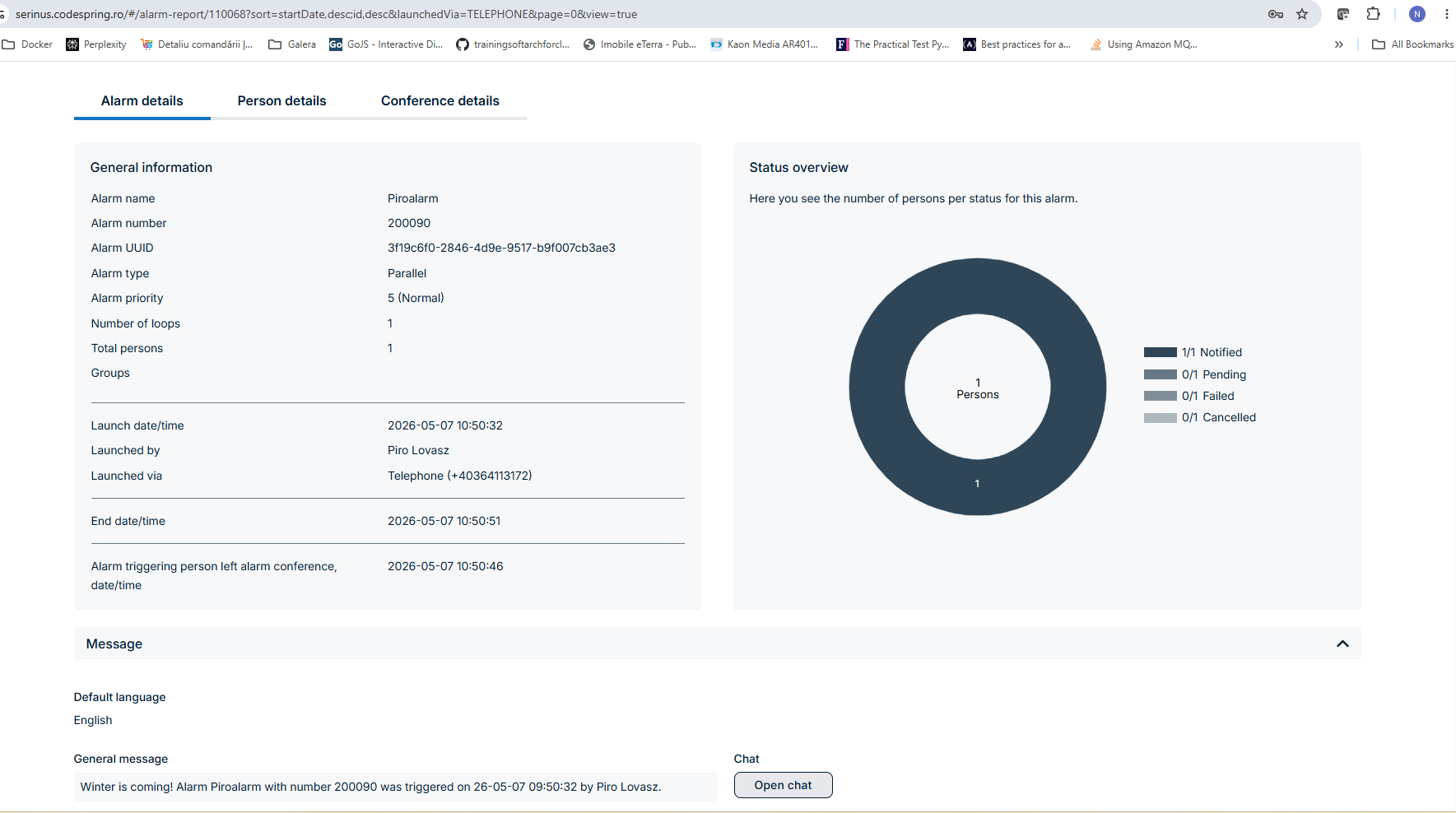
Caller Information Displayed for Phone-Triggered Alarms
When an alarm in FACT24 ENS+ is launched via phone, the caller’s number is displayed in the Alarm Monitor page and Alarm Report.
Where the caller can be matched to a known person, their first and last name are also shown. The caller number is also included in the full alarm report export formats.
Editable alarm numbers
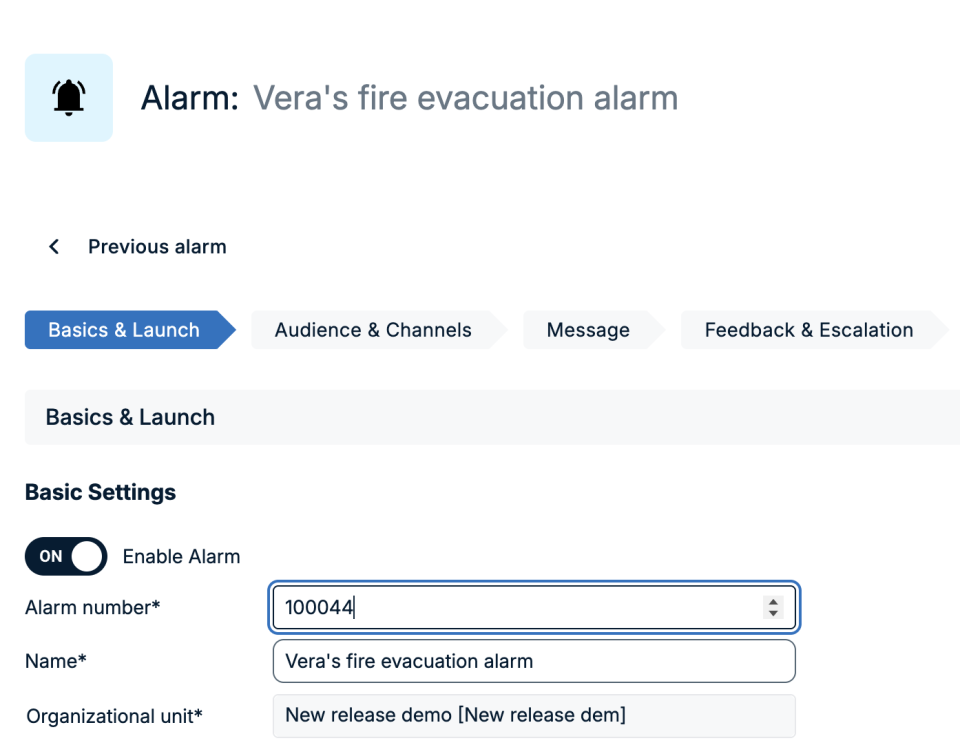
FACT24 ENS+ now allows administrators to edit alarm numbers directly within the alarm configuration, providing greater flexibility when creating and organising alarms.
When creating a new alarm, FACT24 ENS+ pre-fills the field with the next available six-digit number. Administrators can adjust the alarm number before saving, as long as the number is unique.
The system won't allow two alarms to be created with the same alarm number.
Improvements from FACT24 ENS+ essential
Faster Location Profile Setup with GPS Import
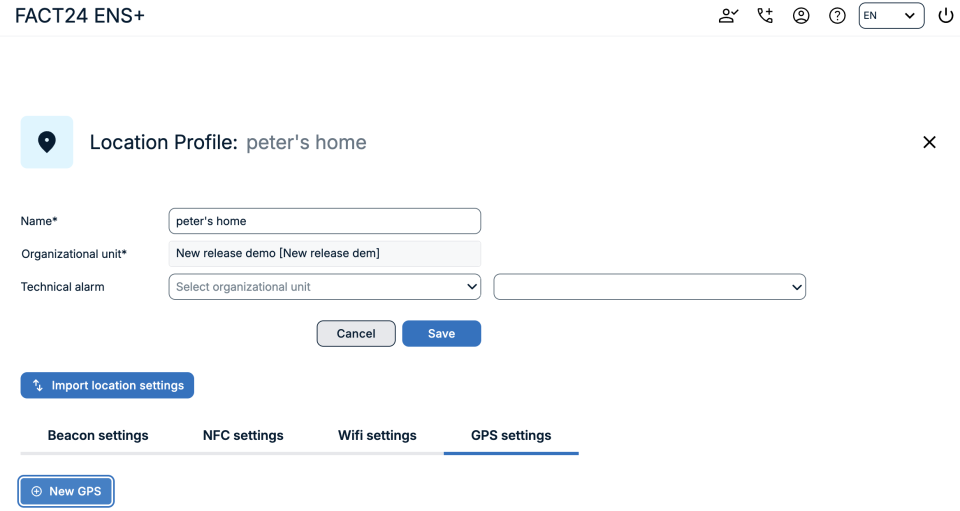
FACT24 ENS+ adds GPS location import for Location Profiles, helping administrators create and maintain accurate location data more efficiently.
Users can import GPS coordinates into a Location Profile instead of entering location information manually.
This supports more precise location setup and reduces the effort required to prepare location-based alerting or incident management data.
Why it matters
- Saves administration time: Location details can be added more quickly, especially when managing many sites.
- Simplifies maintenance: Existing location data can be updated more consistently when coordinates are available from an external source.
More information about Importing Location Profiles
Easier Qualification Management with Categories
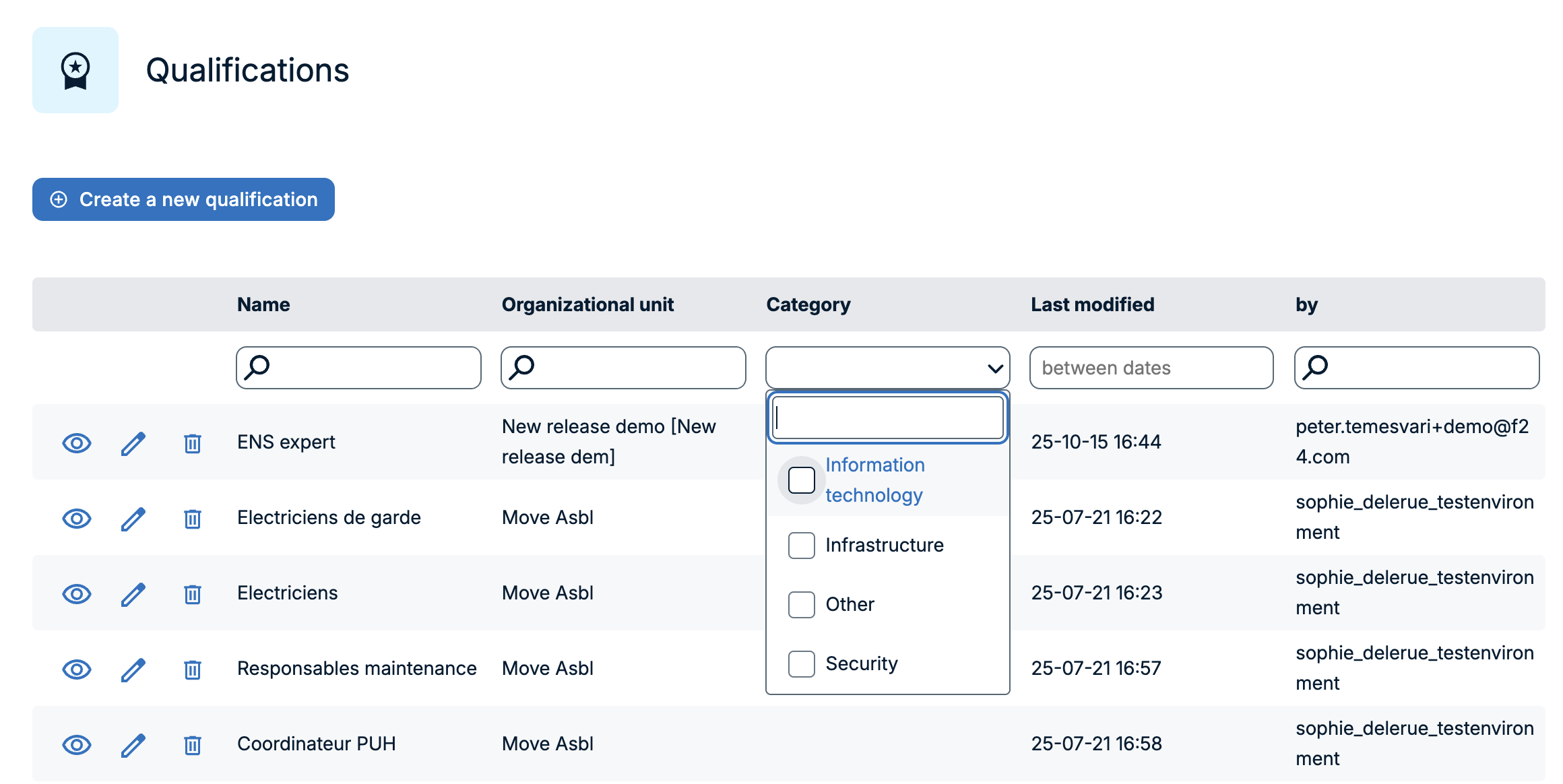
FACT24 ENS+ now supports categories for qualifications, helping administrators organise and manage large qualification lists more efficiently.
Category information is available in the Portal in all lists where it was previously available, but now with an added functionality that the field can be searched as well as having a dropdown already available, which has a multiselect option.
Category information is also available for Static and Global groups, aligning them with other group types.
Why it matters
- Faster navigation in large datasets: Customers with hundreds or thousands of qualifications can now use categories such as “Medical” or “IT” to narrow down long lists.
- Improved overview: Category information is visible in the qualification overview and on qualification detail pages, helping users understand how qualifications are structured.
Improvements for Customers with Add-ons
Add external participants to videoconferences (available with videoconference add-on)
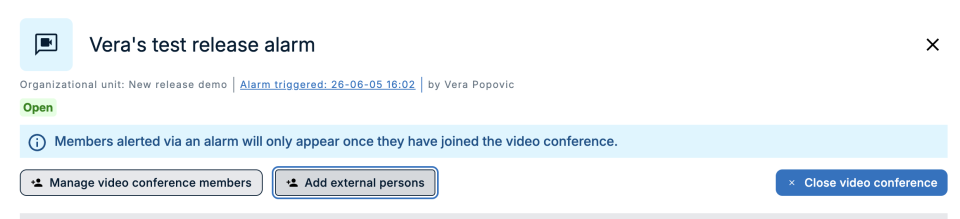
FACT24 ENS+ now allows video conference managers to add external participants to video conferences directly from the Portal, enabling collaboration with people who are not registered as Persons in FACT24 ENS+.
How it works
- Enable the Video Conference option in the alarm configuration.
- Launch the alarm.
Now there are two ways - adding participants via the Video conference room in the Alarm Cockpit or via the Alarm Monitor page:
- Open the video conference OR go to the alarm monitor page and select Add External Persons.
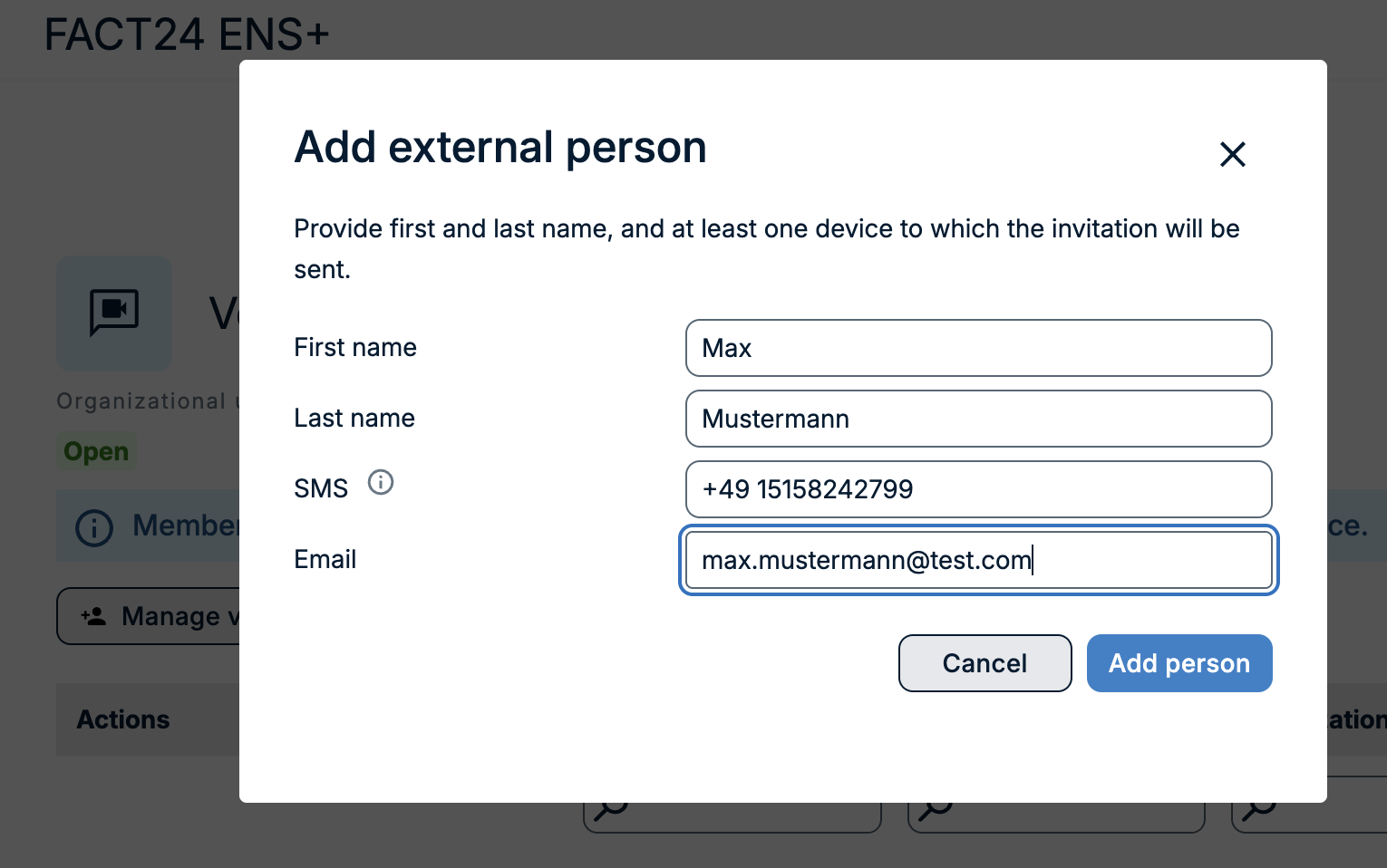
- Enter the participant’s first name, last name, phone number and email address.
- The participant will receive an email invitation to join the video conference.
Improvements from FACT24 ENS+ advanced
Variable Enhancements
FACT24 ENS+ has now a new variable available for the person who launched the alarm: “Employee Nr.”
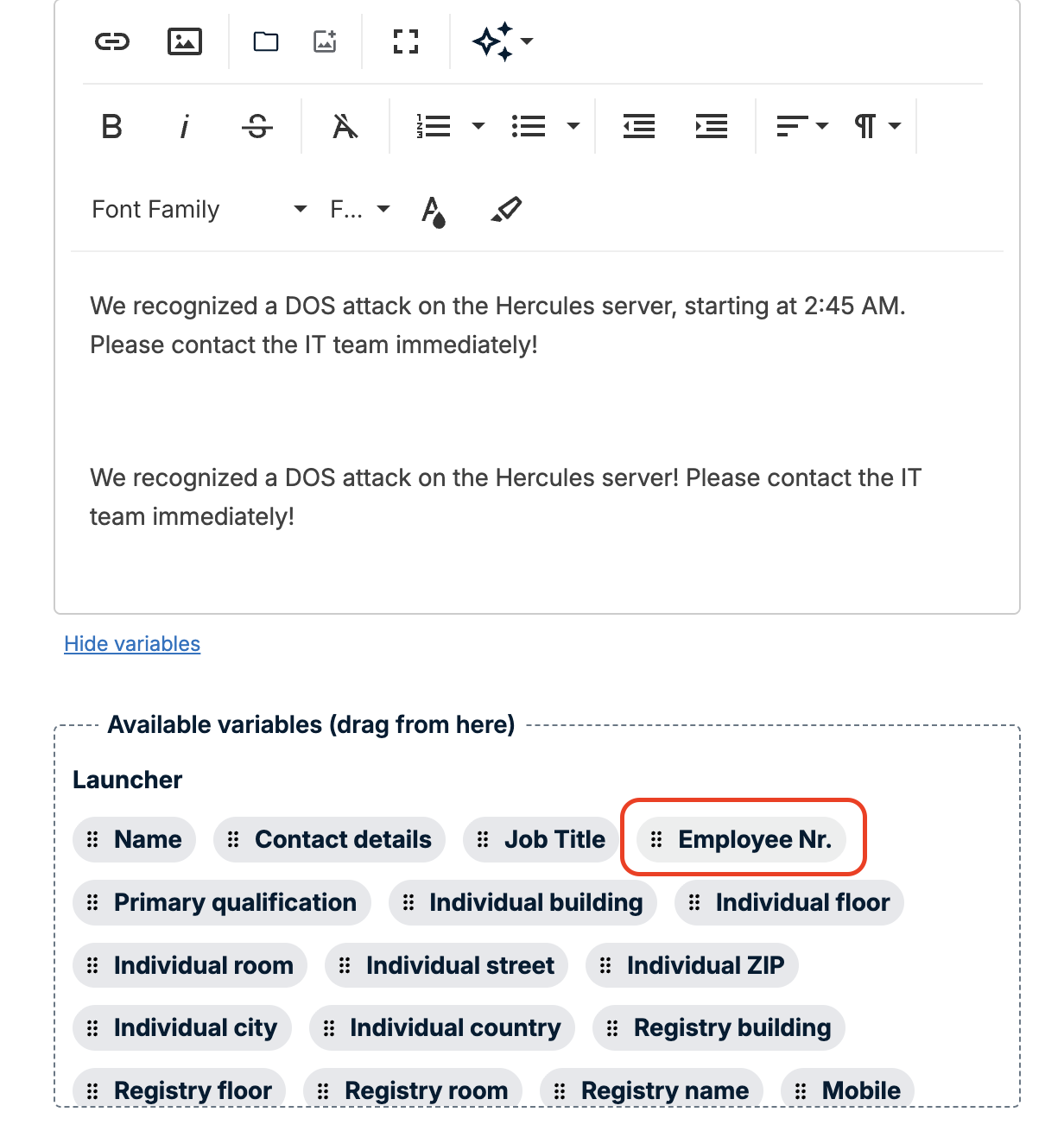
In addition alarm reports now display the resolved alarm message text for the Launcher, instead of showing variable placeholders. This improvement applies to the Alarm Report page as well as PDF, CSV, and XLSX exports. Receiver-specific variables (for example, {{{receiver_firstName}}}) remain unchanged in alarm messages, as their values differ for each recipient.
Alarm simulation for Launch Forms
The alarm simulation feature is now also available for launch forms. This allows testing launch form-based alarm processes without notifying real recipients (more information on alarm simulation).
When the alarm simulation toggle is enabled, a new Simulate button is available in the pop-up when triggering a Launch Form. Selecting this option starts the linked alarm in simulation mode. The alarm is then processed as it would be in a live situation, but no SMS, email, voice calls, or other notifications are sent.
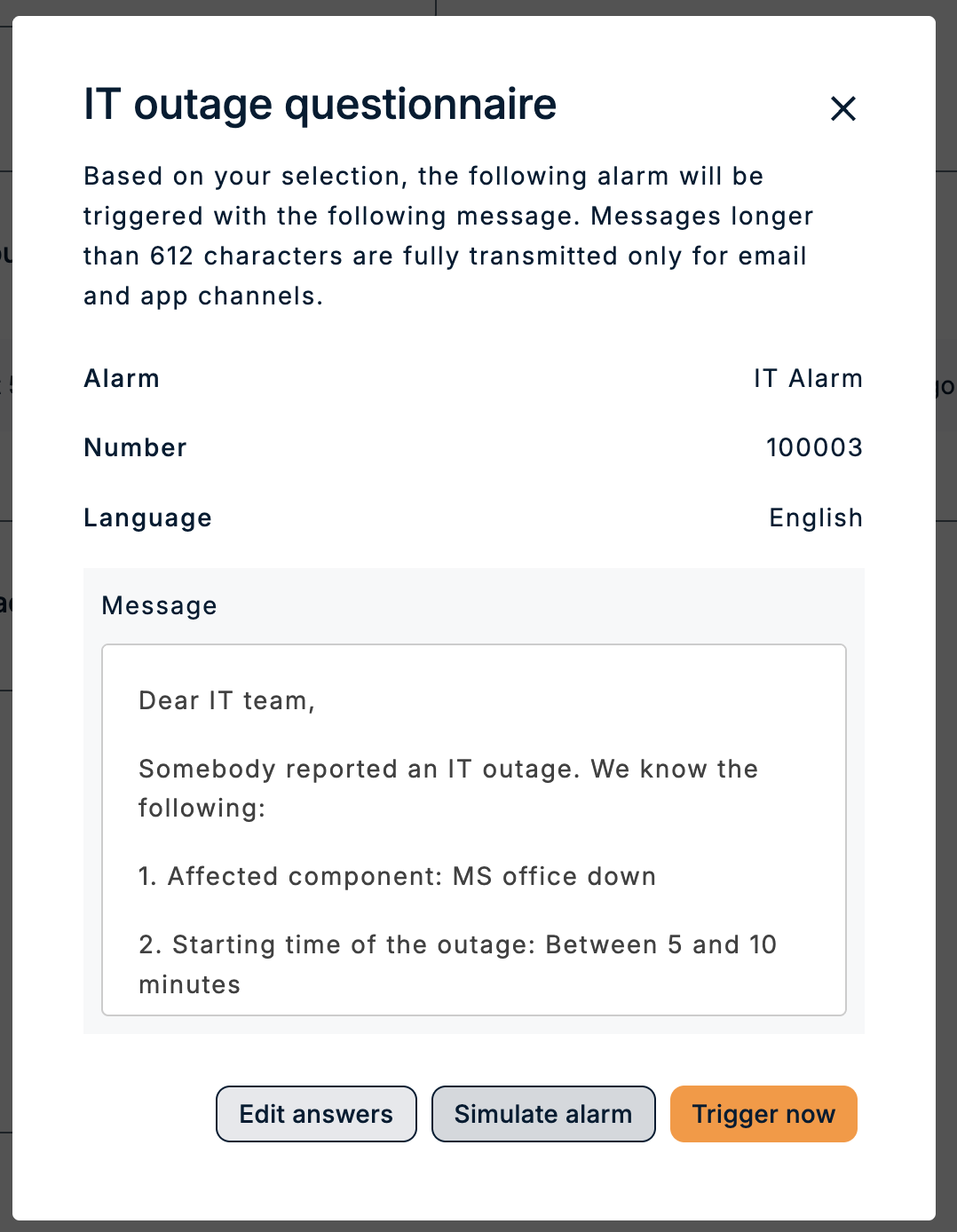
Users are then redirected to the Alarm Monitor, where they can review the simulated alarm flow, recipients, groups, and messages. The monitor and reports clearly indicate that the alarm was launched in simulation mode.
Why it matters
- Reduces risk during testing: Teams can verify launch form configurations without accidentally alerting real people.
- Supports end-to-end process validation: Users can test whether the correct alarm, recipients, groups, and messages are selected from the Launch Form.
- Improves confidence before go-live: Crisis managers and administrators can confirm that launch form–based workflows behave as expected before using them in a real emergency.
- Keeps reporting transparent: Simulation mode is visible in the Alarm Monitor and alarm reports, making it clear that the alarm was a test.