Table of Contents
- Overview
- Roles and Personas
- Ticket Structure and Fields
- Ticket Statuses
- Creating Tickets
- Ticket Templates
Ticket management

- Overview
- Roles and Personas
- Ticket Structure and Fields
- Ticket Statuses
- Creating Tickets
- Ticket Templates

Overview
The Ticket Management feature is a lightweight task management system designed to create, assign, and track so-called tickets.
A ticket represents a task that needs to be completed by a person inside the organization.
Ticket Management helps teams:
· maintain transparency about pending and ongoing work,
· assign responsibility clearly,
· follow task progress through standardized statuses,
· support SLA-like deadline tracking and escalation.
Ticket management is maintained in the ENS+ Web Interface under:
Operating Cockpit → Ticket Management
Roles and Personas
Ticket Management was designed around two main personas:
Users
Users typically act as administrators and are responsible for:
· creating and managing tickets,
· assigning tickets to responsible persons,
· monitoring ticket progress and deadlines,
· creating and maintaining ticket templates.
Persons
Persons are the individuals responsible for executing tasks.
Persons can:
· view their assigned tickets,
· change ticket status,
· add notes and attachments,
· document completed work and close tickets.
Ticket Structure and Fields
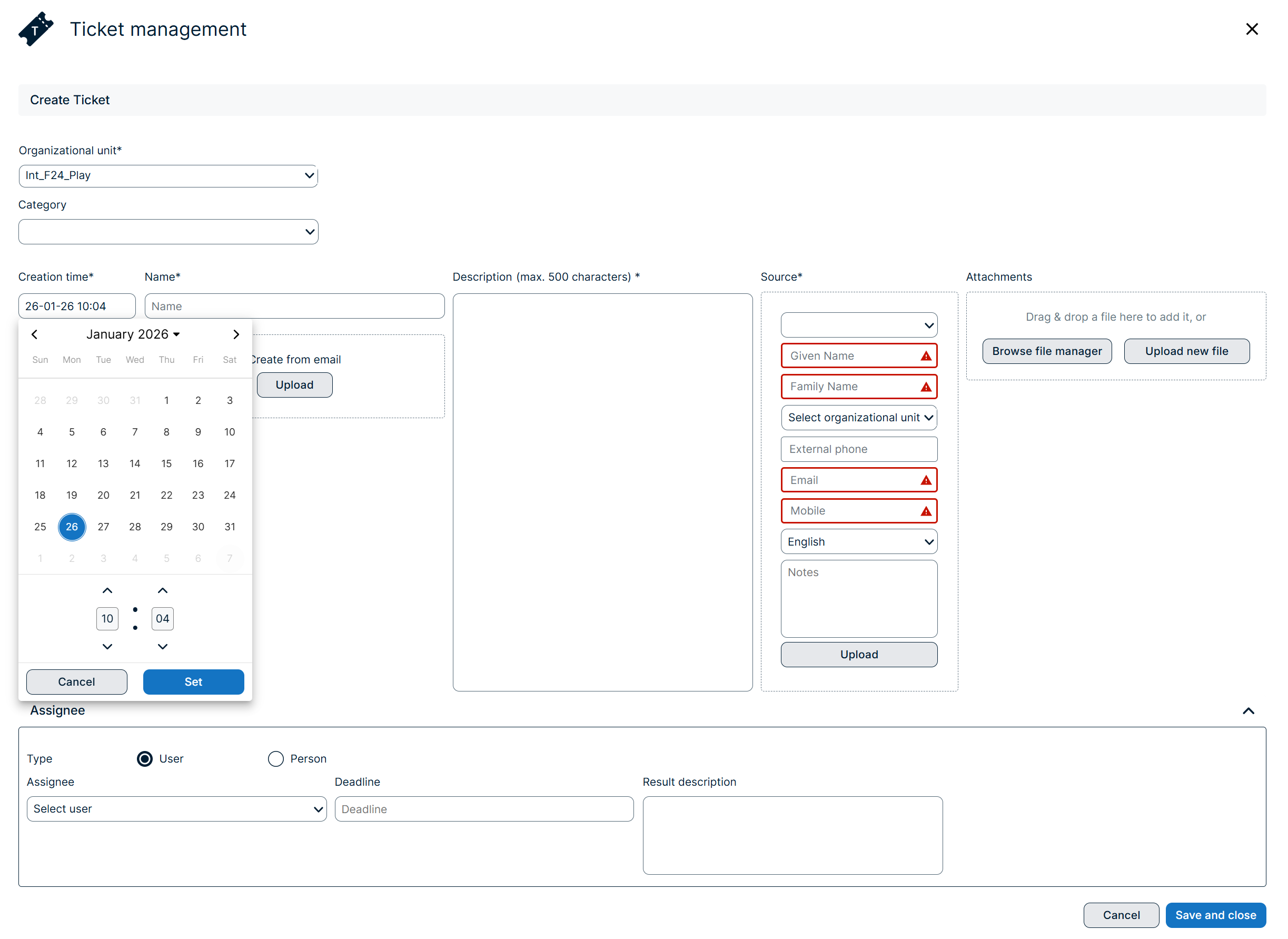
Each ticket includes the following core information:
· Organizational Unit: Defines which business unit the ticket belongs to. Only members of this organizational unit can see the ticket.
· Category: Used as a filtering criterion to narrow down large ticket lists.
· Creation Time: Timestamp of when the ticket was created.
· Creator: Indicates who created the ticket (and when).
· Name: Short description of the task.
· Description: Detailed explanation of the task.
· Source: Indicates where the ticket originates from (e.g., manual, template, email).
· Attachments: Files linked to the ticket (including attachments imported from emails).
· Assignee: The person responsible for executing the ticket. A ticket can be assigned to a User or a Person.
Assignment is not mandatory at ticket creation. A ticket may remain unassigned until the creator explicitly assigns it.
· Due Date (Deadline): Absolute deadline derived from SLA/relative duration settings.
Ticket Statuses
Ticket status indicates the current stage of task execution.
Available Statuses
· To do The ticket exists and the task is open, but nobody is actively working on it.
· In progress Work has started and the task is currently being processed.
· On hold Work cannot continue (e.g., a blocker occurred). The ticket is temporarily paused.
· Canceled The task has been withdrawn and no longer needs to be completed.
· Closed The task has been completed successfully.
Status change rules
· Status can be changed by anyone (Users and Persons).
· In practice, the status is typically set by the assignee currently responsible for the ticket.
· There are no restrictions between statuses: any status can be changed to any other status.
Creating Tickets
Tickets can be created in several ways:
Manual ticket creation (Web UI)
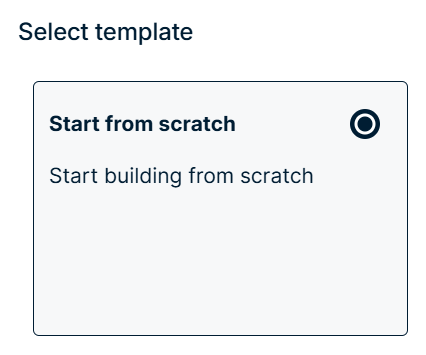
Users can create tickets from scratch by filling in the required information.
Tickets can be created:
· completely empty (all fields blank), or
· based on a template (see below).
Creating tickets from email (Drag & Drop)
Tickets can be created by dragging and dropping an email into the ENS+ interface.
When creating a ticket from email, the system applies the following rules:
· Creator: email sender
· Title: email subject
· Description: email body content
· Attachments: email attachments become ticket attachments
Plain text conversion
Tickets do not support HTML formatting.
If an email contains HTML content, the system converts it to plain text when storing it in the ticket description.
Creating tickets from templates
Templates support recurring tasks that should not be rewritten repeatedly.
When a ticket is created from a template, the following information is automatically copied:
· Title
· Description
· Expected duration (relative deadline)
Ticket Templates
Who can create templates?
Templates can only be created and maintained by Users.
Where can I configure a ticket template?
Ticket templates are maintained in the ENS+ Web Interface under:
Incident Configuration → Task & Ticket Template

The Task & Ticket Template section is a shared template configuration for both Tasks and Tickets.
Why are Tasks and Tickets using a shared template?
Tasks and tickets overlap significantly in structure and content, which is why they share a common template definition.
However, they are used in different contexts:
- Tasks are work items that belong to a specific incident within ENS+.
- Tickets are work items that do not belong to any incident and can be created and solved independently.
Template pages / categories
The Task & Ticket Template contains information in four main categories:
- Basic Information
- Alarm
- Contact
- Groups
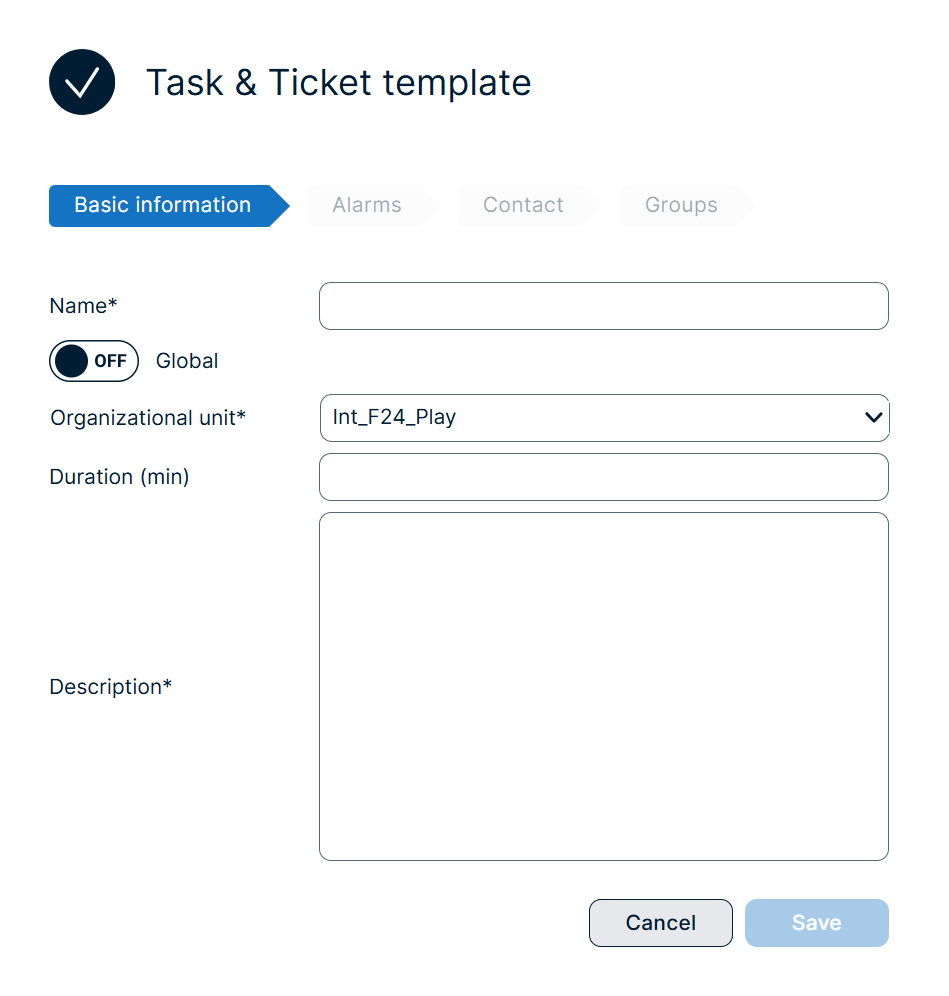
Ticket creation vs. task creation from the shared template
When creating a ticket from the shared Task & Ticket template:
- only the Basic Information section is applied.
When creating a task (incident-related task) from the same template:
- all template sections are applied (Basic Information, Alarm, Contact, Groups).
This allows ENS+ to reuse a single template framework while still supporting both incident-related tasks and independent tickets.
License-based visibility
The visibility of the template sections depends on the user’s license.
- If the user license only includes Ticket Management, then only the Basic Information page is visible in the Task & Ticket Template configuration.
- If the user license also includes Task Management, then all four pages are available:
- Basic Information
- Alarm
- Contact
- Groups
Template fields
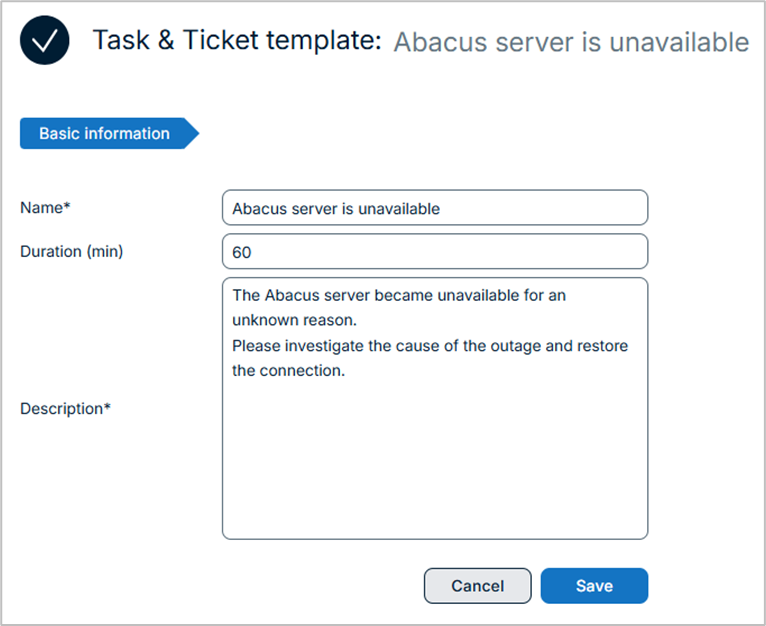
A ticket template includes:
· Title
· Description
· Expected completion time (relative duration, e.g., 48 hours)
Deadlines and SLA Logic
Relative deadlines (in templates)
Templates define deadlines as relative durations, for example: expected completion time is 48 hours
Absolute deadlines (in tickets)
When a ticket is created from a template, the system converts the relative duration into an absolute due date (SLA-like behavior).
Example:
- ticket created: Monday 08:00
- expected duration: 48 hours
→ due date becomes: Wednesday 08:00
Deadline calculation timing
Due date calculation is linked to ticket assignment:
- The deadline is determined as part of the ticket creation process.
- Template-based tickets already provide the relative duration, which is then used to generate the absolute due date.
Overdue Tickets
If a ticket is not moved to “Closed” before the due date, it becomes overdue.
In the ENS+ Web Interface, overdue tickets are highlighted with a red background, indicating that they require special attention from administrators.
Ticket Management in the Mobile App
The ENS+ mobile application includes a dedicated Ticket Management menu.
Ticket list
In the mobile app, the Person can see the tickets assigned to them.
Filtering by status
Tickets can be filtered by status to see only those, which are relevant for the Person in that moment.
Notes, Attachments, and Documentation (Mobile)
Persons can enrich tickets directly from the mobile device:
- add notes within the ticket description,
- attach voice recordings,
- attach photos,
- document work using camera pictures.
This supports efficient task reporting and proper documentation in field work scenarios.
Location Capture at Ticket Closure
If location services are enabled on the mobile device, the system captures the device location during ticket closure.
When a ticket is closed, the location of the Person / mobile device is stored as part of the ticket documentation.
Ticket History / Audit Trail
The system stores a history log for each ticket, including:
- what changes happened,
- when they happened,
- and who performed them.
In the ENS+ Web Interface:
- the ticket list includes a dedicated History column,
- clicking the clock-like icon opens a table showing the full change history.
Email Notifications for Ticket Changes
ENS+ supports automatic email notifications to ensure that assignees are always informed about changes affecting their tickets.
When are notifications sent?
Whenever any change occurs on a ticket that is assigned to you, the system sends an email notification.
Purpose of notifications
The notification mechanism ensures that:
- ticket executors do not miss important updates,
- responsibility changes are immediately visible,
- ongoing work stays coordinated even if multiple users modify the ticket.