FACT24 ENS+
Release Notes
Portal Version 3.31
Portal Version 3.30
Portal Version 3.29
Portal Version 3.28
Portal Version 3.27
Portal Version 3.26
Portal Version 3.25
Portal Version 3.24
Portal Version 3.23
Portal Version 3.22
Portal Version 3.21
Portal Version 3.20
Portal Version 3.19
Portal Version 3.18
Portal Version 3.17
Portal Version 3.16
Portal Version 3.15
Portal Version 3.14
Portal Version 3.13
Portal Version 3.12
Portal Version 3.11
Portal Version 3.10
Portal Version 3.9
Portal Version 3.8
Portal Version 3.7
Portal Version 3.6
Portal Version 3.5
Portal Version 3.4
Portal Version 3.3
Portal Version 3.0
Portal Version 3.2
Getting started
Setup
Managing ENS+ users
Creating your organizational structure
Caller IDs
Address registry
Categories
Dictionary
File manager
Download Center
Your Account
Two-factor authentication (2FA)
Configuration
Persons & Groups
Alarm configuration
Alarms
Launch Forms - Configuration
Message templates
Calendar
Location profiles
Geolocation profiles
Whitelists
Jobs
Events
Telephone quickstarts
Survey
Alarm Templates
Alarm Flow
Interfaces
Operating Cockpit
Alarm Cockpit
Activate and stop alarm
Launch Forms - Trigger
Ad hoc alarm
Alarm monitor
Chat
Phone Conference
Video Conference
Surveys
Reports & Statistics
Loneworking
FACT24 Mediagateway
Microsoft Teams Bot
Web login for persons
Add-on modules
FACT24 ENS+ Incident Management
Telekom Settings Cloud of Things Narrow Band Interface
FACT24 ENS+ External API (REST) – Functionality Scope
FACT24 AI
Migration to ENS+
FACT24 CIM
Release Notes
New functions through FACT24 CIM release V.26.02
New functions through FACT24 CIM release V.26.01
New functions through FACT24 CIM release V.25.03
New functions through FACT24 CIM release V.25.02.01
New functions through FACT24 CIM release V.25.02
New functions through FACT24 CIM release V.25.01
New functions through FACT24 CIM release V.24.03
New functions through FACT24 CIM release V.24.02
New functions through FACT24 CIM release V.24.01
New functions through FACT24 CIM release V.23.02
New functions through FACT24 CIM release V.23.01
Getting started
FACT24 CIM starter - crucial steps
FACT24 CIM essential
FACT24 CIM advanced
Introduction
Start Page
Admin workspace
The FACT24 CIM Roles
New Navigation
Search
Levels
Contacts
Locations
Home - workspaces
Situation
Manage
Communicate
Document & report
Prepare & prevent
Mobile App (FACT24 ENS+ and CIM)
App Releases
App-Version 3.30
App-Version 3.28
App Version 3.26
App Version 3.24
App Version 3.22
App Version 3.21
App Version 3.20
App Version 3.17
App Version 3.16
App Version 3.15
App Version 3.13
App Version 3.12
App Version 3.10
App Version 3.9
App Version 3.8
App Version 3.7
App Version 3.5
App Version 3.3
App Version 3.2
Download & Basics
FACT24 ENS+ App Section
Basics and Login
General Settings
Account
Location Services
Group Management
Triggering Alarms
Editing Alarms
Active Alarms
Chat in the ENS+ Application
History
Reports
Emergency Plans
Lone Worker Protection
Special Smartphones
FACT24 CIM App Section
Support
Table of Contents
- All Categories
- FACT24 ENS+
- Configuration
- Persons & Groups
- Data management with FACT24 ENS+
Data management with FACT24 ENS+

There are five different connection options to import persons and groups into FACT24.
Level of integration with your proprietary systems | Connection options to import persons and groups into FACT24. |
Low |
|
| |
Middle |
|
| |
High |
|
Details of the individual connection options:
1) Manual upload of csv files in Web application (only data import and updates possible)
Add or edit persons and groups by importing csv files in the person and group configuration. File size restriction is 30 MB, usually suitable up to 10k persons.
2) Synchronization via SFTP server hosted by F24
As an optional additional service, data in file formats including CSV and XML can be uploaded to FACT24 using the F24 SFTP server. This can also be set up as an automated process, depending on your preferred method. Configuration costs and monthly usage fees are shown in our price list. Recommended for 1,000 persons and over.
3) Connect your Active Directory via LDAP protocol (only person data import and updates possible)
IT environment, recommended up to 10k persons. Import your person data via generic LDAP protocol. Mediagateway has to be installed in customers’ IT environment and is only recommended up to 10k persons. Groups cannot be imported via this way.
4) Synchronisation via Web Services API
We offer a REST API to synchronize persons and groups to FACT24. Programming of the interface to your system must be performed by you or the provider of the system to be connected. Setup costs for the web service API and monthly usage fees (included in the FACT24 CIM starter edition) can be found in our price list. Recommended for 1,000 persons and over.
5) Synchronisation via SCIM
Companies that store their personnel records in Azure Active Directory (now known as Microsoft Entra ID) can easily synchronize this data with the Person list in ENS+. Recommended for 1,000 persons and over.
Details of the SCIM Synchronization
Companies that store their personnel records in Azure Active Directory (now known as Microsoft Entra ID) can easily synchronize this data with the Person list in ENS+. Thanks to this fully automatic synchronization, there is no longer any need for contact data management within ENS+.
SCIM stands for System for Cross-domain Identity Management. It's an open standard designed to make it easier to automate the exchange of user identity information between systems—especially for cloud-based applications and services.
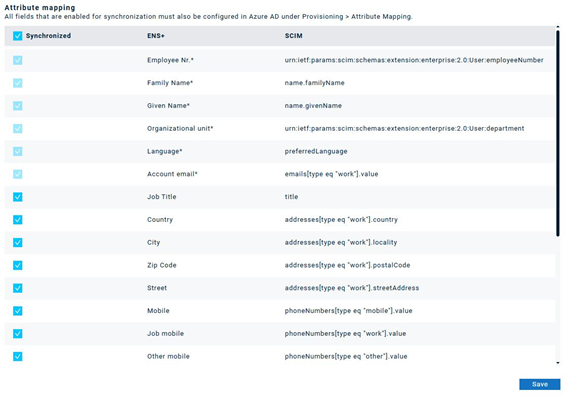
In ENS+, you can decide which person properties you want to import. This can be defined on the 'SCIM Import' page under 'Setup'.
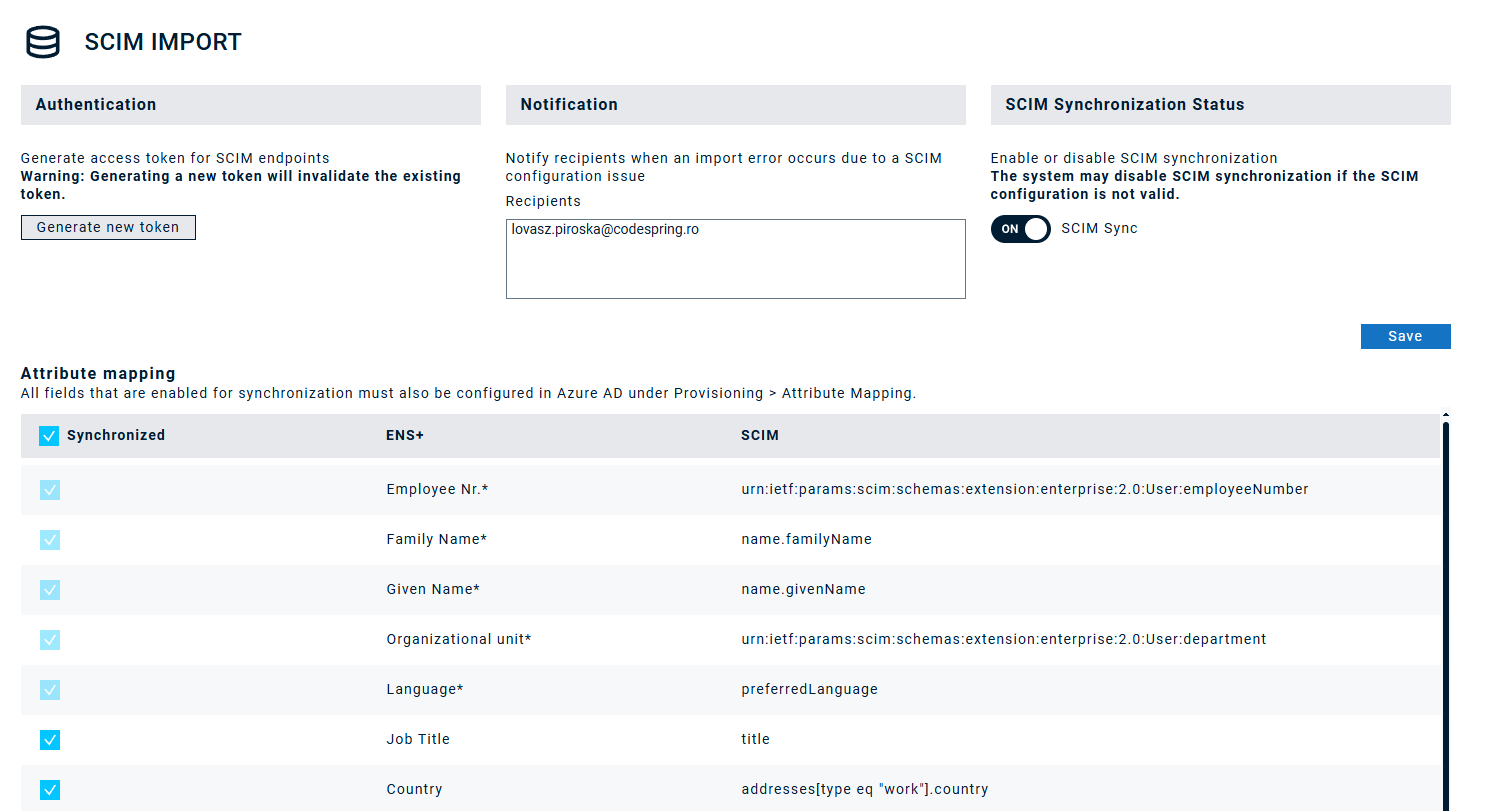
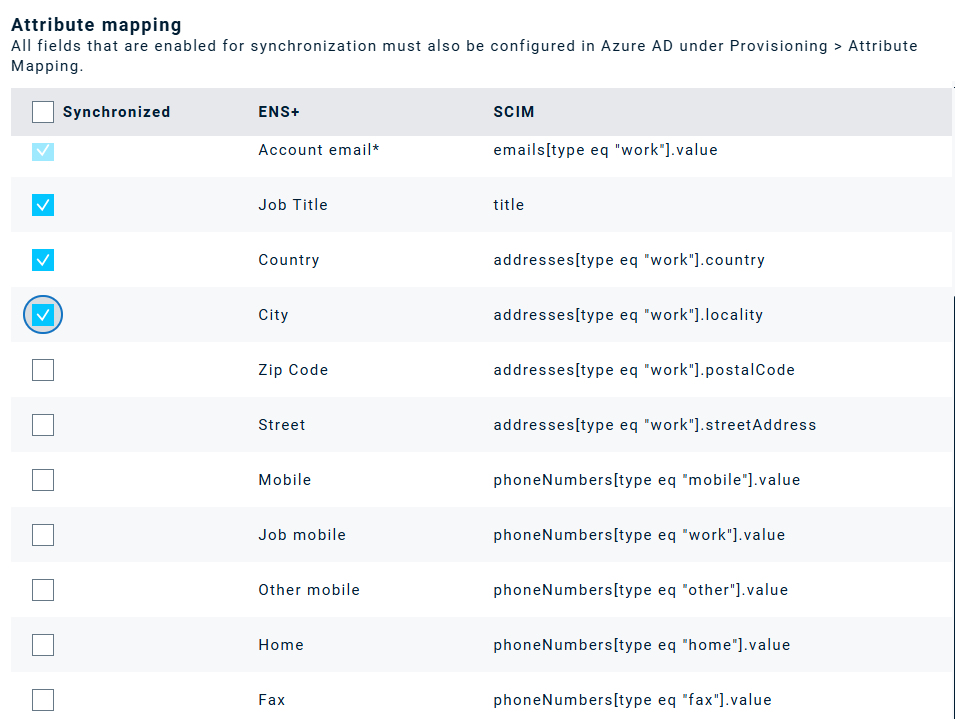
In the Attriubute mapping you can click on which properties should be synchronized:
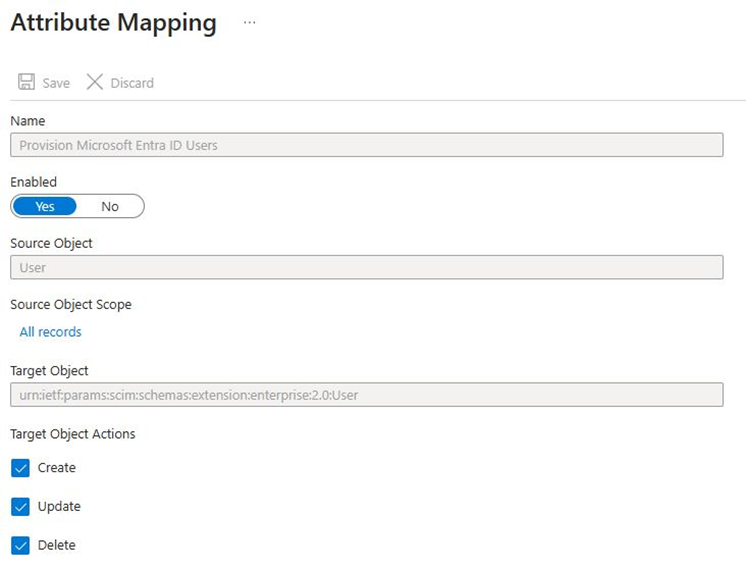
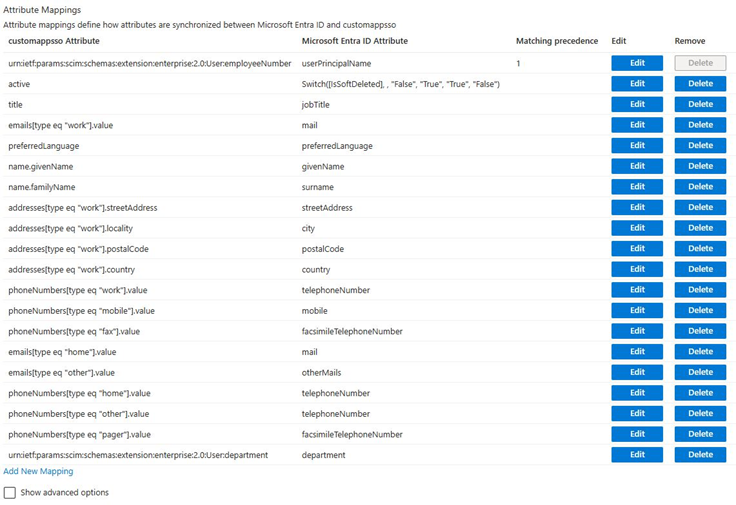
With the help of the generated token from ENS+ your Azure administrator needs to connect your Entra ID account with your ENS+ enterprise:
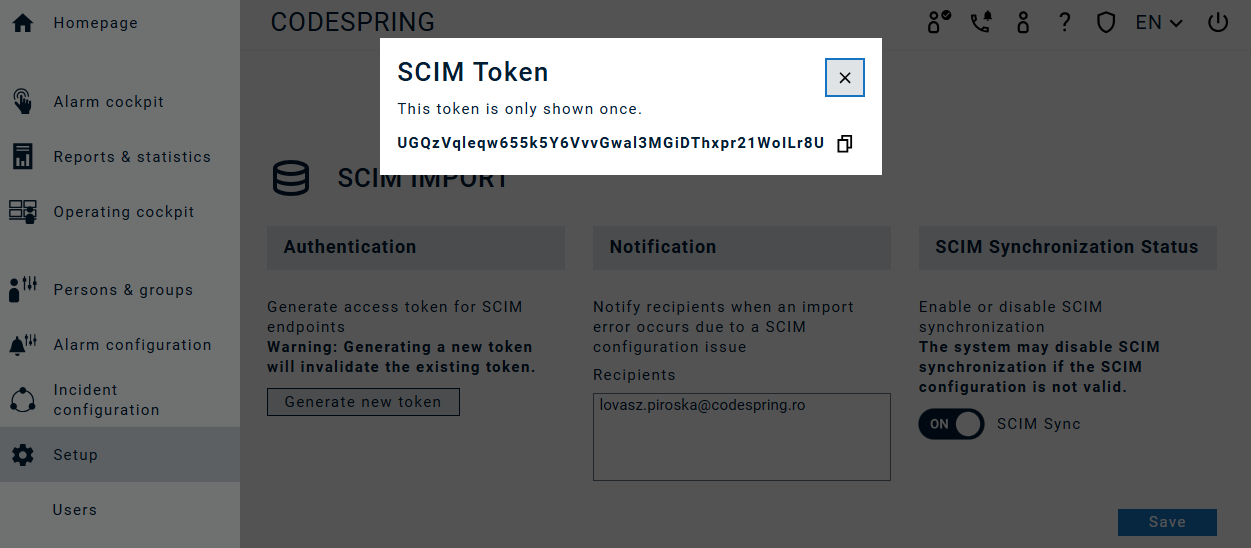
The data synchronization runs automatically based on Azure configurations (default is every 40 minutes). If for any reason the regular synchronization running in the background is interrupted on the ENS+ side, the system will send an email notification to the freely selectable email addresses. In this situation the ENS+ will automatically disable the synchronization which needs to be re-enabled (after fixing the issue) in order for the import to continue.
ENS+ configuration for SCIM Import
Log in with a principal and navigate to the menu `Setup` > `SCIM Import`.
Configure the token, the administrator email address (optional) and enable SCIM Sync.
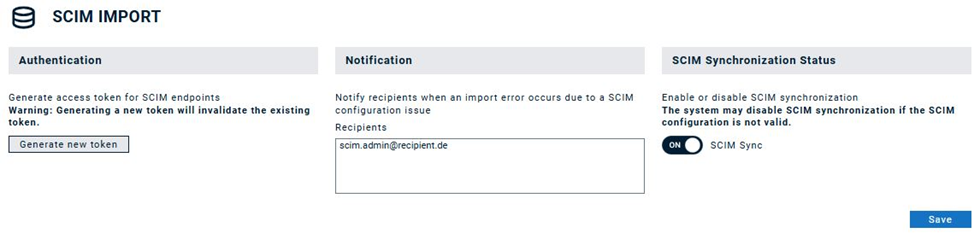
SCIM field mappings are fixed in ENS+. To configure the attribute mapping, select the fields that you want to synchronize from the SCIM server to ENS+.
These fields must be in sync with the SCIM server configuration.
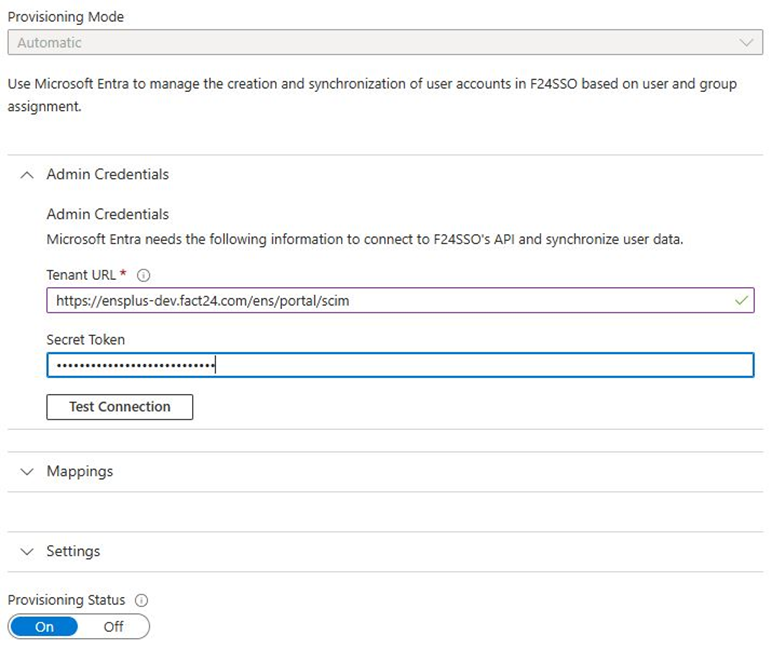
Go to the `Manage` > `Provisioning` of your Microsoft Entra ID in Azure Active Directory (AAD).
In the `Admin credential` part, configure the credentials that will be used to connect to ENS+:
- Tenant URL: `<url-of-your-ens-server>/portal/scim/`
- Secret Token: The token you received on the ENS+ configuration (can be regenerated at any time)
In the `Mapping` part, configure the attribute mapping for `Users`, `Groups` are currently not supported.
Select the fields that you want to synchronize from AAD to ENS+ for `Users`. An example configuration is shown below.