FACT24 ENS+
Release Notes
Portal Version 3.31
Portal Version 3.30
Portal Version 3.29
Portal Version 3.28
Portal Version 3.27
Portal Version 3.26
Portal Version 3.25
Portal Version 3.24
Portal Version 3.23
Portal Version 3.22
Portal Version 3.21
Portal Version 3.20
Portal Version 3.19
Portal Version 3.18
Portal Version 3.17
Portal Version 3.16
Portal Version 3.15
Portal Version 3.14
Portal Version 3.13
Portal Version 3.12
Portal Version 3.11
Portal Version 3.10
Portal Version 3.9
Portal Version 3.8
Portal Version 3.7
Portal Version 3.6
Portal Version 3.5
Portal Version 3.4
Portal Version 3.3
Portal Version 3.0
Portal Version 3.2
Getting started
Setup
Managing ENS+ users
Creating your organizational structure
Caller IDs
Address registry
Categories
Dictionary
File manager
Download Center
Your Account
Two-factor authentication (2FA)
Configuration
Persons & Groups
Alarm configuration
Alarms
Launch Forms - Configuration
Message templates
Calendar
Location profiles
Geolocation profiles
Whitelists
Jobs
Events
Telephone quickstarts
Survey
Alarm Templates
Alarm Flow
Interfaces
Operating Cockpit
Alarm Cockpit
Activate and stop alarm
Launch Forms - Trigger
Ad hoc alarm
Alarm monitor
Chat
Phone Conference
Video Conference
Surveys
Reports & Statistics
Loneworking
FACT24 Mediagateway
Microsoft Teams Bot
Web login for persons
Add-on modules
FACT24 ENS+ Incident Management
Telekom Settings Cloud of Things Narrow Band Interface
FACT24 ENS+ External API (REST) – Functionality Scope
FACT24 AI
Migration to ENS+
FACT24 CIM
Release Notes
New functions through FACT24 CIM release V.26.02
New functions through FACT24 CIM release V.26.01
New functions through FACT24 CIM release V.25.03
New functions through FACT24 CIM release V.25.02.01
New functions through FACT24 CIM release V.25.02
New functions through FACT24 CIM release V.25.01
New functions through FACT24 CIM release V.24.03
New functions through FACT24 CIM release V.24.02
New functions through FACT24 CIM release V.24.01
New functions through FACT24 CIM release V.23.02
New functions through FACT24 CIM release V.23.01
Getting started
FACT24 CIM starter - crucial steps
FACT24 CIM essential
FACT24 CIM advanced
Introduction
Start Page
Admin workspace
The FACT24 CIM Roles
New Navigation
Search
Levels
Contacts
Locations
Home - workspaces
Situation
Manage
Communicate
Document & report
Prepare & prevent
Mobile App (FACT24 ENS+ and CIM)
App Releases
App-Version 3.30
App-Version 3.28
App Version 3.26
App Version 3.24
App Version 3.22
App Version 3.21
App Version 3.20
App Version 3.17
App Version 3.16
App Version 3.15
App Version 3.13
App Version 3.12
App Version 3.10
App Version 3.9
App Version 3.8
App Version 3.7
App Version 3.5
App Version 3.3
App Version 3.2
Download & Basics
FACT24 ENS+ App Section
Basics and Login
General Settings
Account
Location Services
Group Management
Triggering Alarms
Editing Alarms
Active Alarms
Chat in the ENS+ Application
History
Reports
Emergency Plans
Lone Worker Protection
Special Smartphones
FACT24 CIM App Section
Support
Table of Contents
- All Categories
- Mobile App (FACT24 ENS+ and CIM)
- App Releases
- App Version 3.26
App Version 3.26

Improvements for all FACT24 Editions: (available from 05.03.2026)
Video Conference in the App
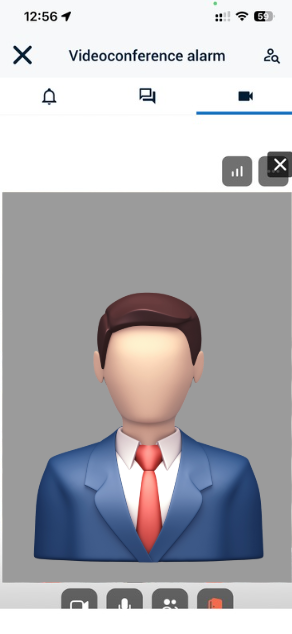
To enhance the user experience and expand the application’s capabilities, an integrated video conferencing service is now available directly within the app.
When an alarm is triggered that includes a video conference, a new tab marked with a camera icon appears in the application interface.
By selecting this tab, users can join the associated video conference session instantly.
Participant Management
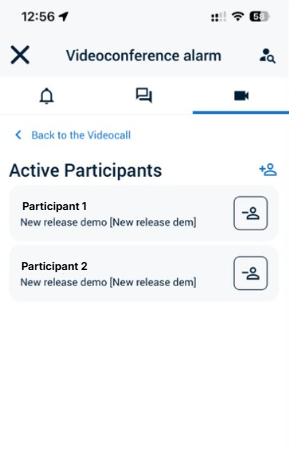
The app also provides functionality to manage video conference participants.
To use this feature, users must be signed in with a user account.
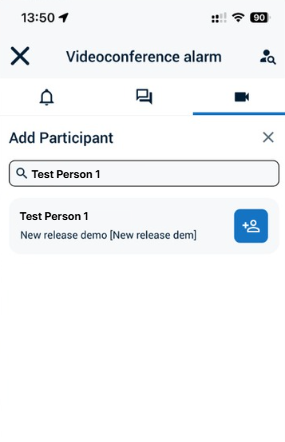
By selecting the participant icon in the top-right corner of the interface, users can:
- View the list of invited participants
- Add additional participants
- Remove participants as needed
 |  |
Seamless In-App Experience
During the video conference, users can continue working within the app without interruption.
It is possible to:
- Comment on chat messages
- Review the alarm message
- Perform other alarm-related actions
All relevant actions can be carried out directly within the application, eliminating the need to leave the interface.
AI-Powered Chat Summary in the App
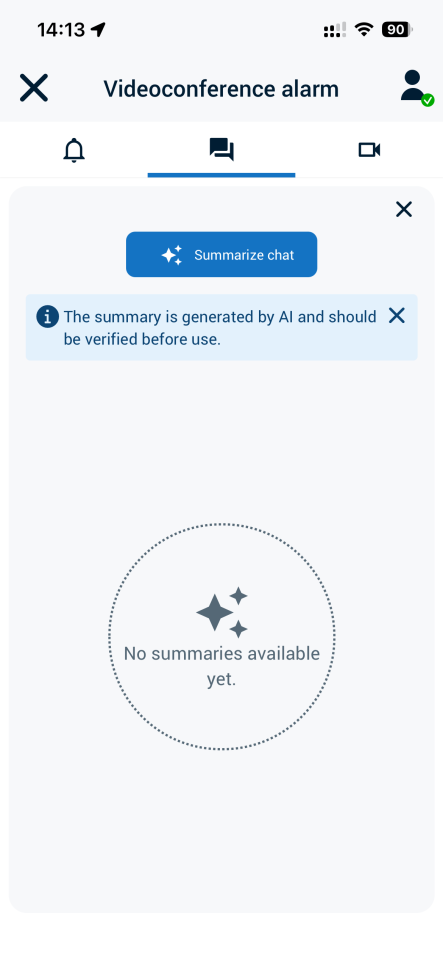
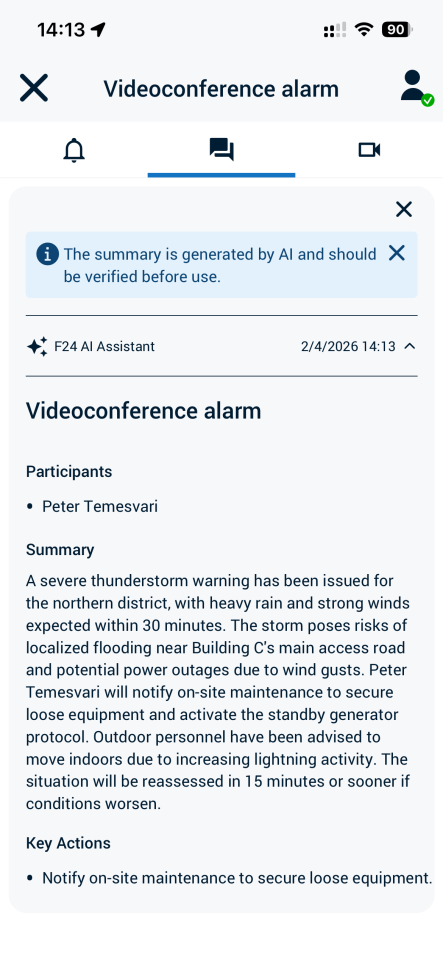
The Chat Summary feature is now available in the mobile application, offering the same functionality as in the web application.
To access the feature, users navigate to the chat view, where the Chat Summary button is displayed at the bottom of the chat message list.
By selecting this button, users can view previously generated summaries or create a new chat summary.
 |  |  |
Clarification of Location Data Usage
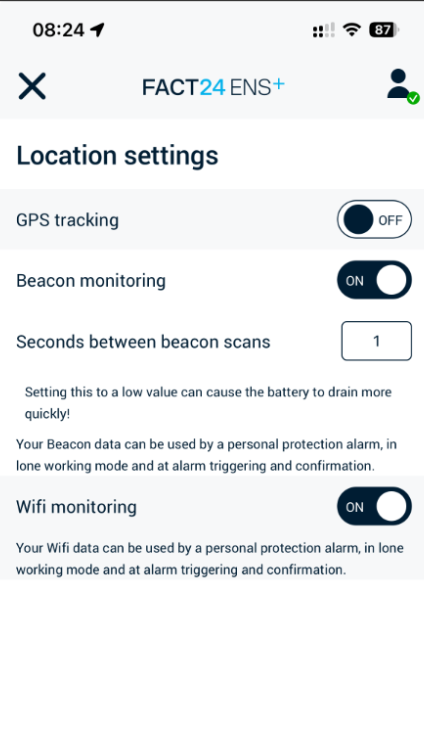
To improve transparency and address common questions regarding the use of location information, an explanatory section has been added within the application.
This additional information is displayed beneath all location-related technologies, including:
- GPS
- Wi-Fi
- Beacon-based positioning
The new section provides insight into how location data is collected, processed, and utilized within the application, ensuring greater transparency and understanding.
Battery Consumption Optimization
The algorithms used in Lone Worker mode have been optimized, resulting in reduced battery consumption while the feature is active.
This improvement enhances device performance and extends battery life during prolonged use.
Extended Input for “Time to Be at Location”
In alignment with Portal version 3.26, the mobile application now supports a maximum five-digit input for the “Time to be at location” field used in alarm confirmations.
Kiosk Mode – Enhanced Alarm Details
When an alarm is received in Kiosk mode, the application now automatically opens the alarm details page instead of displaying a simple pop-up notification.
This provides users with access to more comprehensive alarm information, including:
- Alarm status
- Attachments
- Chat messages
- Additional related details
Improved Status Terminology
Previously, users could set their status to Active or Inactive via the Person icon in the top-right corner of the application.
Setting the status to Inactive prevented notifications while maintaining account access.
To better reflect the actual functionality, the terminology has been updated as follows:
- Active → Available
- Inactive → Unavailable
This adjustment improves clarity and reduces potential misunderstandings.
Launch Form Text Limit Increase
In alignment with the web application, the maximum character limit for free-text fields in launch forms has been increased to 1,500 characters.
This allows users to provide more detailed information when initiating processes within the app.