Table of Contents
Portal Version 3.28

Release Notes Portal Version 3.28.0 (available from April 27th 2026 on)
Improvements for all FACT24 Editions
AI chat summary button more prominent
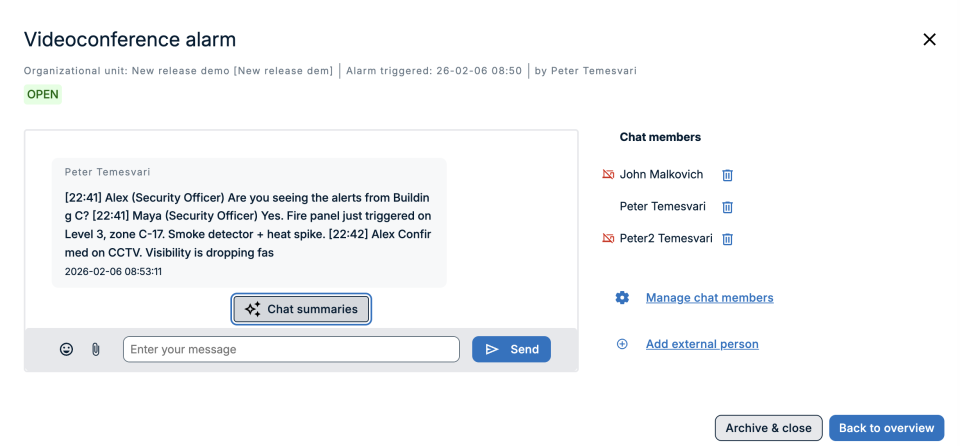
The Chat Summary button is now available directly within the chat screen, making it easier to access AI-generated summaries without leaving the conversation.
Why it matters?
During an active incident, crisis managers can open the summary instantly from within the chat view, allowing them to quickly grasp key updates while maintaining uninterrupted communication and avoiding the need to switch screens.
More information about AI in FACT24
Increased Alarm Number in Telephone Quickstart
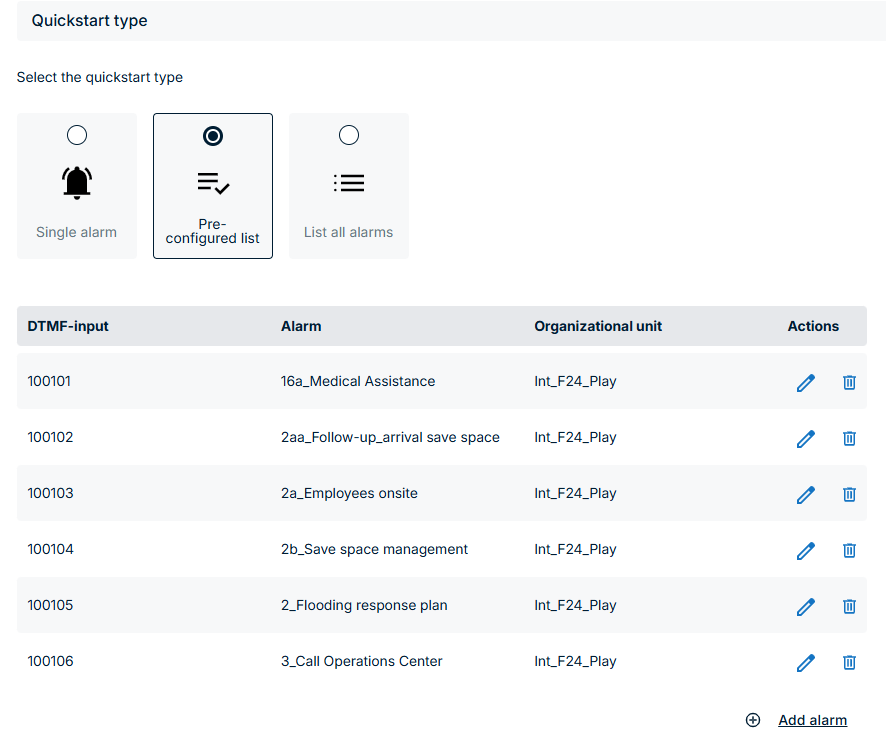
The maximum number of alarms that can be configured within the preconfigured list of a Telephone Quickstart has been significantly increased from 99 to 400.
Why it matters?
This enhancement provides greater flexibility and scalability, allowing users to manage a larger number of predefined alarms more efficiently.
More information about Telephone Quickstarts
Improvements from FACT24 ENS+ essential
Alarm start by Persons via Web Client
Persons with an assigned profile can now start an alarm (without using the app) via the web client.
2 Use Cases are supported:
- Persons log in through the standard URL with their individual FACT24 ENS+ account and can access all relevant settings, including the ability to start alarms.
- A shared person account is used, which is in the shared person to the alarm start URL (https://ensplus.fact24.com/ens/#/web-client-alarm) and this shared person will have the option only to start alarms
How to set up?
In order for the Person or shared person to start alarms with the standard ENS+ URL or with alarm stary URL, the Web client page has to be configured first.
This is is a configuration tab within a Profile. Administrators use this page to define a curated set of alarms that appear under Web client alarms on the home screen for persons with the given profile.
When creating a new profile, there is a new “Web client” tab:
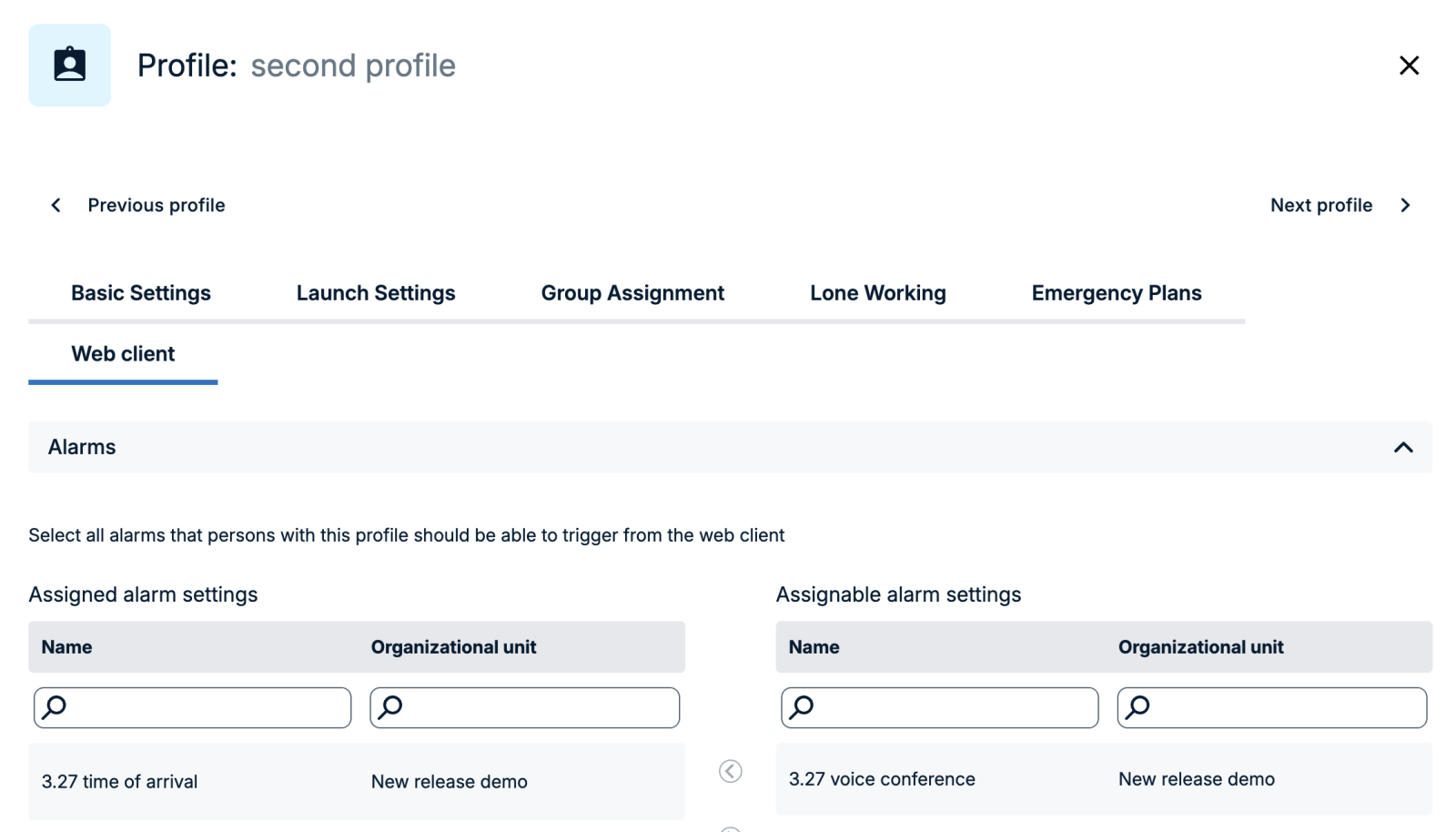
- In the list of “Assignable alarm settings” (column right side) find the alarms that the person should be able to trigger
- Click on the alarm
- Use the left arrow to move it to the list of “Assigned alarm settings” (column left side)
To assign all alarms matching the current filter at once, click move all left.
Changes are saved immediately. A confirmation message is displayed when alarms are successfully added.
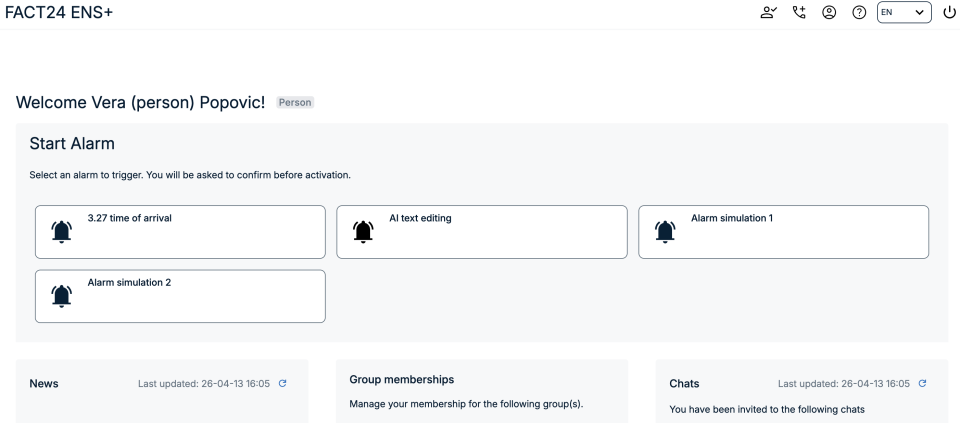
Once alarms are assigned to a profile's web client configuration, persons with that profile will see those alarms listed under Web client alarms on their workspace.
From there, they can trigger an alarm directly:
- The person selects an alarm from the Web client alarms section on the workspace
- A confirmation popup is displayed before the alarm is activated
- After confirming, the alarm is triggered as a live alarm in the normal way
Additional notes:
- Alarm triggering is available for persons with linked user as well
- The person can't edit the alarm before triggering
- Scheduling an alarm is not allowed
- Only alarms with launch type WEB are allowed to be triggered
- Can trigger any alarm from the assigned alarms
- Only own department and subdepartment alarms can be added to the profile
- An alarm can be assigned to multiple profiles
More information about Profiles
Verifying Messenger and Application Channel Configuration
Administrators can verify whether the Messenger channel, meaning Microsoft Teams, and the Application channel, meaning the FACT24 app, are correctly configured for individual persons.
This helps ensure that messages sent through these channels can be successfully delivered to the intended recipients.
Messenger Channel
For the Messenger channel, it is not sufficient to configure the Messenger device on the person page.
The user must also be subscribed to the service. This subscription can happen either explicitly or implicitly, depending on if the Teams bot was installed before or after the Person configuration.
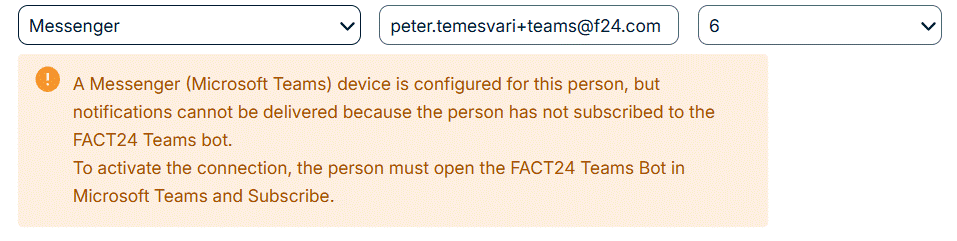
If the Messenger channel is configured for a person but the user is not subscribed, messages sent through this channel can’t be delivered.
Application Channel
For the Application channel, the user must not only install the FACT24 app on their mobile device, but also log in to the app.
If the app is installed but the user is not logged in, messages sent through the App channel can’t be delivered.
Feedback about configuration status
The communication readiness of the Messenger and Application channels is shown in two places.
Person Page
On the person page, the system displays a warning or error message if a configured channel is not ready for communication.
This helps administrators identify configuration issues directly when reviewing or editing a person.
Person Report
The configuration status is also included in the person report, which can be exported in CSV or Excel format.
The report contains two columns indicating the status of the Messenger and App channels.
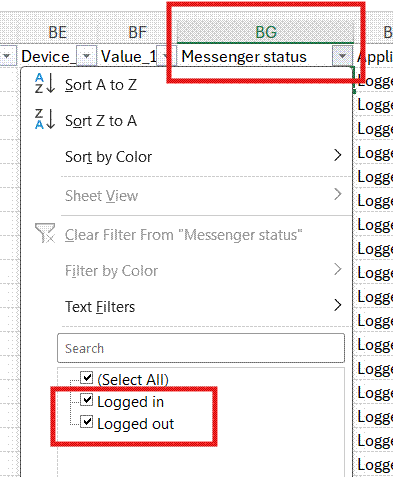
Status | Meaning |
Logged in | The channel is correctly configured and ready for communication. |
Logged out | The channel is not ready for communication. Messages sent through this channel may not be delivered successfully. |
These status values allow administrators to quickly identify which users may need to complete additional setup steps, such as subscribing to Microsoft Teams notifications or logging in to the FACT24 app.
Improvements from FACT24 ENS+ advanced
Export Filter and Response based groups
Filter and Response based groups can now be exported to a file for reporting, archiving, or offline review.
The export feature is available for all group types. Depending on the group type, the export can be downloaded as a CSV, Excel (XLSX), or PDF file (only global and static groups have PDF option).
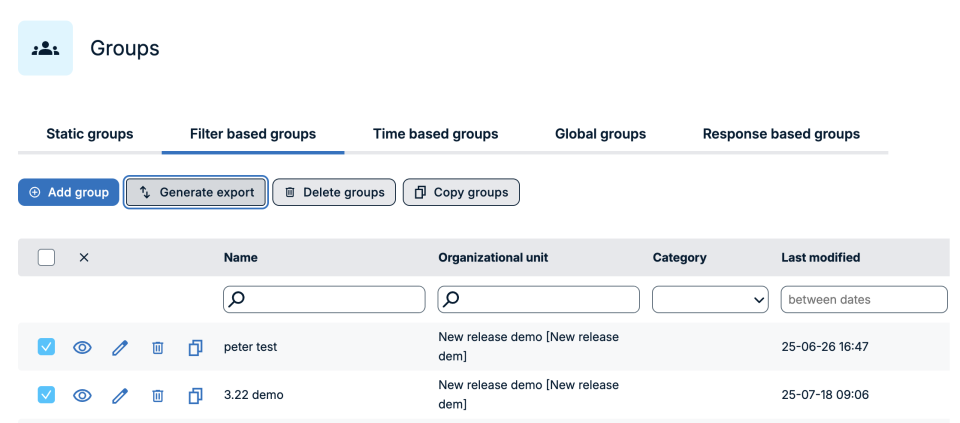
How to export:
- Navigate to Groups
- Use the list filters or search to narrow down the groups you want to export, if needed
- Select the groups you want to include, or leave the selection empty to export all visible groups
- Click Generate export
- In the export dialog, choose your preferred file format and optionally add a description
- Click Send report
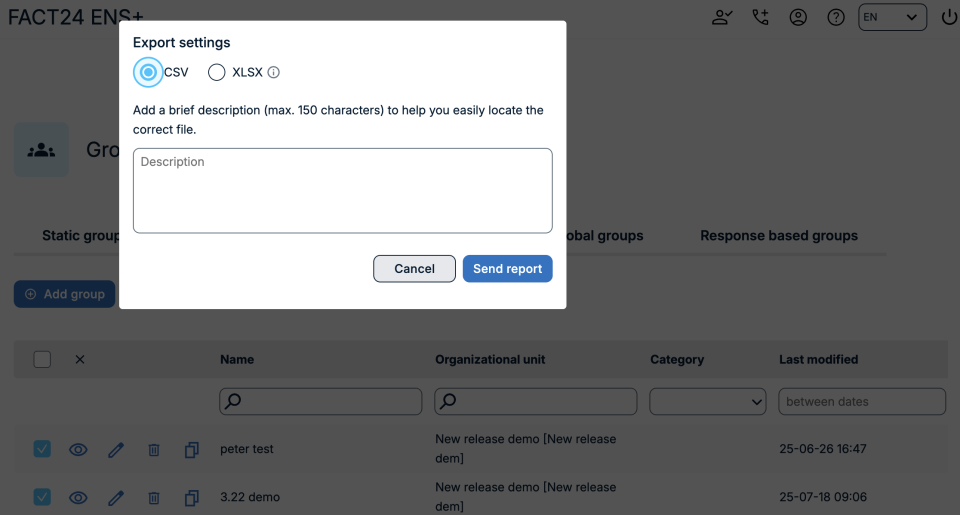
The export runs in the background. When it is ready, you will receive an email notification and the file will be available in the Download Center.
Alarm simulation
The alarm simulations can be used to verify that an alarm or whole alarm flow is correctly configured before activating it in a real emergency.
When a simulation is run, the alarm is processed by the system exactly as it would be in a live situation; however, no messages or notifications (SMS, email, voice calls, or other channels) are sent to the persons or groups included in the alarm(s).
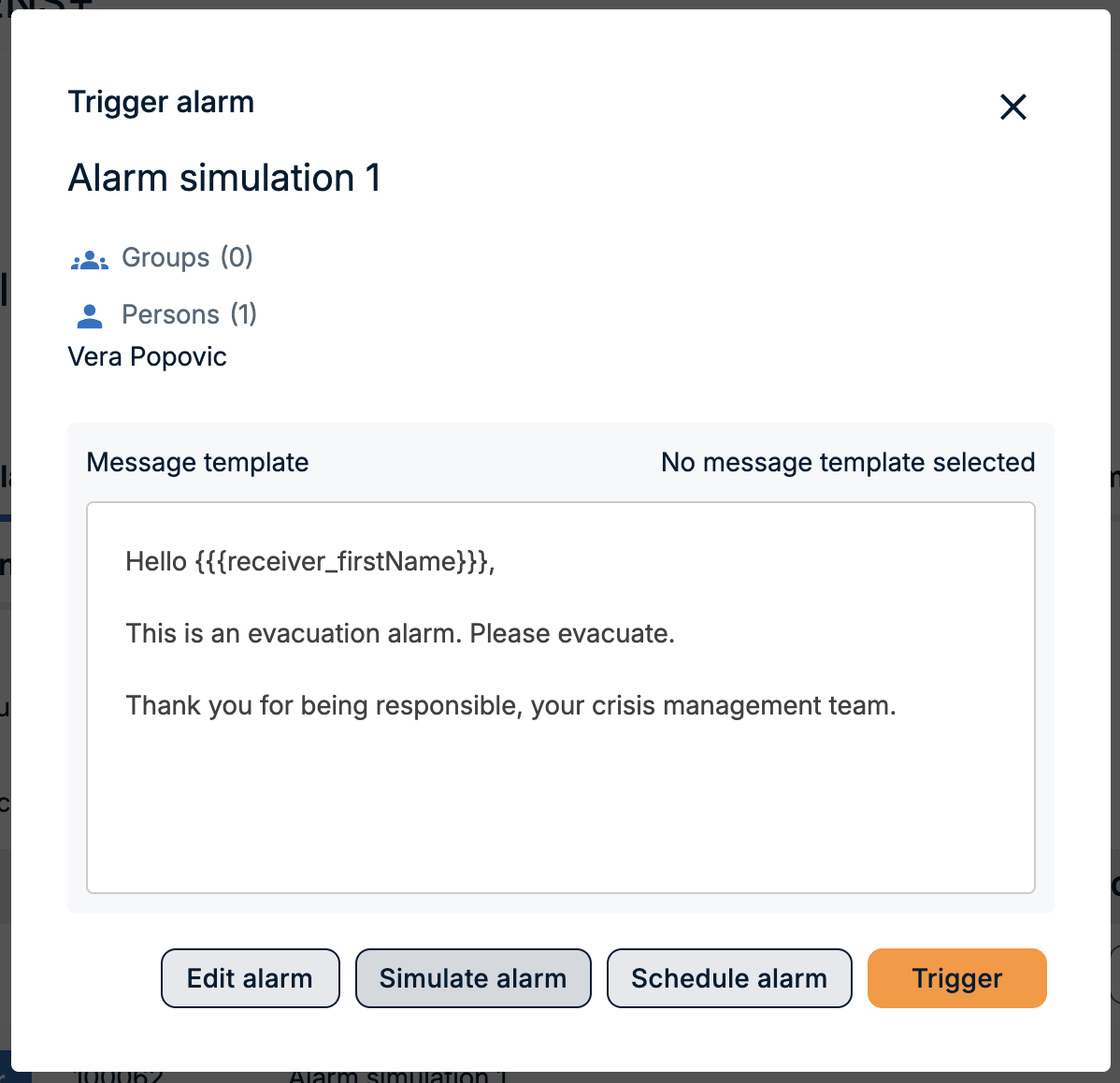
To start an alarm simulation, an alarm must first be configured or multiple alarms must be connected within an alarm flow.
The simulation can then be initiated via the Alarm Cockpit by selecting the desired alarm or alarm flow.
The Trigger button must be clicked for the selected alarm, and the Simulate alarm option must be clicked.
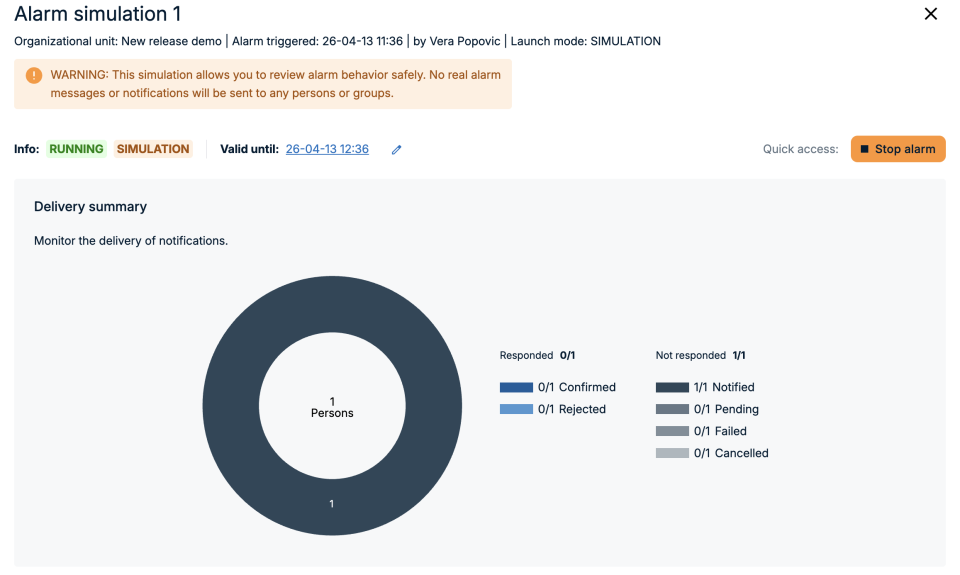
The user is then redirected to the Alarm Monitor page, where all persons, groups, and messages are displayed as they would be during a live alarm.
On the Alarm Monitor, a notification is shown indicating that the alarm has been launched in simulation mode and that no messages or notifications are being sent to persons or groups. The same information is also made available in the alarm reports.
How to get feedback in alarm simulation mode?
Because no real notifications are sent, recipient feedback cannot be collected automatically.
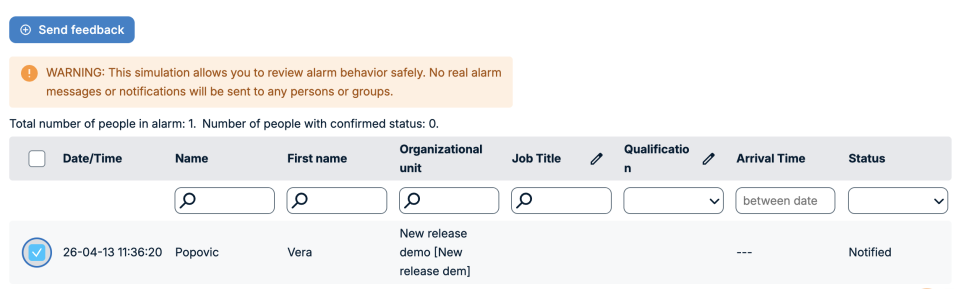
The system updates notification statuses internally:
- If the alarm requires confirmation from recipients, their notification status is set to Notified - indicating the notification would have been delivered.
- If no confirmation is required, the status is set to Sent (no feedback expected) and the use case flows are immediately closed.
You can manually record simulated feedback for selected recipients to test how the alarm handles different response scenarios. This lets you verify escalation rules, re-notification logic, and feedback thresholds without involving real participants.
How to end an alarm simulation?
A simulation can be stopped the same way as a live alarm - by closing or cancelling the alarm instance from the alarm monitoring view.
After the simulation ends, you can review the results to assess whether the alarm behaved as expected. Alarm reports will be available after the alarm simulation has ended.
The following features are turned off for the duration of the simulation:
- Chat - the in-alarm chat room is not created
- Audio conference - no conference is started, automatic dial-in to conference is disabled
- Video conference - no video session is started
- Location tracking - recipient location is not tracked
- Initiator added to collaboration - the person who triggered the alarm is not automatically added to the collaboration session
- Incident, local alarm - Simulated alarm does not create incidents and local alarms
- "set availability of alarms" and "stop other alarms" features do not work with simulated alarms
- Response-based groups do not take simulated alarms into consideration
- Sending follow-up notifications is not available for simulated alarms
Improvements for Customers with Add-Ons
Launch forms
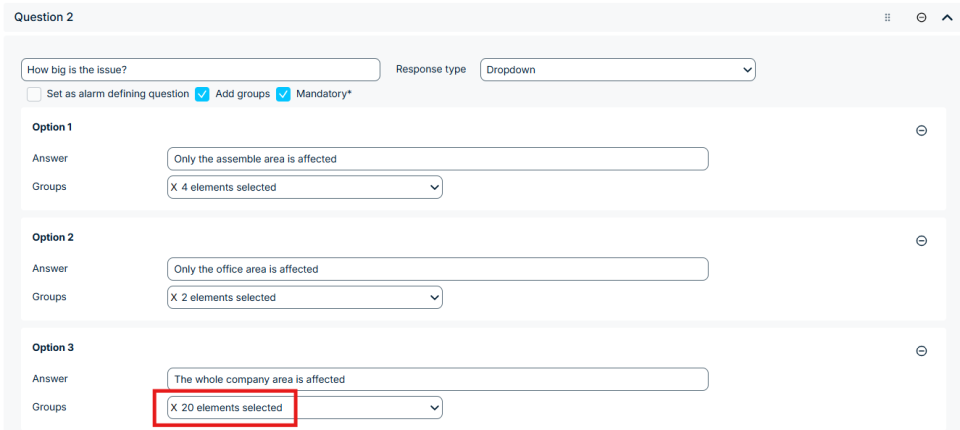
The Number of maximum questions in a launch form has been increased from 20 to 30.
The Number of maximum groups that can be attached to a question has been increased from 10 to 20.