Table of Contents
App-Version 3.32

Improvements for all FACT24 Editions: (available from 25.11.2026)
Phone conference management in the app
What's new
You can now manage the phone conference of an alarm directly in the mobile app. In the received alarm, a new phone conference tab shows who is invited, who has joined and who has left. You can add persons from the system or external persons, remove participants, mute or unmute them, and put one participant in the spotlight. In video conferences, you can now also add external persons.
Why it matters
- You no longer need the portal to run the conference call of an alarm. You can do it on the move, from the same app that alerted you.
- You can bring in the right people fast, including people outside your organization, such as service providers or authorities.
- Phone and video conferences work the same way, and the same way as in the portal.
How it works
Open the phone conference of an alarm
- Open the received alarm.
- Tap the tab with the phone icon (Phone Conference).
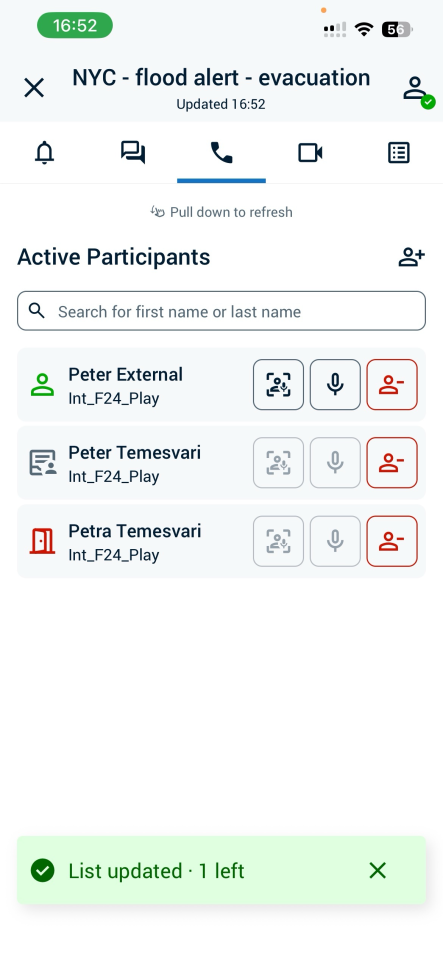
- The Active Participants list opens. Each participant shows a status icon: Invited, Joined or Left the call.
Mute, unmute or spotlight a participant
Each participant has three buttons on the right: spotlight, microphone and remove.
- To mute a participant, tap the microphone button. Tap it again to unmute.
- To spotlight a participant, tap the spotlight button. The selected participant stays unmuted and all other participants are muted.
- A message confirms the action, for example Participant muted.
Remove a participant
- Tap the red remove button next to the participant.
- The message Participant removed from the conference. confirms the action.
Add a person from the system
- On the Active Participants screen, tap the add person icon at the top right.
- The Add Participant list shows the persons who are not yet in the conference. Use Search for first name or last name to find a person.
- Tap the person.
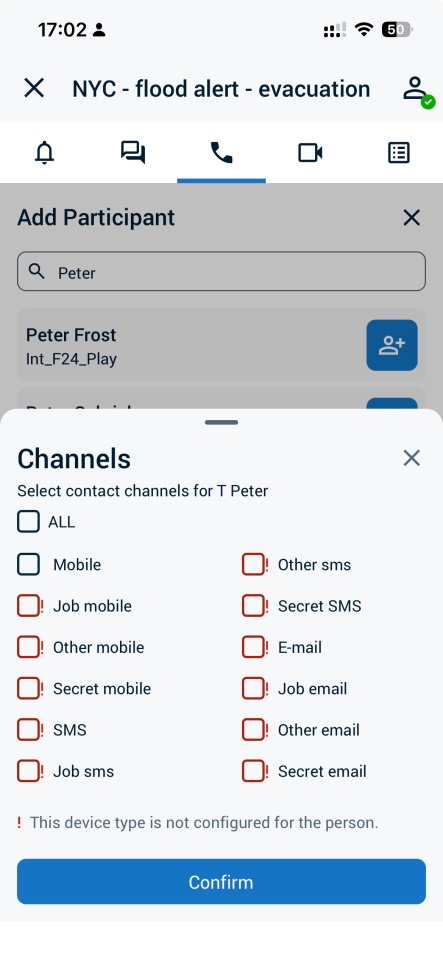
- Under Channels, select the contact channels to use, or select ALL. You can choose from mobile, SMS and email channels.
- Tap Confirm.
- The message Person added to the conference. confirms the action.
Add an external person
- On the Add Participant screen, tap Add External Person.
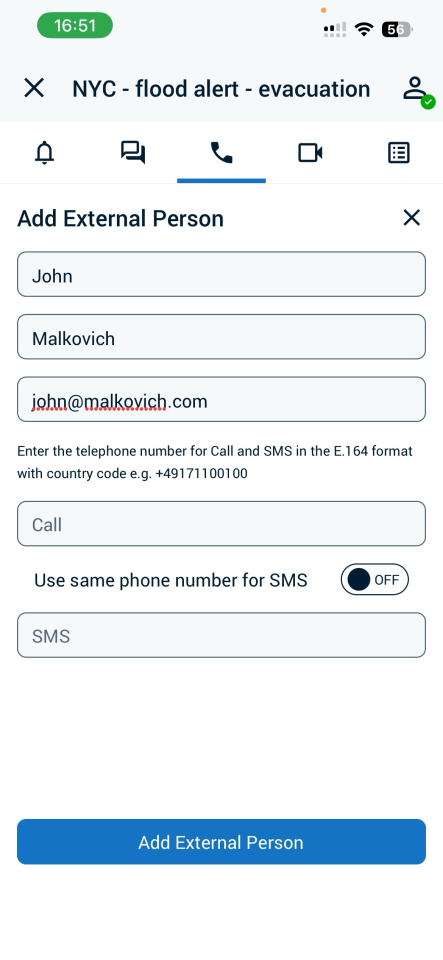
- Enter First name and Last name (required, up to 50 characters each).
- Enter at least one contact: Email, Call or SMS. Enter phone numbers in the E.164 format with country code, for example +49171100100.
- To use the call number for SMS too, turn on Use same phone number for SMS.
- Tap Add External Person.
- The message External person added to the conference. confirms the action.
Update the participant list
The list does not update live. Changes made by other conference managers show only after a refresh. To help you keep the list current, the app shows when it was last updated and reloads it after each of your actions.
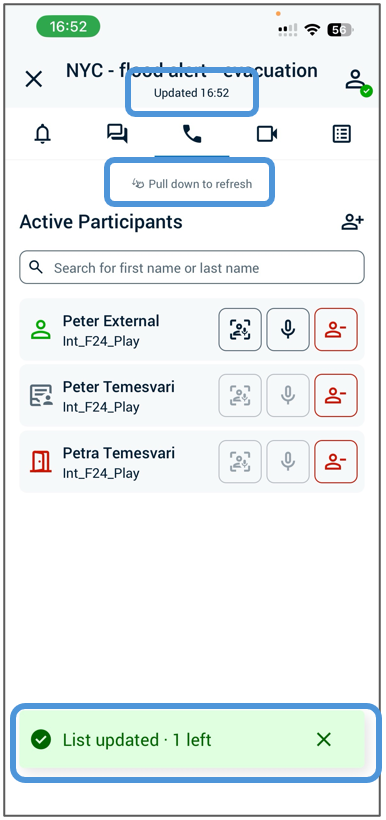
- Check the time of the last update in the header, below the alarm name, for example Updated 14:05. While the list loads, the header shows Updating….
- To load the latest state, pull the Active Participants list down. The hint Pull down to refresh on the screen reminds you of this.
- If participants joined or left since the last refresh, a message shows the changes, for example List updated · 2 joined, 1 left. Newly joined participants are highlighted with a Joined label.
Good to know
- The phone conference tab appears only for received alarms that have a phone conference.
- Important: The tab appears only if your profile has the setting Allow access to all persons in the organisational unit and its sub-units of this profile when launching an alarm or managing a conference turned on. Ask your administrator if you do not see the tab.
- The list does not update live. To see changes by other conference managers, pull the list down to refresh it.
Add an external person to a video conference
You can now also invite external persons to the video conference of an alarm.
- In the video conference of the alarm, open the Active Participants list.
- Tap the add person icon at the top right.
- On the Add Participant screen, tap Add External Person.
- Enter First name and Last name.
- Enter an Email address, an SMS number, or both. Enter the SMS number in the E.164 format with country code, for example +49171100100.
- Tap Add External Person.
- The message External person added successfully confirms the action.
External persons appear in the Active Participants list of the video conference, and you can remove them like other participants.
Nested launch forms in the app
What's new
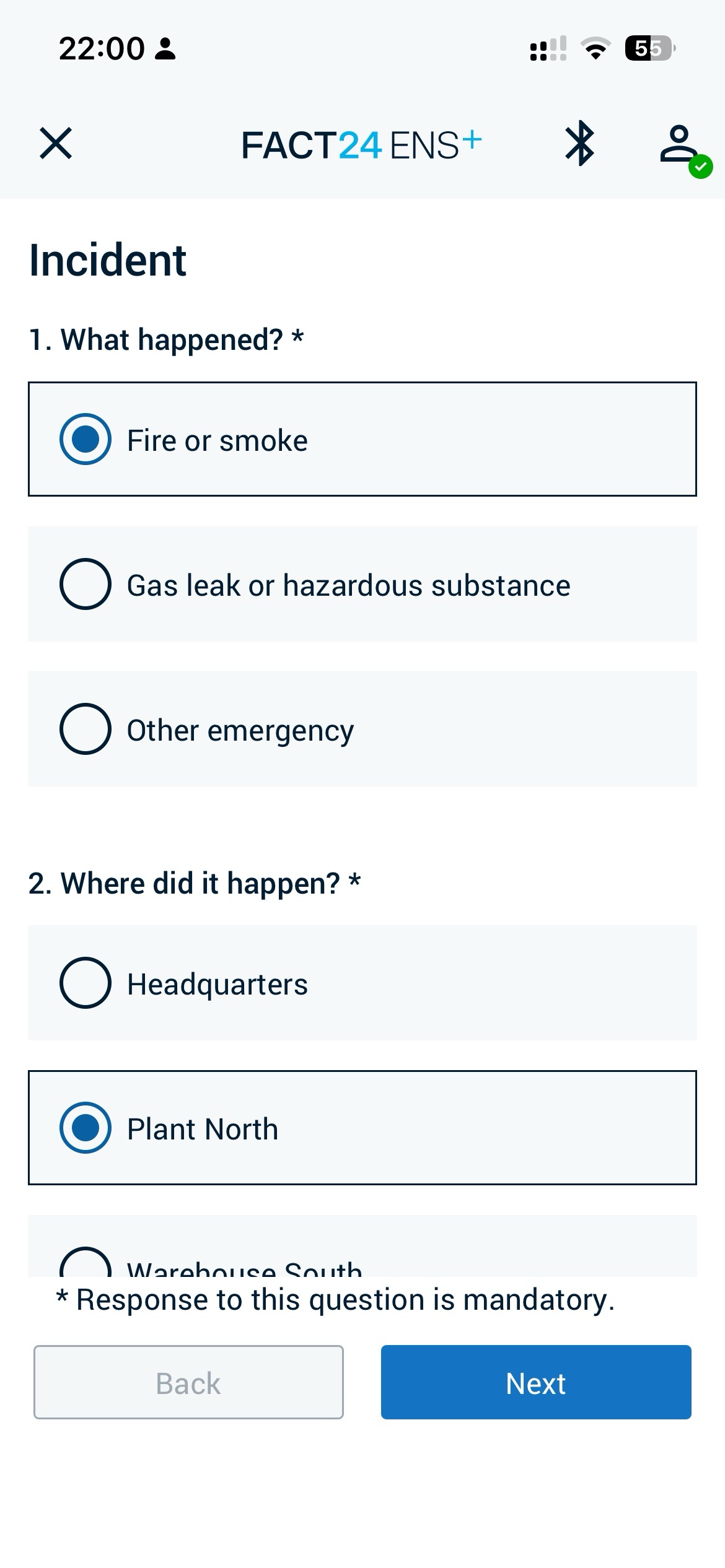
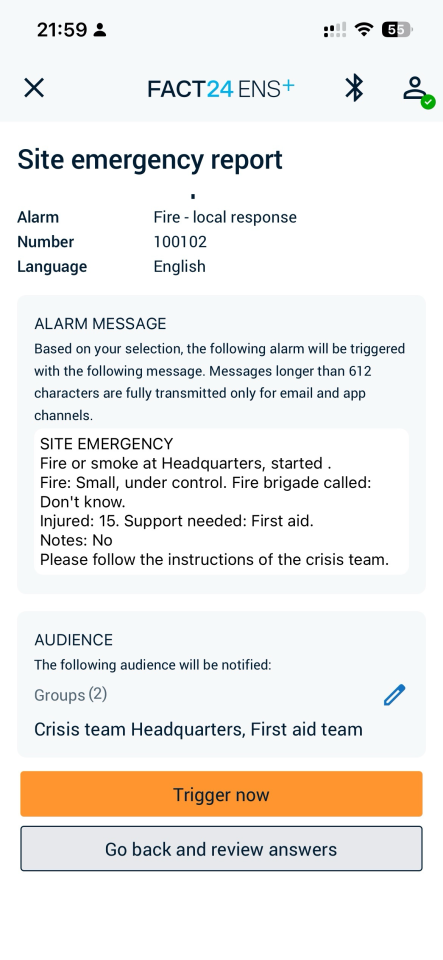
The app now supports nested launch forms. A launch form is now shown page by page, and each page can hold several questions. Your answers decide which page comes next, so you only see the questions that matter for the situation. Before you trigger the alarm, a summary shows the alarm, its message and its audience.
Why it matters
- Launch forms work the same way in the app as in the portal, including nested forms.
- You answer only the questions that apply to the situation, so you trigger the right alarm faster.
- You see who will be notified before you trigger the alarm, and you can adjust the audience if the alarm allows it.
How it works
Fill in a launch form
- On the home screen, open Launch Forms.
- Tap the launch form you want to use.
- Answer the questions on the page. Questions can be a selection list, multiple choice, free text, a number or a date.
- Tap Next. The next page depends on your answers.
- To change an earlier answer, tap Back.
Check the summary
After the last page, the summary shows: Based on your answers the following alarm will be triggered:
- Alarm, Number and Language of the alarm. Tap the alarm name to see it in full.
- Alarm message: the message composed from your answers.
- Audience: the Groups and Persons who will be notified.
Adjust the audience
If the alarm allows it, you can change the groups and persons before you trigger the alarm.
- In the Audience section, tap the edit button next to Groups or Persons.
- Select or deselect groups or persons.
- Go back to the summary.
Depending on the alarm configuration, your selection either replaces the audience of the alarm or is added to it. The text in the Audience section tells you which one applies:
- The following audience will be notified:
- The following audience will be added to the audience of the alarm and be notified:
Trigger the alarm
- Tap Trigger now.
- A confirmation screen shows whether the alarm was triggered.
To change your answers instead, tap Go back and review answers.
Good to know
- Launch forms and their pages are set up in the FACT24 ENS+ portal. The app shows them as configured.
- If the alarm does not allow changes to the audience, you can only view it. A note says that the alarm is triggered with its preconfigured audience.
- If the alarm uses its own preconfigured message, a note says that this message is sent instead of the message composed from your answers.
- You see the groups and persons in the summary only if your profile gives you access to them. The Audience section is not shown in kiosk mode.
- Check the summaryCheck the summaryThe app does not show who is currently speaking.